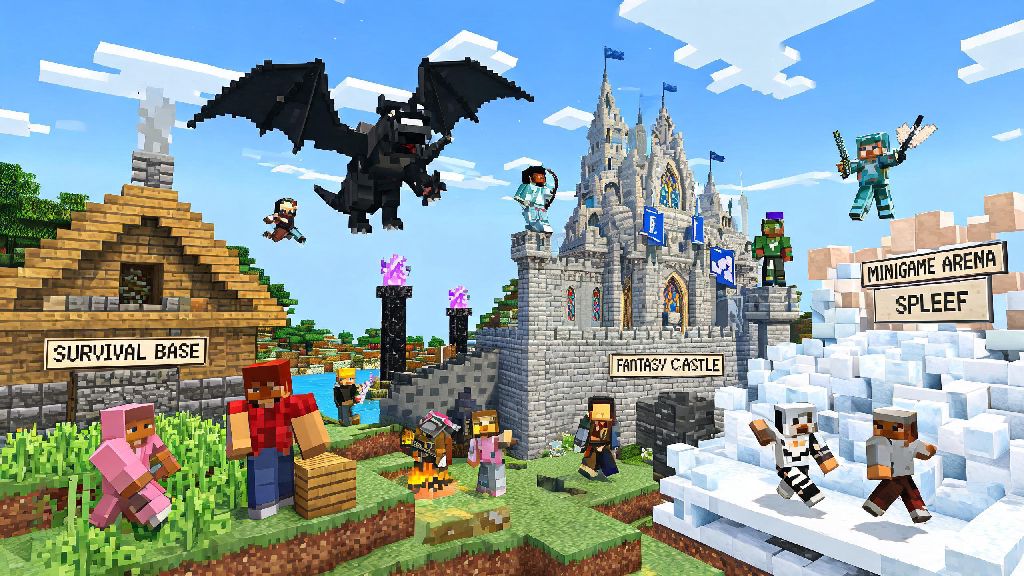
If you’ve spent hours perfecting a cozy survival base or designing an elaborate fantasy castle in single-player Minecraft, you’ve probably asked yourself at some point: how do I play online on Minecraft? There’s no better feeling than showing off your hard work to friends, teaming up to take down the Ender Dragon, or messing around in minigames with dozens of other players. A lot of new players assume online play is complicated, with lots of technical hoops to jump through, but that’s not true at all. This guide breaks down every option for online play, no matter if you’re playing with one friend or hundreds of strangers, and covers all the common mistakes you’ll want to avoid.
How Do I Play Online on Minecraft: Core Options for Every Playstyle
Before you jump into online play, it helps to pick the option that fits what you want to get out of the experience. You don’t need to learn how to code or mess with router settings unless you want to, there are low-effort options for every skill level. Minecraft Realms is the most low-effort option for casual friend groups, since Mojang hosts the server for you for a small monthly fee. You don’t have to worry about keeping your computer on or fixing connection issues, and you can invite up to 10 friends to join whenever they want. If you’re more interested in trying new game modes or meeting other players who share your interests, public server networks are ideal if you want to try new game modes without setting anything up. Most large public servers have dozens of game modes, from competitive Bedwars to casual creative building worlds, and you can join in less than a minute once you have the server IP. If you’re a bit tech-savvy and want full control over your play experience, you can also host your own private server for free, as long as you have a decent internet connection and a computer that can run it 24/7 if you want constant access.
Step-by-Step to Join a Public Online Minecraft Server
Joining a public server is the fastest way to start playing online, especially if you don’t have any friends who play Minecraft right now. First, you’ll need to make sure you have a valid, non-pirated Minecraft account, since almost all servers block pirated copies to cut down on hackers and trolls. Next, find a server that fits your interests. You can find server lists sorted by game mode, player count, and version online, or ask other players for recommendations for servers with friendly communities. Always check the server's required game version before you try to connect, since most servers only run one specific version of Minecraft, and joining with the wrong version will leave you stuck with an error message. Once you have the server IP address, open Minecraft, navigate to the Multiplayer tab, click “Add Server”, paste the IP into the server address field, give it a name you’ll recognize, and save. The server will pop up in your multiplayer list, and you can click join to start playing right away. I remember my first time trying to join a popular Skyblock server, I spent 20 minutes restarting my game and checking my internet before I realized I was running version 1.19 when the server was still on 1.18.2. Don’t make that same mistake, it’s a waste of time. Some smaller community servers have whitelists, which means you’ll need to fill out a short application on their Discord or website before you can join, to make sure new players are a good fit for the community.
How to Play Online on Minecraft With Close Friends Only
If you don’t feel like playing with random strangers, you have a few different options for private online play with just the people you invite. The easiest option is Minecraft Realms, which we mentioned earlier. You can sign up for a Realm directly through your Minecraft game, and invite friends using their Minecraft gamertag, no extra steps needed. If you’re all in the same house or on the same wifi network, LAN play is completely free and takes 10 seconds to set up. Just open your single-player world, press escape, click “Open to LAN”, choose if you want to allow cheats and what game mode to use, and your friends will see the world pop up in their multiplayer tab automatically. If you want more control, more player slots, or don’t want to pay for Realms, you can set up your own self-hosted server. You can download the server file directly from the official Minecraft website for free, and run it on your own computer. Never share your public IP address with people you don't trust if you’re running a self-hosted server, since it can be used to target your home network with malware or DDoS attacks. To help you pick the right private play option for your group, here’s a quick breakdown of pros and cons for each:
Critical Safety Tips for Minecraft Online Play
Most Minecraft servers are full of friendly, creative people, but like any online space, there are a few bad actors you’ll want to watch out for, especially if you’re playing on public servers or letting a kid play online. First, never share personal information with anyone you meet in game, even if you’ve played with them for a few weeks. That includes your real name, home address, school name, phone number, or social media accounts. If someone asks you for that information, just ignore them or leave the server. Second, use the in-game mute and report functions if someone is being toxic, harassing you, or breaking server rules. Most large servers have active moderation teams that respond to reports within a few minutes, so you don’t have to put up with bad behavior. If you’re a parent setting up online play for your child, Minecraft's parental controls let you restrict access to mature servers, turn off in-game chat entirely, or only let your child join games with people you’ve approved on their friends list. I’ve seen dozens of new players fall for common scams on public servers, where someone will message you saying they’ll give you free rare in-game items, ranks, or Minecoins if you click a link or give them your account password. No legitimate server or player will ever ask you for your account password, so never share it with anyone, and don’t click any links sent to you in private messages from people you don’t know. It’s also a good idea to only download mod packs and resource packs from trusted, well-known sites, since random files sent to you in game could contain malware that steals your personal information.
At the end of the day, there’s no one right way to answer how do I play online on Minecraft. You can start small by playing LAN with a friend who lives down the street, sign up for a Realm to play with your long-distance friend group, or jump into a huge public server to try competitive minigames for the first time. You don’t need any special technical skills to get started, and you can always switch between different play options as your needs change. The most important thing is to have fun, be respectful of other players, and prioritize your safety when you’re playing with people you don’t know. You’ll probably make a few new friends, build some cool stuff, and have way more fun than you ever did playing single-player.