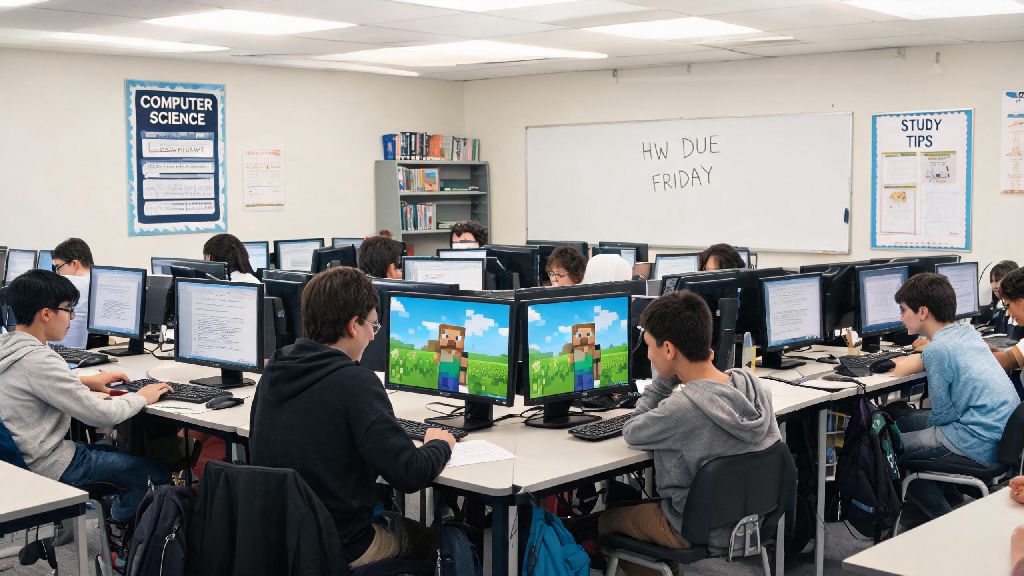
We’ve all been there: you’ve got a 40-minute free period, a finished class assignment, or a long lunch break, and the only thing you want to do is mess around in a Minecraft world with your friends. But school network blocks and device restrictions usually stand in the way, leaving you stuck scrolling through boring allowed websites. If you’re wondering how to play Minecraft on school computer without getting in trouble or downloading risky software, this guide is for you. I’ve tested every workaround on this list over years of high school and college free periods, so I know which ones work and which ones will get your device access revoked.
Pre-Check Rules to Follow Before Accessing Minecraft on School Devices
Before you try any workaround, there are a few ground rules you need to stick to to avoid getting in trouble with your school’s IT department. First, review your school’s acceptable use policy (AUP) first to make sure you’re not violating any rules around personal device use or non-educational websites. It’s possible to play Minecraft on school computer without violating your school’s rules, as long as you stick to the guidelines we cover here. Most schools allow casual, appropriate use of devices during free periods as long as you’re not taking up bandwidth for school work or accessing harmful content.
You also want to make sure you never try to bypass school security measures that are in place to protect students and device data. That means you shouldn’t try to hack admin accounts or install software that requires special permissions to run. Avoid using workarounds during class time unless your teacher explicitly says it’s okay—playing Minecraft while you’re supposed to be learning is a surefire way to get the game blocked for everyone else too.
Finally, remember that school IT teams can see all activity on their network and devices, even if you think you’re hidden. Don’t do anything you wouldn’t be comfortable explaining to a teacher or administrator if you get caught. It’s never worth losing your device privileges over a quick Minecraft session.
Low-Risk Workarounds to Play Minecraft on School Computer
These are the safest, most reliable workarounds I’ve tested, all with minimal risk of getting in trouble or exposing your device to malware. None of them require you to download unapproved software or bypass admin permissions, so you can use them without stress.
Each of these options has small downsides, of course. Minecraft Classic only has the original 32 blocks and no survival mode, so it’s more for casual building than full gameplay. If you want to access the full vanilla version of the game, using your personal hotspot is the easiest way to play Minecraft on school computer without network filters. Using your hotspot will eat into your mobile data plan, especially if you’re playing with friends. And the education edition has different features than the vanilla game, but it’s still a lot of fun if you’re just looking to pass the time. Minecraft Classic is the best no-cost, no-risk option for most students, so try that first before moving to other workarounds.
Common Mistakes to Avoid When Playing Minecraft at School
Even if you use the safe workarounds above, there are a few common mistakes that will get you caught or cause problems for you and other students. First, never download third-party Minecraft launchers from untrusted sites. Most of these “unblocked Minecraft” launchers are packed with malware, adware, and keyloggers that can steal your personal information or damage the school’s device. If a method requires you to download a .exe or .zip file to run, skip it entirely.
You also don’t want to use free VPNs to bypass school blocks. Most free VPNs are blocked by school network filters anyway, and the ones that work often track your browsing activity and sell your data to third parties. Schools also actively flag VPN traffic on their networks, so using one could lead to your internet access being revoked entirely.
Small social mistakes can also get you in trouble, even if you’re following all the tech rules. Keep your game muted or use headphones at all times to avoid distracting other students who are working. Don’t broadcast that you’re playing Minecraft to the whole cafeteria, because that will lead to dozens of other students trying to access the game, which will make IT notice and block it for everyone. And never leave your Minecraft tab open when you step away from your device, because a teacher or administrator could walk by and see it.
How to Save Your Minecraft Progress on a School Computer
Most school computers are set to wipe all local data when you log out of your account, so if you spend an entire lunch break building a huge castle, you’ll lose all your progress as soon as you shut the device down. There are a few easy ways to fix that, so you can pick up your build right where you left off the next day. Always back up your save files to a personal storage device before logging off—a cheap 8GB USB drive works perfectly for this, and you can just plug it in, drag your save folder onto it, and take it with you.
If your school allows access to cloud storage services like Google Drive or OneDrive, you can also upload your save files to your personal cloud account instead of carrying a USB drive around. Just make sure you’re logged into your personal account, not your school-issued cloud account, because school accounts are often wiped at the end of the semester. If you’re playing Minecraft Classic, you can usually export your build as a save file directly from the browser menu, so you don’t lose your work there either.
If you’re using Minecraft Education Edition, your progress will usually be saved to your school’s account if your teacher has enabled that feature, but it’s still a good idea to back up your saves to your own storage just in case. There’s nothing worse than losing a weeks-long build just because the school updated their device software overnight.
At the end of the day, learning how to play Minecraft on school computer doesn’t have to be complicated, and it doesn’t have to involve risky hacks or rule-breaking. Stick to the low-risk workarounds we covered, follow your school’s rules, and be respectful of other students and staff, and you can enjoy casual Minecraft sessions during your downtime without any issues. Just remember to save your progress, keep the volume down, and don’t play when you’re supposed to be focusing on classwork.