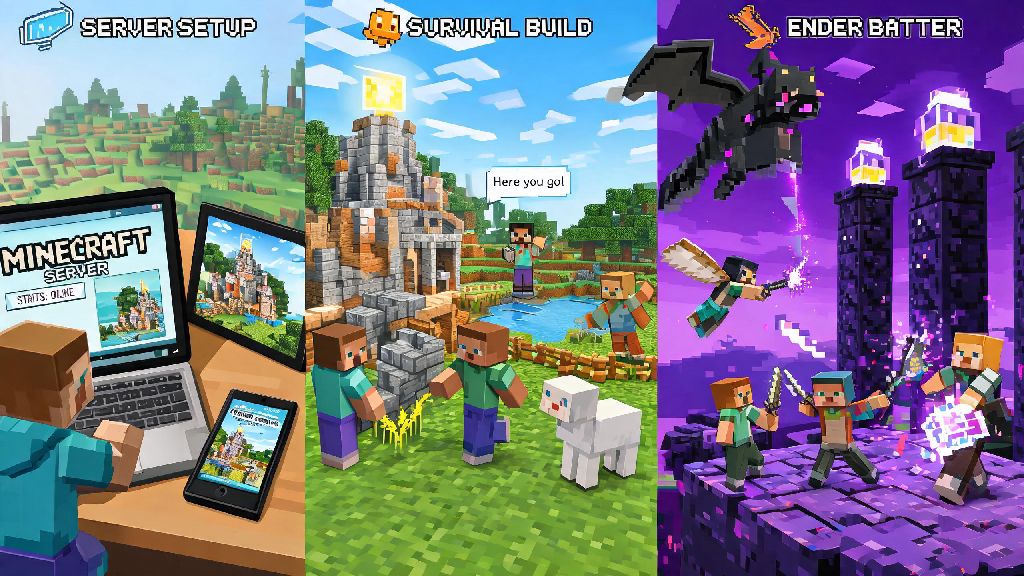
I’ve been playing Minecraft for over 12 years, and I still remember the first time I fumbled through settings for an hour trying to join my friend’s survival world. A lot of new players pick up the game for the creative freedom, but quickly realize half the fun comes from sharing builds, taking down ender dragons, and messing around with people you like. If you’re stuck figuring out how to play online in Minecraft, this guide breaks down every option you need to know, no fancy tech skills required.
Core Methods for How to Play Online in Minecraft for All Skill Levels
You don’t need to pay for expensive server hosting or learn complicated coding to play Minecraft online. There are three main options to pick from, depending on how many people you want to play with, how much control you want over the world, and how much you’re willing to spend. I’ve used all three for different groups over the years, and each has clear pros and cons for different use cases.
If you’re brand new to online play, I recommend starting with either a Realm or a popular public server first. Self-hosted servers are great if you want to run a modded world, but they can be a headache to maintain if you don’t have experience troubleshooting network issues. You can always switch to a different method later if your group grows or your needs change.
Step-by-Step Setup for Cross-Platform Online Minecraft Play
One of the best parts of modern Minecraft is that you can play with friends no matter what device they’re on, whether they’re on PC, Xbox, PlayStation, Switch, or mobile. But cross-platform play only works if you have a few settings sorted out first, and a lot of people get stuck at this step because they skip small setup requirements.
First, link all your Minecraft accounts to the same Microsoft profile. Even if you’re playing on a PlayStation or Switch, you’ll need to sign in with a free Microsoft account to access cross-platform play. Make sure all your friends add each other as friends on your Microsoft accounts, not just on your console or device friend lists, otherwise you won’t see each other’s worlds.
Next, make sure all players are running the same game version. If you’re playing Java edition, you can adjust your game version in the launcher under the “Installations” tab. For Bedrock edition, your game will usually update automatically, but you may need to manually check for updates if you’re on a console with auto-updates turned off. If someone is on a different version, they won’t be able to join your world or server at all.
To join a friend’s world, you just need to go to the “Friends” tab in the main menu, and you’ll see any open worlds they’re hosting listed. If you’re joining a public server, go to the “Servers” tab, enter the server address and port, and save it to your list for easy access later. It usually takes less than 30 seconds to connect if all your settings are correct.
Common Online Play Errors and How to Fix Them Fast
Even if you follow all the setup steps perfectly, you’ll probably run into a connection error at some point. Most of these errors are easy to fix, and you don’t need to be a tech expert to sort them out. I’ve dealt with every one of these errors dozens of times helping friends and server members, so these fixes are all tested to work.
The most common error is the “connection timed out” message when trying to join a world. Always double-check your internet connection before troubleshooting deeper issues. Try loading a website on your device to make sure your wifi is working, and restart your router if you’re having slow or spotty service. If your internet is fine, ask the host to check if they have their firewall blocking Minecraft connections, or if they set their world to private by accident.
Another common error is the “invalid session” message, which usually happens if you haven’t restarted your game in a while. Just close Minecraft completely, open it back up, and log back in to your account, and the error will usually go away. If you’re getting a “version mismatch” error, double check that you and the host are running the same game version, including any mod packs or resource packs required for the server.
If you’re still having issues connecting, try joining a different public server to see if the problem is on your end or the host’s end. If you can join other servers fine, the issue is with the specific world or server you’re trying to reach, and you can ask the host to check their server settings or restart their device.
Safety Rules to Follow When Playing Minecraft Online
Minecraft is generally a very safe game for players of all ages, but there are still a few basic rules you should follow to protect yourself when playing with strangers online. I’ve moderated several large public servers over the years, and I’ve seen every type of scam and toxic behavior you can imagine, so these rules will keep you out of trouble.
Never join servers that ask for your account password or personal information. No legitimate Minecraft server will ever ask you for your Microsoft account password, your address, your phone number, or your full name. If someone sends you a link claiming you need to “verify your account” to join the server, don’t click it, and report the user to the server moderators immediately.
Another important rule is to use the in-game block and report features if someone is being toxic, harassing you, or spamming you with messages. Most large servers have active moderation teams that will review reports within a few hours, and you don’t have to engage with people who are ruining your fun. If you’re a parent letting your kid play online, you can turn on chat filters in the Minecraft settings to block inappropriate language, and limit their play to only Realms with people you know.
You should also avoid sharing screenshots of your private builds or server addresses on public social media if you don’t want random people joining your world. Griefing is still common on unmoderated servers, and if you share your server address publicly, you might come back to find your base blown up by random strangers. It’s always better to only share server addresses with people you trust.
At the end of the day, Minecraft’s biggest magic comes from sharing the world with people you enjoy playing with. Whether you’re building a giant castle with your siblings, competing in bedwars tournaments with random players from around the world, or running a modded survival server with your college friends, knowing how to play online in Minecraft opens up endless new ways to enjoy the game. You don’t need fancy skills or a big budget to get started, so grab your friends, pick a mode, and jump in.