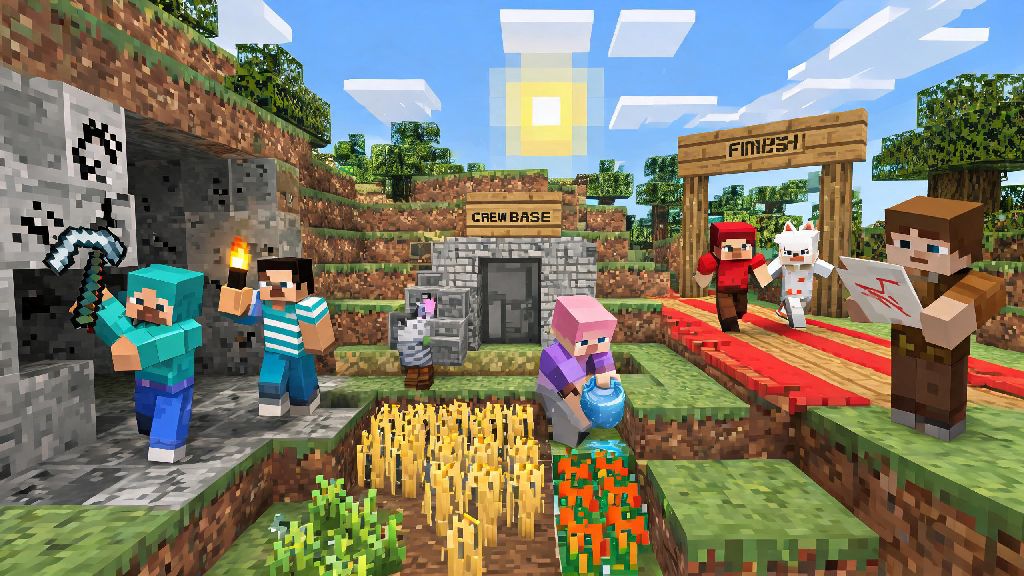
If you’ve spent weeks building a secret base or defeating the Ender Dragon alone, you’ve probably wondered how to play on multiplayer on Minecraft to share those moments with friends or meet new players. I still remember the first time I joined a friend’s survival world, we spent 3 hours chasing each other with baked potatoes instead of building the farm we planned, and that’s the magic of multiplayer—it turns every small in-game moment into a shared memory. Whether you want to team up for a hardcore survival run, compete in mini-games, or show off your latest build, multiplayer opens up a whole new layer of the game you won’t get playing solo. This guide covers every method you can use, even if you’ve never joined a server before, plus fixes for the most annoying issues that pop up when you’re trying to connect.
How to Play on Multiplayer on Minecraft: 3 Common Methods for All Platforms
You don’t need fancy tech or paid subscriptions to play multiplayer for most cases, though some options do have extra perks if you’re willing to spend a little. The three most popular methods work across PC, console, and mobile, so you can pick the one that fits who you’re playing with:
LAN play is the simplest option if you’re all in the same room. Just open your single player world, hit escape, click “Open to LAN”, pick your preferred game mode and if cheats are allowed, and your friends will see the world pop up in their multiplayer tab automatically. It’s perfect for sleepovers or family game nights, but it won’t work if your friend lives across the country, since everyone has to be on the exact same network. For public servers, you can find curated server lists sorted by game type, from vanilla survival to creative plot servers to competitive mini-games like Bed Wars or Skyblock. For public servers, stick to well-rated server lists to avoid scam or malware-infected servers. Just copy the server IP, go to your multiplayer menu, click “Add Server”, paste the IP, and you can join right away. Always double-check server rules before you start playing, some servers ban griefing or unprovoked PvP, and you can get kicked fast if you break them. For private worlds that stay online even when the host isn’t playing, you can use Mojang’s official Realms subscription, which costs around $7.99 a month for up to 10 players and requires zero technical setup. If you’re tech-savvy, you can also host your own private server for free, but you’ll need to handle port forwarding and security settings to keep unwanted players out.
Key Settings to Adjust Before Joining Your First Multiplayer World
A lot of new players run into avoidable errors because they haven’t adjusted a few basic settings first, so taking 2 minutes to check these will save you a lot of frustration later. First, make sure your account settings allow multiplayer play. If you’re on Java Edition, you need a linked Microsoft account to access multiplayer, and if you have a child account, your parent may have disabled multiplayer access by default. You can check your privacy settings directly through your Microsoft account dashboard if you keep getting “multiplayer is disabled” errors when you try to join a server. Next, adjust your in-game settings to fit multiplayer play. Turn on “Auto-Join Invites” if you’re playing regularly with a friend group so you don’t miss their invites when you log on. Lower your render distance to 8-12 chunks if you’re joining a crowded public server, high render distance can cause major lag when there are hundreds of player builds loaded at once. Turn on the built-in chat filter if you don’t want to see inappropriate messages from random players on public servers. I once forgot to turn on my chat filter when my 8-year-old cousin was watching me play, and I had to close the game fast because someone was spamming nonsense in chat. It’s a small setting but saves a lot of awkward moments. Finally, make sure your game version matches the server version. If the server is running 1.20.1 and you’re on the latest 1.21 update, you won’t be able to connect. You can switch your game version easily in the Java Edition launcher under the “Installations” tab, or update your game directly on console or mobile to match the server’s listed version.
Troubleshooting Common Multiplayer Connection Issues
Even if you follow all the steps perfectly, you’ll probably run into a connection issue at some point. I’ve spent way too many nights troubleshooting these with my friend group, so I’ve got the most common fixes down pat. If you can’t see a friend’s LAN world, first make sure all players are connected to the exact same Wi-Fi network, and no one has a VPN running that’s routing their connection to a different location. Most of the time, that’s the only issue. If you still can’t see the world, check that your firewall isn’t blocking Minecraft from accessing your local network. Windows Firewall often blocks Minecraft by default the first time you try to play multiplayer. To fix this, just add Minecraft to your firewall’s allowed apps list, and you should be good to go. If you get a “failed to connect to server” error when joining a public server, first check if the server is down using free online server checkers, to see if other players are having the same issue. If the server is up, double-check that you typed the IP address correctly, even one wrong number or letter will make the connection fail. If you’re playing on console, remember you need an active subscription to PlayStation Plus, Xbox Live, or Nintendo Switch Online to access multiplayer, even if you’re joining a free public server. If you’re dealing with lag, rubberbanding, or blocks reappearing after you break them, try lowering your render distance, closing other apps that are using your internet bandwidth, or joining a server that’s hosted closer to your physical location. Servers hosted on the other side of the world will almost always have higher ping than ones hosted in your own country, so pick local servers when you can.
Unwritten Rules for Positive Minecraft Multiplayer Experiences
Joining multiplayer worlds, especially public ones, comes with a set of unwritten rules that make the game fun for everyone. I’ve seen a lot of new players get banned or yelled at for breaking these without even realizing they exist, so it’s worth going over the basics first. First, don’t grief other people’s builds unless the server explicitly says griefing is allowed. Griefing is breaking, looting, or defacing other players’ bases, and it’s the fastest way to get permanently banned from most servers. Even if you think a build is abandoned, ask a mod or the build owner before you touch it, you never know if someone is just taking a short break from the server. Always ask permission before using someone else’s resources, even small things like coal or wheat. Most players are happy to share if you ask nicely, but they’ll be annoyed if you take their hard-earned stuff without checking first. If you’re playing on a survival server, don’t beg other players for free items or diamonds constantly. It’s fine to ask for help if you’re new and don’t know how to make a crafting table, but don’t demand full diamond gear every time you log on, it gets old fast. If you’re hosting a private world for friends, be clear about the rules upfront: Is PvP allowed? Can people build within 100 blocks of the main base? Are cheats enabled for everyone or just the host? Setting clear expectations before everyone joins prevents arguments later. Also, keep chat friendly and appropriate, a lot of kids play Minecraft, and you never know who’s on the other side of the screen.
At the end of the day, learning how to play on multiplayer on Minecraft is all about having fun with other people, so don’t stress if you run into small issues at first. You don’t need to be a pro at the game or a tech expert to join a server or play with friends, just pick the method that fits your group, adjust your settings, and follow the basic rules to make sure everyone has a good time. I still play on the same private survival server I started with my college friends 5 years ago, and we’ve built entire cities and gone on dozens of adventures together that we still talk about. It doesn’t matter if you’re playing for 30 minutes a week or 3 hours a day, multiplayer turns Minecraft from a fun solo game into something you can keep coming back to for years.