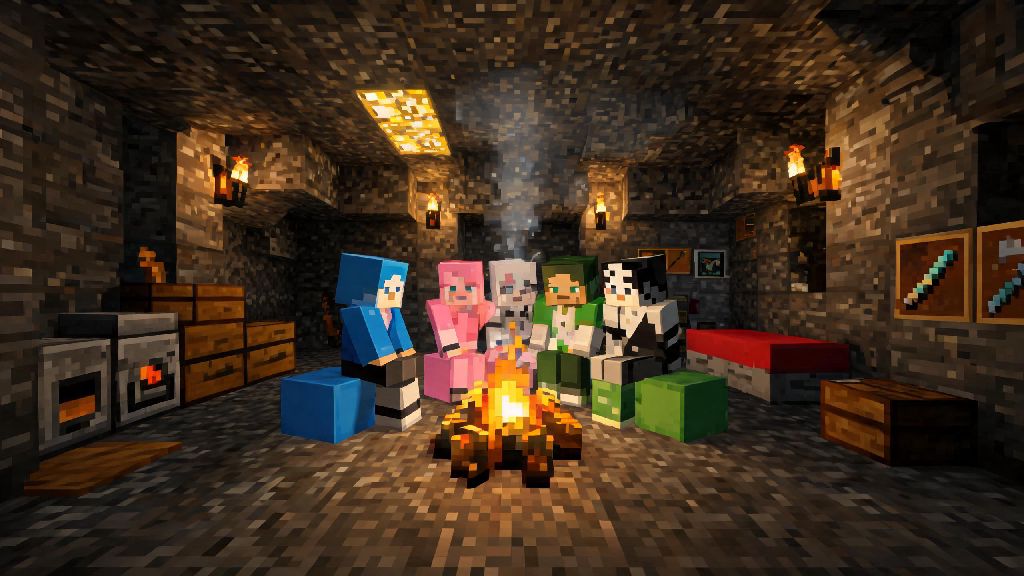
If you’ve spent hours building a hidden underground base or taming a herd of cats alone in Minecraft, you know half the fun of the game comes from sharing those moments with other people. Whether you want to team up to beat the Ender Dragon, prank your best friend’s base, or join a massive roleplay server, learning how to play Minecraft with other people opens up a whole new layer of gameplay you won’t get from single-player mode. I’ve been playing Minecraft multiplayer off and on for over a decade, and I’ve worked through every connection error, cross-platform mismatch, and toxic public server run-in you can think of, so I’ve broken down every safe, easy way to play with others no matter what platform you’re on.
How to Play Minecraft with Other People on Private, Invite-Only Worlds
Private, invite-only worlds are the best place to start if you’re new to multiplayer, because you only play with people you already know and trust, and you set all the rules for the world. The easiest option for most players is Minecraft Realms, a paid hosting service run directly by Mojang that lets you host a world 24/7 without leaving your device on or messing with router settings. Realms works for both Java and Bedrock editions, and you can invite up to 10 other players to join at any time, even if you’re offline. If you’re playing with people in the same house, LAN play is completely free, no subscription required — just open your single-player world, toggle “allow LAN players” on in the pause menu, and other people on the same Wi-Fi network will see your world pop up in their server list.
If you’re a little more tech-savvy, you can also host your own private server on your PC or a separate hosting device, which gives you full control over mods, game rules, and player limits. No matter which private world option you pick, there are a few key things you’ll need to make it run smoothly:
One common gotcha a lot of new players miss is that console players will need an active online service subscription (like Xbox Live, Nintendo Switch Online, or PlayStation Plus) to join or host private worlds, even if you’re using Realms. It’s a small extra cost, but it’s non-negotiable for console multiplayer across almost all games, not just Minecraft.
Cross-Platform Play Tips for Multiplayer Minecraft
One of the most common reasons players can’t join each other’s worlds is a version mismatch between Minecraft editions. There are two main versions of the game, and they are not compatible with each other, no matter what settings you tweak. Bedrock Edition is the version that works across Xbox, PlayStation, Switch, mobile, and Windows 10/11, so if your group has mixed devices, make sure everyone is on Bedrock to play cross-platform. Java Edition is only for PC, Mac, and Linux, so if all your friends play on PC, Java works perfectly and has way more mod and custom server options than Bedrock.
All cross-platform play now requires you to link a free Microsoft account to your Minecraft profile, even if you’re playing on PlayStation or Switch. The account linking process only takes a minute, and it also lets you save your skins, worlds, and progress across devices if you play on more than one platform. If you’re having trouble finding your friend’s world in your browser, make sure they have their multiplayer settings turned on in the game’s main settings menu — a lot of players accidentally toggle that off when they first install the game, and it blocks everyone from seeing their world.
Navigating Public Minecraft Servers Safely
Once you’re comfortable playing with people you know, public servers are a great way to meet new players, try new game modes, and explore massive community builds you could never make on your own. You can find servers for everything from vanilla survival and creative plot building to mini games like Bed Wars and full fantasy roleplay worlds with their own lore and economies. The server browser built into both Java and Bedrock editions lets you filter servers by player count, game mode, and moderation level, so you can easily find options that fit what you’re looking for.
Public servers do come with a few safety risks, so there are a few rules you should always follow to stay safe. Never share personal information on public servers, that includes your real name, location, school, or social media handles, no matter how friendly another player seems. Stick to servers with active moderation teams, which usually list their moderation rules and staff team on their server description page, so you know there’s someone to report toxic players to. If you’re playing with younger kids, most servers let you turn off in-game chat entirely, or restrict it to pre-written messages so you don’t have to worry about them seeing inappropriate content. If you find a server you really like, most have separate community spaces where you can connect with other regular players and stay up to date on server events and updates.
Fixing Common Multiplayer Minecraft Connection Issues
Even if you follow all the steps perfectly, you’ll probably run into a connection issue every now and then — even long-time players deal with them all the time. The most common error is a “connection timed out” message when you try to join a world, and the first fix to try is double checking that both you and the host are on the exact same Minecraft version, including any mod or resource pack downloads. Even a tiny, purely cosmetic mod that only one player has installed can break the connection for everyone, so make sure all mod lists are identical if you’re playing on a modded server.
If you’re still having trouble connecting, Make sure your firewall or antivirus software isn't blocking Minecraft from accessing the internet, that’s a super common issue for PC players that a lot of people overlook. You can usually fix this by adding Minecraft to your firewall’s list of allowed apps in your device settings. If you’re on console and can’t join a cross-platform world, check your NAT type in your console’s network settings — strict NAT types almost always block cross-platform connections, and you can usually fix this by adjusting your router’s settings or contacting your internet provider. If all else fails, try restarting your game and your router first, that fixes 90% of random connection issues without any extra work.
At the end of the day, Minecraft is made to be shared, and figuring out how to play Minecraft with other people doesn’t have to be complicated, even if you’re totally new to multiplayer. Start small with a private LAN world with friends in the same house, or sign up for a free trial of Realms if you want to play with long distance friends, and work your way up to public servers if you want to meet new players who love the game as much as you do. Just remember to stick to servers with active moderation, never share personal info, and don’t get frustrated if you run into a connection issue here and there, even long time players deal with those from time to time. You’ll be beating the Ender Dragon with your friends or building a massive shared castle before you know it.