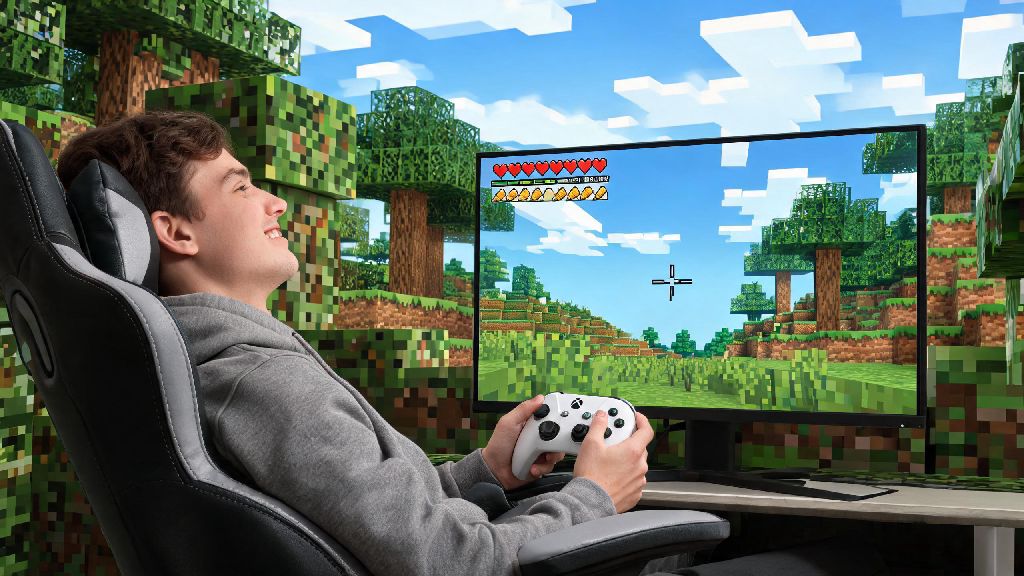
If you've spent hours hunching over a keyboard and mouse while exploring Minecraft Java worlds, you've probably wondered if there's a more relaxed way to play. Many players prefer the ergonomic feel of a controller for long building sessions or casual exploration, but vanilla Minecraft Java doesn't ship with native controller support out of the box. That's where our guide to how to play Minecraft with controller on pc java comes in, with tested, no-hassle steps that work for Xbox, PlayStation, Switch Pro, and most third-party controllers too.
Pre-Requisites for Controller Setup on Minecraft Java PC
Before you jump into the setup process, there are a few basic things you'll need to have ready to avoid unnecessary delays. First, a compatible controller: Xbox One/Series X/S, PS4/PS5, Switch Pro, or most Bluetooth/USB third-party controllers will work with the setup we cover. Second, a working copy of Minecraft Java Edition, updated to the latest stable release to match the most recent mod versions. Third, you'll need a mod loader like Forge or Fabric, both free to install and widely trusted across the Minecraft community. Make sure your mod loader version matches your Minecraft Java version exactly to avoid crashes or compatibility issues down the line. You don't need any paid software for this setup, despite what some random forum posts might claim. All the tools we'll cover are 100% free and trusted by millions of players.
How to Play Minecraft with Controller on PC Java: Step-by-Step Setup
The entire setup process takes less than 10 minutes for most players, even if you've never installed a Minecraft mod before. First, install your chosen mod loader. Both Forge and Fabric have simple one-click installers you can run in seconds, just make sure you select the "client" install option when prompted. Next, download the Controllable mod, the most popular and well-supported controller mod for Minecraft Java. Drop the mod file into your Minecraft "mods" folder, which you can find by typing %appdata%\.minecraft\mods into your Windows search bar, or navigating to ~/Library/Application Support/minecraft/mods on Mac. Always download mod files from official, verified sources to avoid malware or corrupted files that can break your game. Once you've dropped the mod in, launch Minecraft using your mod loader profile, plug in or pair your controller, and you're ready to go. Most controllers will be recognized automatically, but you can tweak button mappings, sensitivity, and deadzone settings in the dedicated in-game controller settings menu to match your playstyle perfectly.
Common Controller Setup Issues and Quick Fixes
Even with a smooth install, you might run into small hiccups when first using a controller on Minecraft Java. The most common issue is controller input not being recognized at all, which is almost always caused by a mismatched mod and game version, or forgetting to launch the game with your mod loader profile. Another frequent complaint is stick drift or unresponsive buttons, which you can fix by recalibrating your controller in your PC's system settings, or adjusting the deadzone sliders in the in-game controller menu. If you're taking a break from troubleshooting to clear your head, lots of players switch to quick, casual games to reset their focus before jumping back in, and Love Rummy is a popular pick for short, engaging play sessions that don't require a ton of focus. Other small issues, like controller input working in menus but not in-game, can be fixed by disabling Steam Input for Minecraft Java in your Steam library settings, if you have the game added to Steam. If you use Steam to launch Minecraft, you will need to turn off its default controller override to let the Controllable mod handle input properly. We've put together a short list of quick checks to run if you run into any issues:
Pros and Cons of Using a Controller for Minecraft Java PC
A lot of players swear by controllers for Minecraft, but they aren't the best fit for every playstyle. The biggest benefit is ergonomics: you can lean back, sit further from your screen, and avoid the wrist strain that comes with long hours of keyboard and mouse use. It's also much easier to pull off smooth camera movements for cinematic builds or exploration runs with a controller's analog sticks. Players who focus on casual survival or creative building often prefer controllers for their relaxed feel. That said, controllers do have drawbacks. If you play a lot of PvP or speedrunning, keyboard and mouse will almost always give you faster, more precise input for actions like quick block placement, aim, or inventory management. You also can't map as many custom hotkeys to a controller as you can to a full keyboard, which can be a downside if you use lots of mods with custom keybinds. You can always switch between controller and keyboard and mouse whenever you want, no restarts required, so you can pick the best input method for whatever task you're doing in-game. Another small downside is that some very niche modded mechanics might not have default controller mappings, so you'll have to set those up manually if you use them often.
At the end of the day, the best input method for Minecraft Java is whatever feels most comfortable for you. If you prefer the feel of a controller, you don't have to switch to Bedrock Edition to get that support. With just a few quick mod installs and minor adjustments, you can easily learn how to play Minecraft with controller on pc java exactly the way you want, with all the mod support and customizability that makes Java Edition so popular. Take a few minutes to test different button mappings and sensitivity settings to find the setup that fits your playstyle, and you'll be exploring, building, and surviving in comfort in no time.