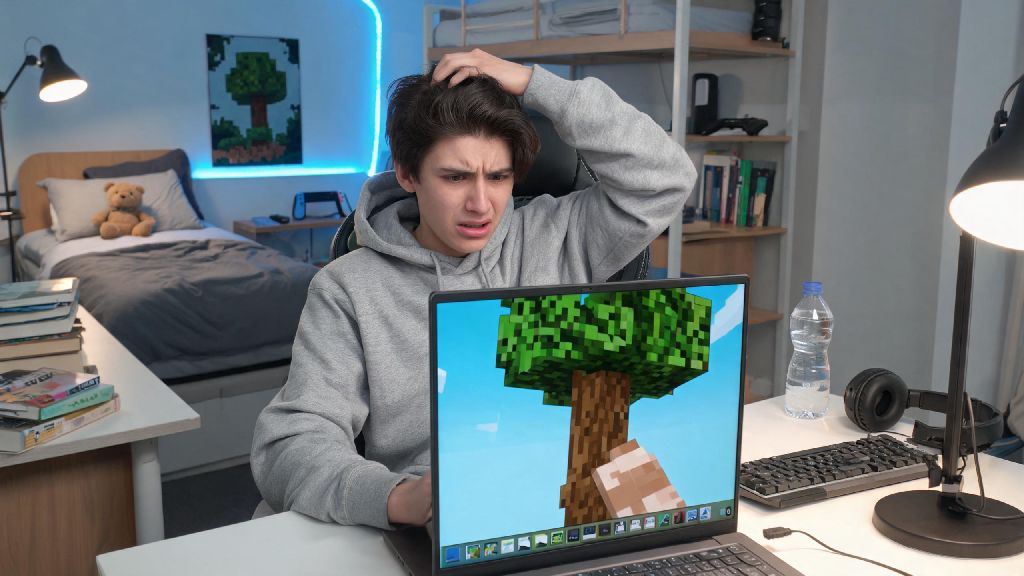
I remember my first time booting up Minecraft on my old beat-up laptop back in high school, I spent 20 minutes just spinning in circles wondering why my character wouldn’t hit the oak tree right in front of me. If you’re feeling just as lost right now, you’re in the right place. This guide breaks down exactly how to play Minecraft on computer, no prior gaming experience required, so you can go from confused newbie to building your first cozy cottage by the end of your first session.
How to Play Minecraft on Computer: Initial Setup for New Players
First, you’ll need to purchase the correct edition for your device, as there are two main versions built for PC play. Most players choose between Java Edition and Bedrock Edition, and both have unique perks depending on how you want to play. Java Edition is only compatible with Windows, Mac, and Linux devices, and it’s the best pick if you want to mess with mods, custom skins, or join community-run servers with unique game modes like roleplay or custom minigames. Bedrock Edition, on the other hand, works across Windows, Xbox, PlayStation, mobile, and Nintendo Switch, so it’s the right choice if you want to play with friends who use consoles or phones instead of computers. Both versions get regular content updates, so you won’t miss out on new biomes, mobs, or features no matter which you pick.
Once you’ve purchased and downloaded the version that fits your needs, you’re ready to launch and start figuring out how to play Minecraft on computer without any extra steps. Before you load your first world, take two minutes to adjust your basic settings to avoid frustration later. If you have a lower-end laptop, drop your render distance to 8-10 chunks first, this will stop the game from lagging when you’re exploring large open areas like plains or mountains. Turn on auto-jump if you’re new to WASD controls, it will automatically lift your character over small blocks like grass or steps so you don’t get stuck every few steps as you learn to move around. You can also adjust your mouse sensitivity if you find your camera moving too fast or too slow when you move your mouse.
Master Basic PC Controls Before Loading Your First World
The default PC controls for Minecraft are pretty intuitive once you get used to them, but it’s normal to fumble a bit your first 10 minutes of play. The core controls are simple: W moves you forward, A moves left, S moves back, D moves right. Left click with your mouse to break blocks or attack mobs, right click to place blocks, use items like swords or shovels, or open chests and crafting tables. Hold shift to crouch, which stops you from falling off edges, and press space to jump. Press E to open your inventory, where you can move items between your hotbar, storage slots, and crafting grid. Press Q to drop a single item from your hand, or hold control and Q to drop an entire stack of items if you’re carrying something you don’t need.
There are a few lesser-used controls that will make your life a lot easier once you memorize them:
You can remap every control in the settings menu if the default layout feels awkward. I know a lot of left-handed players swap WASD for arrow keys, and some players bind their inventory key to tab instead of E to make it easier to reach with their left hand. Don’t feel like you have to stick to the default setup if it’s uncomfortable for you, the game is meant to be customized to fit your preferences.
First-Day Priorities to Survive Your First Night
Once you load into your first random seed, it can be tempting to run off and explore every cave or pretty mountain you see, but your first 10 minutes of play should be focused entirely on gathering basic resources to make it through the first night. Hostile mobs like zombies, creepers, and skeletons spawn as soon as the sun goes down, and they’ll attack you on sight if you don’t have shelter. Start by punching 10 to 15 pieces of wood from the nearest oak or birch tree, you don’t need a tool to break wood, your bare fist works just fine for small amounts. Open your inventory, turn the wood into wooden planks, then use four planks to make a crafting table. Place the crafting table on the ground, open it, and make a wooden pickaxe first.
Use the pickaxe to mine 19 pieces of cobblestone, which you can use to make a full set of stone tools: pickaxe, axe, shovel, and sword. Stone tools are way faster and more durable than wooden ones, so you’ll save a lot of time switching to them as soon as possible. Always collect at least 3 pieces of sheep wool before sunset so you can combine it with 3 wooden planks to make a bed. Sleeping in a bed lets you skip the entire night, and it sets your spawn point, so if you die later, you’ll respawn right next to your bed instead of back at your original spawn spot. If you can’t find any sheep before the sun goes down, don’t panic. Dig a 3-block deep hole in the side of a hill, seal the entrance with a dirt block, and wait out the 10 minute night cycle inside. You can also build a small 4x4 dirt hut if you have extra blocks. Don’t try to fight mobs your first night unless you have no other choice, you’ll probably die and lose all the resources you spent time gathering. I still remember my first night playing, I wandered too far looking for sheep and had to hide in a dirt hole listening to zombies groan outside for 10 minutes, it’s a totally normal part of the learning process.
Customize Your Game to Match Your Playstyle
One of the biggest perks of playing Minecraft on computer instead of console or mobile is how much you can customize the game to fit exactly what you want to do. If you don’t like the stress of surviving monster attacks or managing your hunger bar, you can switch your game to creative mode, where you have infinite access to every block and item in the game, you can fly, and you can’t take any damage. Creative mode is perfect if you just want to build giant castles, fantasy villages, or complex redstone contraptions without worrying about being attacked by creepers. If you want more of a challenge, you can switch to hard mode, where mobs deal more damage, your hunger bar will deplete even if you’re not running, and zombies can break down wooden doors to get into your base.
You can adjust the game difficulty at any time from the pause menu unless you turn on hardcore mode, which is a permanent one-life setting that deletes your entire world if you die once. Hardcore mode is only for experienced players, so don’t turn it on for your first few worlds unless you’re ready to lose all your progress if you make a mistake. You can also join multiplayer servers if you want to play with friends or other players from around the world. Bedrock Edition players can invite friends directly to their private worlds with a single click, no extra setup needed. Java Edition players can join thousands of public community servers, with everything from minigames like Bed Wars and Skyblock to roleplay servers and modded survival worlds. If you get bored of vanilla Minecraft after a few weeks, you can download mods that add new biomes, mobs, items, and even entire game mechanics to the game. There are mods that add magic systems, space exploration, and even post-apocalyptic survival scenarios, so you’ll never run out of new things to try.
You don’t need a fancy gaming PC or years of gaming experience to have a great time learning how to play Minecraft on computer. Take it slow, don’t get frustrated if you die a few times or accidentally blow up your first house with a creeper, those mistakes are half the fun. I still have screenshots of my first ever Minecraft base, a lopsided dirt hut with a hole in the roof, and it’s still one of my favorite builds I’ve ever made. The best part of Minecraft is that there’s no “right” way to play it. You can spend 100 hours building a giant castle, explore every cave in your world, or just hang out and farm crops with friends, it’s entirely up to you. Don’t be afraid to experiment, and remember that every Minecraft player started exactly where you are right now, confused and punching trees trying to figure out what to do next.