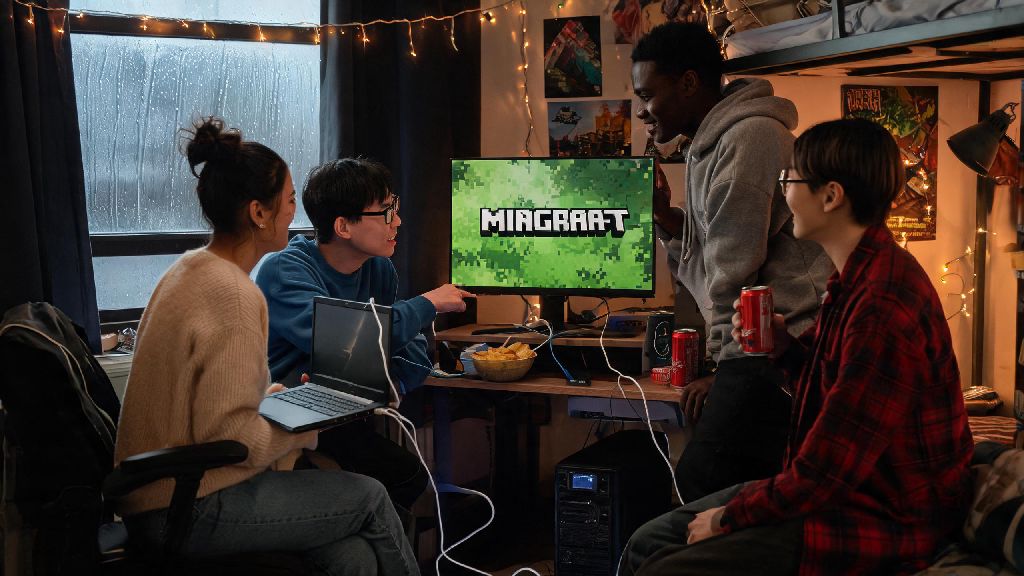
Back in early 2026, I spent a rainy weekend with three of my college roommates trying to set up a casual Minecraft survival world without paying for a third-party server or Realms subscription. We messed around with port forwarding for 40 minutes before remembering we were all on the same Wi-Fi network, which meant we only needed to figure out how to play on LAN Minecraft to get our session running. If you’re in the same boat—wanting to play with people in the same physical space without extra costs or complicated setup—this guide walks you through every step, plus fixes for the most frustrating issues we ran into that weekend.
How to Play on LAN Minecraft: Basic 2026 Setup for Java and Bedrock Editions
The setup process varies slightly depending on which edition of Minecraft you’re running, and 2026’s latest updates have simplified a lot of the older, more confusing steps. First, make sure all players are connected to the exact same local network—this means no one is using a mobile hotspot while others are on the house Wi-Fi, and no VPNs are active on any devices yet. We made that mistake first during our weekend session, and it wasted 15 minutes of our playtime.
Java Edition LAN Setup is straightforward once you have your world loaded. Hit the Escape key to open the menu, then select “Open to LAN”. You’ll get options to set the default game mode for new players, toggle cheat permissions, and choose if you want to enable player vs player damage. Once you click “Start LAN World”, the game will display a port number in the bottom left corner of your screen. Other Java Edition players on the same network can open their multiplayer menu, and the world will pop up automatically within 10 seconds. If it doesn’t, they can manually enter the host’s local IP address plus the port number to join.
Bedrock Edition LAN Setup works for Windows, Xbox, PlayStation, Switch, and mobile players, which makes it the better option if your group has mixed devices. Load your world, open the in-game settings menu, and navigate to the “Multiplayer” tab. Toggle on the setting that says “Visible to LAN Players”, and make sure “Online Game” is also enabled. All other Bedrock players on the same network will see the world pop up in their “Friends” tab, no extra steps needed. Note that 2026’s recent Xbox app update for Windows can sometimes block LAN detection, so close the Xbox app completely in your task manager if players can’t see the world.
Common 2026 LAN Minecraft Connection Errors (And How to Fix Them Fast)
Even if you follow the setup steps perfectly, you might run into issues, especially with the newer 2026 OS and game updates that have stricter default security settings. We ran into three main errors during our test sessions this year, and these fixes worked every single time:
We also found that restarting your router can fix a lot of random connection issues that don’t fit any of these categories. Routers can get clogged with old device connections over time, so a quick 30-second restart will clear that cache and make it easier for all your devices to find each other.
Tips for Optimizing Your 2026 LAN Minecraft Session for Zero Lag
One of the biggest advantages of LAN play is that you don’t have to deal with the latency that comes with public servers, but you can still run into lag if your host device isn’t up to par, or if you have too many players joining at once. These tips will help you keep your session running smoothly, even if you’re playing with a modpack or 6+ players.
First, use a device with at least 16GB of RAM and a solid-state drive for hosting. The host device has to run the Minecraft world, process all player actions, and send data to every other connected player, so it needs enough resources to handle that load. When we tried hosting our 4-player session on an old 8GB RAM laptop with a hard drive, we had constant block lag and players were getting kicked every 10 minutes. We switched to a newer gaming laptop with 32GB of RAM and an SSD, and we didn’t have a single lag spike for the rest of the 6-hour session.
If you have more than 4 players joining, try to connect the host device to the router with an Ethernet cable instead of using Wi-Fi. Even Wi-Fi 7, which is becoming more common in 2026, can get interference from other devices like microwaves, smart speakers, and phones. A wired connection eliminates that interference entirely, and you’ll notice a huge difference in lag even if you have 8 people playing at once. Players joining can still use Wi-Fi with no issues, as long as the host is wired.
You should also lower the host’s render distance to 12-16 chunks, even if you have a high-end device. The render distance uses more RAM and CPU than almost any other setting, so lowering it on the host will free up resources to handle player connections. Individual players can turn their own render distance up as high as they want, since that only affects their own device’s performance, not the whole session.
Fun 2026 LAN Minecraft Game Ideas to Try With Your Group
Once you have your LAN session up and running, you don’t have to stick to regular survival play. LAN sessions are way more flexible than public servers, since you can change settings on the fly and don’t have to worry about random players joining and ruining your fun. We tested a bunch of game modes with our friend group in 2026, and these were the biggest hits.
Hardcore LAN survival is perfect for groups that love a challenge. The host sets the world to hardcore mode before opening it to LAN, and if a player dies, they’re banned from the session for the rest of the night. We played this last month, and one of our friends got blown up by a creeper 20 minutes in, so he had to sit and watch the rest of us play for 3 hours. It’s chaotic, but it makes every victory feel way more rewarding.
Build battle is another great option, especially if you have a mix of players who don’t love combat. Split your group into two or three teams, pick a random theme (we’ve done “2026 floating city”, “haunted grocery store”, and “cat hotel” so far), and give everyone 45 minutes to build their version of the theme. Once time is up, everyone votes on the best build, and the losing team has to do a silly forfeit. LAN sessions are perfect for custom modpacks you don’t want to upload to public servers, so you can add as many custom building blocks as you want to make the builds more creative.
If you’re feeling lazy, you can also just download a custom pre-made map from a trusted site. We’ve done everything from adventure maps to parkour challenges to murder mystery maps on our LAN sessions, and they’re perfect if you don’t want to put in the work to set up a new world from scratch. Just make sure every player downloads the same map and any required mods before the session starts, so you don’t waste time waiting for people to install files.
At the end of the day, figuring out how to play on LAN Minecraft is one of the cheapest, most low-effort ways to enjoy the game with people you’re already hanging out with, no monthly server fees or complicated setup required. We’ve used this setup for everything from post-exam relaxation sessions to family game nights in 2026, and it’s never let us down once we worked through the initial kinks. If you run into an issue we didn’t cover here, drop a comment below and we’ll help you troubleshoot it.