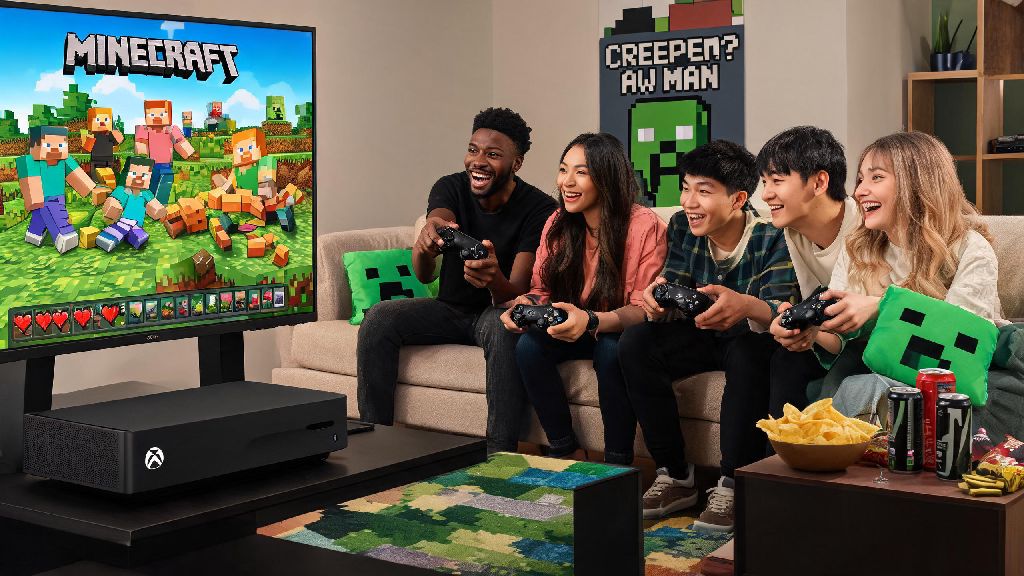
Nothing beats diving into a Minecraft build or survival run with people you care about, but if you’re new to Xbox consoles, figuring out the multiplayer setup can feel more confusing than finding a diamond vein at Y-level 100. If you’ve been searching for how to play multiplayer on Minecraft Xbox without running into error codes or locked lobbies, you’re in the right place. I’ve spent years testing every multiplayer option on Xbox One, Series S, and Series X, so I’ve pulled together every working method, plus fixes for the most common headaches players run into.
How to Play Multiplayer on Minecraft Xbox: 4 Core Methods
Before you jump into any multiplayer lobby, you need to make sure you have a few core things set up first, or you’ll hit roadblocks right away. These requirements apply to all multiplayer modes, so double-check them first to save yourself time troubleshooting later.
Once you’ve checked those boxes, you can pick the multiplayer method that fits your situation. The most popular options are local split-screen, online friend lobbies, public servers, and Minecraft Realms. Each has its own pros and cons, so you can pick based on how many people you’re playing with and where they’re located.
Local Split-Screen Multiplayer Setup for Xbox
Local split-screen is the easiest option if you’re playing with friends or family in the same house, and it works even if you don’t have an internet connection at all. You don’t need any extra subscriptions for this mode, either, which makes it perfect for casual game nights or rainy days with kids.
To set it up, turn on your Xbox and launch Minecraft, then connect all the extra controllers you want to use. Each player will need their own Xbox profile, but guest profiles work too if you don’t have extra accounts set up. Once you’re in the main menu, load your existing world or create a new one, then have the second player press the menu button on their controller to join. The screen will split automatically, either horizontally or vertically depending on your console settings.
One thing to note: Split-screen only works if your Xbox is connected to a TV or monitor that supports at least 720p resolution. If you’re using an older standard-definition TV, the split-screen option won’t pop up at all, which is a common mistake new players make. You can adjust the split orientation in your Minecraft video settings if you prefer one layout over the other. You can have up to four players on split-screen at once, though the interface will get a little cramped on smaller TVs.
Online Multiplayer With Friends and Cross-Platform Players
Playing with friends who aren’t in the same house is straightforward once you have your Xbox Live subscription set up. The biggest perk of Minecraft Bedrock on Xbox is that you can play with people on PC, PlayStation, Switch, and mobile devices, so you don’t have to worry about everyone owning the same console.
To start an online lobby, load your Minecraft world, then open the in-game menu and navigate to the “Invite to Game” tab. You’ll see a list of your Xbox friends who are online and playing Minecraft, and you can send invites directly through that menu. If you’re playing with someone on a different platform, you’ll need to add their Minecraft Gamertag to your friend list first – you can do this in the “Add Friend” section of the Xbox guide, even if they don’t have an Xbox account.
Always double-check your world’s multiplayer settings before inviting people, because you can toggle options like PvP, player damage, and whether guests can build or break blocks. If you’re running a survival world with new players, turning off friendly fire can save you a lot of arguments over accidental arrow hits. If you’re having trouble seeing your friend’s lobby, make sure both of you have cross-play enabled in your Minecraft settings and Xbox privacy settings. For larger groups, you can upgrade to a Minecraft Realm, which lets you host a persistent world that stays online even when the host isn’t playing.
Fixing Common Minecraft Xbox Multiplayer Errors
Even if you follow all the setup steps perfectly, you’ll probably run into an error every once in a while. Most of these are easy to fix in a minute or two, no technical expertise required.
The most common error is the “Unable to connect to world” message that pops up when you try to join a friend’s lobby. First, check if both you and the host have the latest Minecraft update installed – if one of you is running an older version, you won’t be able to connect. If that’s not the issue, try restarting both Minecraft and your Xbox, because temporary cache glitches often cause this error. If that still doesn’t work, the host may need to adjust their router settings to allow port forwarding for Minecraft, though that’s only necessary for very strict network setups.
Another common issue is cross-play not working for PlayStation players. PlayStation users have to enable cross-play in their own Minecraft settings and PlayStation Network privacy settings before they can join Xbox lobbies, which is easy to miss if you don’t play cross-platform often. If you’re getting a “multiplayer is disabled” error, go to your Xbox account’s privacy settings online and make sure the “You can join multiplayer games” option is set to “Allow” – this is a default restriction for child accounts, so you’ll need a parent account to adjust it if you’re under 18.
If you’re playing on a public server, make sure the server IP is entered correctly, and that the server supports Bedrock Edition – most public Java Edition servers won’t work with Xbox, so look for servers marked as Bedrock-compatible if you want to join large public lobbies.
At the end of the day, figuring out how to play multiplayer on Minecraft Xbox doesn’t have to be a complicated process. Once you run through the setup once, you’ll be able to jump into lobbies with friends near and far in seconds, no extra work required. Don’t be afraid to tweak your world and privacy settings to fit the type of game you want to run, whether that’s a casual creative build server with your family or a competitive survival run with your online friends. If you run into a glitch you can’t fix, a quick restart usually solves 90% of issues before you have to dive into advanced settings.