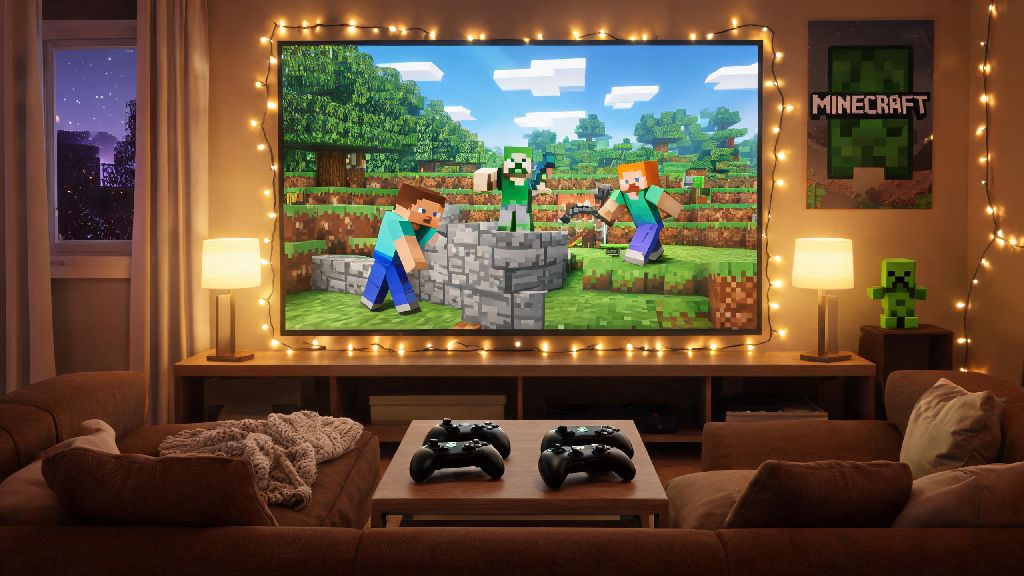
There’s nothing quite like exploring a vast Minecraft world, building a mega base, or taking down the Ender Dragon with your closest friends by your side. If you’re an Xbox player who’s been stuck playing solo and wondering how do you play multiplayer in Minecraft Xbox, you’re in the right place. I’ve spent hundreds of hours testing different multiplayer modes on Xbox Series X/S and Xbox One, so I’ve broken down every possible way to play with others, no complicated workarounds required. Whether you want to play in the same room with your family or link up with friends across the country, we’ve got you covered.
How Do You Play Multiplayer in Minecraft Xbox: Local Split-Screen Setup
Local split-screen is the easiest way to play multiplayer if you’re all in the same physical space, no internet connection required. It’s perfect for family game nights, sleepovers, or casual sessions with roommates. You’ll need at least two compatible Xbox controllers, and each player will need a Microsoft account – guest accounts work, but progress won’t save to your personal profile when you sign out. Split-screen only works if your TV or monitor is set to 720p resolution or higher, so double-check your display settings if the option doesn’t pop up automatically.
To set it up, load into your single-player Minecraft world first, then turn on the second controller and sign into the associated account. Press the start button on the second controller, and the player will instantly join your world, splitting the screen horizontally or vertically depending on your preference. You can have up to four players on split-screen at once, though screen space gets pretty tight for each player with four people connected. I prefer using split-screen for two players max, so everyone has enough space to see what they’re building without squinting.
Join a Friend’s Hosted Online Minecraft World
If you want to play with friends who live in different locations, joining their hosted online world is the most straightforward option. You’ll need an active Xbox Live Gold or Game Pass Core subscription to access online multiplayer, plus a stable internet connection with at least 3 Mbps download speed to avoid lag. The friend hosting the world also needs to have their world’s multiplayer setting toggled on, and their privacy settings set to allow friends to join, or set to invite-only if they only want specific people to access the world.
To join, open Minecraft and navigate to the Friends tab on the main menu. You’ll see a list of all your Xbox friends who are currently running an active Minecraft world, with a label that says “Joinable” next to their name. Click their name, select Join World, and you’ll load into their session in 30 seconds or less, depending on your internet speed. You can only join worlds that the host is currently active in – if they log off or close the world, the session will end for all connected players immediately. If you can’t see your friend’s world in the list, ask them to send you a direct game invite through Xbox messages, and you can accept the invite to join directly.
Connect to Public and Private Minecraft Servers
If you don’t want to be limited to your friend’s hosted world, Minecraft servers let you join massive persistent worlds with thousands of other players, with custom minigames, roleplay maps, build communities, and more. Servers stay online 24/7, so you can log on and off whenever you want without relying on a host to be active. Xbox supports all Bedrock Edition servers, so you can play with people on PC, PlayStation, Switch, and mobile devices as long as they’re on the same Bedrock version of the game.
To join a featured public server, open Minecraft and go to the Servers tab on the main menu. You’ll see a list of popular pre-vetted servers like The Hive, Hypixel, and Mineplex, and you can join any of them with one click, no extra setup needed. If you want to join a private server that’s not on the featured list, you can add it manually by entering the server’s IP address and port number in the “Add Server” menu. Xbox currently does not support Java Edition servers, so double-check that the server you’re trying to join is built for Bedrock before you try to connect.
If you run into issues connecting to a server, try these common fixes first:
Common Multiplayer Issues and Simple Fixes
Even with the right setup, you might run into small issues when playing multiplayer, most of which take two minutes to fix. If you don’t see a friend’s invite pop up in Minecraft, check your Xbox system notifications first – invites often show up there before they appear in the game menu, especially if you’re already in a world when the invite is sent. If you’re the host and other players are complaining about lag, close any other games or apps running on your Xbox in the background, and connect your Xbox to your router with an ethernet cable instead of Wi-Fi for a more stable connection.
If you’re playing split-screen and notice input lag or frame drops, turn down the in-game render distance to 8 or lower – that takes a lot of pressure off your Xbox’s processor, since it only has to load four separate views of the world instead of one. If you’re having trouble cross-playing with friends on other platforms, make sure cross-play is enabled in your Minecraft settings under the General tab, and that all players have updated to the latest version of the game. Always back up your world before hosting a multiplayer session – if a player accidentally griefs your build or changes something you don’t like, you can restore the backup to avoid losing hours of hard work.
Playing multiplayer adds a whole new layer of fun to Minecraft, and it doesn’t have to be confusing to set up. Once you know how do you play multiplayer in Minecraft Xbox, you can spend less time troubleshooting and more time building, exploring, and competing with the people you want to play with. Don’t be afraid to test out different modes: split-screen for game night with your family or roommates, online friend worlds for long-distance play with old friends, or public servers for wild new adventures with people from all over the world. I’ve even used these same steps to set up a weekly build session with my college friends who live across three different states, and we’ve been running the same world for two years now. If you run into issues, start with the simple fixes we outlined first, and you’ll be back in the game in no time.