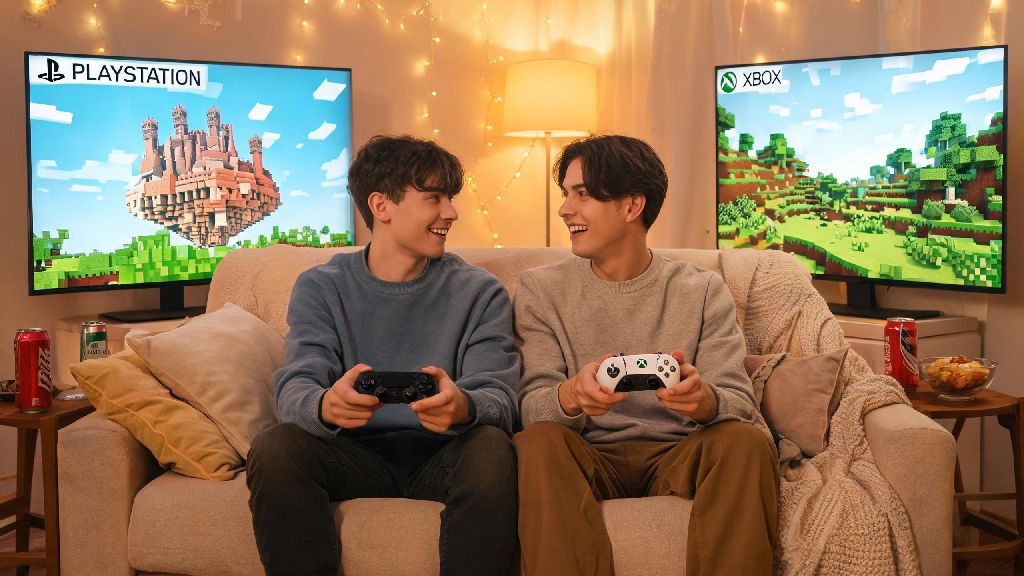
There’s nothing quite like exploring blocky biomes, fighting creepers, or building a giant floating castle with someone you care about. If you’ve ever wondered how to play Minecraft with 2 players, you don’t need fancy server hardware or advanced tech skills to pull it off. Whether you’re hanging out on the couch with a sibling or connecting with a friend who lives across the country, there’s a simple setup that works for your devices and playstyle. I’ve tested every method over the last 8 years of playing Minecraft with my best friend, so I’ll break down what works, what doesn’t, and what mistakes to avoid so you can jump into co-op as fast as possible.
How to Play Minecraft with 2 Players: Local Couch Setup First
Local couch co-op is the easiest option if you’re both in the same room, and it works on all modern PlayStation, Xbox, and Nintendo Switch consoles with zero extra setup fees. If you’re new to figuring out how to play Minecraft with 2 players, local co-op is the lowest-effort way to get started. First, make sure both controllers are paired to your console, and that you have two separate player profiles signed in (most consoles require this to save both players’ progress separately). Load up your existing Minecraft world, or create a new one, and the second player just needs to press the start button on their controller to join instantly. Split screen only works for console and some PC controller setups, and you don’t need an internet connection for this method, which makes it perfect for road trips or areas with spotty service.
One catch? Split screen will shrink your viewable game area, so you might want to play on a TV that’s 32 inches or larger to avoid squinting to see distant mobs. PC players can also use split screen, but you’ll need to install a free mod to enable the feature, as vanilla Java Edition doesn’t support it natively. I don’t recommend split screen on PC for most players though, since the mod can cause glitchy performance on lower-end devices.
LAN Play Setup for Same-Network 2 Player Games
If you’re both on the same wifi network but using separate devices (like two PCs, or a PC and a mobile phone), LAN play is the next simplest option. This is one of the most reliable methods when learning how to play Minecraft with 2 players on separate devices in the same home. It works for both Java and Bedrock Editions of Minecraft, and you don’t need a paid server subscription to use it. First, the player hosting the world needs to load their single player world, open the pause menu, and select “Open to LAN”. You can adjust game settings like allowing cheats, game mode, and whether PvP is enabled before confirming.
The second player just needs to go to the “Friends” tab or “Multiplayer” menu, and the hosted LAN world will pop up automatically as long as both devices are on the same network. Make sure both players are running the exact same version of Minecraft, otherwise the world won’t show up for the second player. If you don’t see the world, check that your firewall or antivirus isn’t blocking Minecraft’s connection – that’s the most common issue I run into when helping friends set this up.
I use this method all the time when my roommate wants to join my survival world, and it rarely takes more than 30 seconds to get connected. The only downside is that the world will only be available when the hosting player is online, so if you want to play when they’re not around, you’ll need a different method.
Remote 2 Player Minecraft Setup for Long-Distance Play
If your co-op partner lives in a different city or state, you’ll need a remote connection method to play together. Many new players assume remote play is too complicated when they first look up how to play Minecraft with 2 players, but it’s much simpler than it sounds. The most user-friendly option for most casual players is Minecraft Realms, which is Mojang’s official hosted server service. You pay a small monthly fee, and the server runs 24/7 even when neither of you are online, so you can log in and build or explore whenever you have time. For 2 players, the cheapest Realms plan is more than enough, and you don’t have to worry about port forwarding or server maintenance.
If you don’t want to pay for a subscription, you can use a free peer-to-peer connection tool to create a virtual LAN network over the internet. These tools let your device act like it’s on the same wifi network as your friend’s, so you can use the standard LAN play setup we covered earlier. Only use trusted, well-reviewed peer-to-peer tools to avoid exposing your device to security risks. I’ve used a popular free tool for years to play with my best friend who lives 3 states away, and we only experience minor lag if one of us has a slow internet connection.
Before you try to connect for a remote session, run through these quick checks to avoid common issues:
One thing to keep in mind: if you use a peer-to-peer tool, the world will only be available when the hosting player is online, just like regular LAN play. If you want to be able to access the world independently, Realms or a self-hosted server is the better pick.
Tips to Make Your 2 Player Minecraft Session Run Smoothly
Even if you get your connection set up correctly, a few small tweaks can make your co-op play way more fun, and avoid arguments over lost items or ruined builds. These small tweaks will make your experience learning how to play Minecraft with 2 players way more enjoyable from the first session. First, decide on your shared goals before you start playing. Are you focusing on survival, building a huge base, or exploring ancient cities? Knowing what you both want to get out of the session means you won’t end up wasting time doing separate things when you wanted to collaborate.
Set clear rules for shared resources if you’re playing survival mode. I’ve seen too many 2 player games end in frustration because one player used all the diamonds on a new pickaxe without asking, or blew up the shared base while testing a TNT cannon. You can even create a shared chest for community resources, and separate chests for each player’s personal items to avoid mix-ups.
Another tip: use in-game coordinates to mark important locations, like your base, a nearby village, or a deep dark biome you want to explore later. You can turn on coordinates in the world settings before you start playing, so both of you can see exactly where you are at all times. That way, you won’t get lost if you split up to gather resources, and you can easily find your way back to each other.
If you’re playing on Bedrock Edition, you can also use the in-game voice chat feature to talk without using a third-party app, which is super convenient for console players. Java Edition players will need to use a separate voice chat app, or install a mod to add in-game voice chat if you don’t want to use Discord or another service.
At the end of the day, playing Minecraft with a friend makes even the most boring tasks, like mining for cobblestone or farming wheat, feel way more enjoyable. Once you know how to play Minecraft with 2 players, you can adjust your setup to fit your budget, location, and playstyle, no matter what devices you use. Don’t get discouraged if your first setup attempt has a few hiccups – even experienced players run into lag or connection issues every now and then. Grab your controller or keyboard, pick a world, and start building memories with your favorite co-op partner.