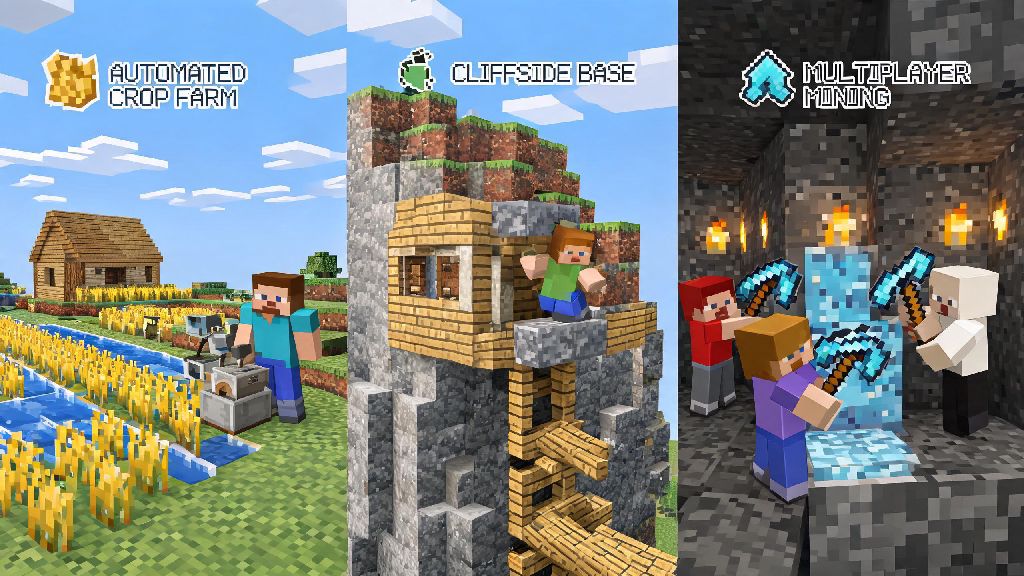
If you’ve spent hours grinding for diamond gear, building a sprawling cliffside base, or perfecting your automatic crop farm in single-player Minecraft Java, you’ve probably wondered: can you play multiplayer on Minecraft Java to share all that progress with friends? I’ve been playing Java Edition for nearly a decade, hosted over 20 private servers for my friend group, and tested every multiplayer option available for the platform, so I can walk you through exactly what works, what doesn’t, and how to avoid the most frustrating mistakes most new players make. Multiplayer turns a fun solo pastime into a shared experience, whether you want to play with 2 close friends or hundreds of other players from around the world.
Can You Play Multiplayer on Minecraft Java: Core Options for Every Playstyle
The short answer is yes, Minecraft Java has full, robust multiplayer support with three main options to choose from depending on who you want to play with and how much technical work you want to put in. You don’t need to buy any extra DLC or special upgrades to access multiplayer, just a valid copy of Java Edition and a stable internet connection for most setups. LAN play is best for in-person groups who are all connected to the same Wi-Fi network, like friends hanging out at your house or classmates on a school campus. It takes 30 seconds to set up, no extra tools required, and supports up to 8 players smoothly if your internet is strong enough. Public servers are ideal for meeting new players who share your playstyle, whether you love survival, creative building, minigames, or roleplay. There are thousands of public servers for Java, ranging from small 10-person community servers to massive networks with tens of thousands of concurrent players. Realms are the lowest-effort option for consistent friend groups who want to play together regularly even when they’re not in the same location. Mojang hosts these servers for you, so you don’t have to deal with port forwarding, server maintenance, or downtime from your personal computer being off. You can also host your own private custom server if you want full control over mods, game rules, and player access, though that requires a bit more technical know-how than the other options.
Step-by-Step Setup for Minecraft Java Multiplayer Games
Setting up multiplayer for Java Edition takes only a few minutes, no matter which option you pick, as long as you have all the right prerequisites sorted first. Before you start, make sure you meet these basic requirements to avoid connection issues:
Common Minecraft Java Multiplayer Issues and Fixes
Even if you follow all the setup steps perfectly, you might run into a few common issues when playing multiplayer for the first time. Most of these have simple fixes that take less than a minute to implement. If you get a “connection refused” error when trying to join a LAN game, first make sure both you and the host are on the same Wi-Fi network, and that the host has allowed Minecraft through their computer’s firewall. Firewall blocks are the most common cause of failed LAN connections for Windows users, so you can temporarily disable your firewall to test if that’s the issue, then add Minecraft as an allowed app once you confirm. If you’re experiencing lag during multiplayer sessions, first lower your in-game render distance to 8 or below, close any background apps that are using a lot of internet bandwidth like streaming services or video calls, and make sure you’re not too far from your Wi-Fi router. You can adjust your in-game performance settings in the video options tab to reduce lag during multiplayer sessions without sacrificing too much visual quality. If you get banned from a public server, don’t panic. First, go back to the server’s website or listing page to read their rules, as most bans are for violating clearly posted guidelines like griefing, cheating, or spamming chat. If you think the ban was a mistake, reach out to the server’s moderation team via their official Discord or contact form, not via in-game chat. For Realm connection issues, make sure your Java Edition is updated to the latest official release, as Realms only support the most recent stable version unless the owner explicitly changed the settings to run an older version.
Tips for a Safe and Fun Minecraft Java Multiplayer Experience
Multiplayer is one of the best parts of Minecraft Java, but there are a few simple rules you can follow to make sure your experience is safe and enjoyable every time you log on. First, never share personal information like your real name, address, phone number, or social media handles with people you just met on public servers. Most players are friendly, but it’s always better to keep personal details private until you’ve known someone for a long time. If you’re joining a public server for the first time, spend 10 minutes reading the server rules before you start playing or typing in chat. Most servers have clear rules against griefing, stealing, and hate speech, and you can avoid accidental bans by following them closely. If you’re playing on a survival server, it’s also a good idea to build your first base a few thousand blocks away from spawn to avoid being targeted by other new players. If you’re hosting a private server for friends, turn on whitelisting in your server settings so only people you explicitly invite can join. This prevents random players from logging on and destroying your builds or harassing your group. You can also install basic anti-cheat mods if you’re worried about players using hacks to get an unfair advantage. I’ve spent years playing on small community servers, and I still keep in touch with a group of players I met on a medieval roleplay server back in 2020. Don’t be scared to try out smaller, niche servers if you don’t like the chaos of big public minigame networks—they often have tighter, friendlier communities and more unique gameplay options.
At the end of the day, the answer to can you play multiplayer on Minecraft Java is a resounding yes, with options that fit every group size, playstyle, and technical skill level. You don’t need to be a tech expert to play with friends, and even if you run into issues at first, most fixes are simple to implement. Whether you’re planning a casual LAN party with friends from school, looking for a long-term survival server to join, or want to host a 24/7 realm for your friend group across the world, Java Edition’s multiplayer tools have you covered. Next time you log into your single-player world, consider opening it up to other players—you might end up making memories that last for years.