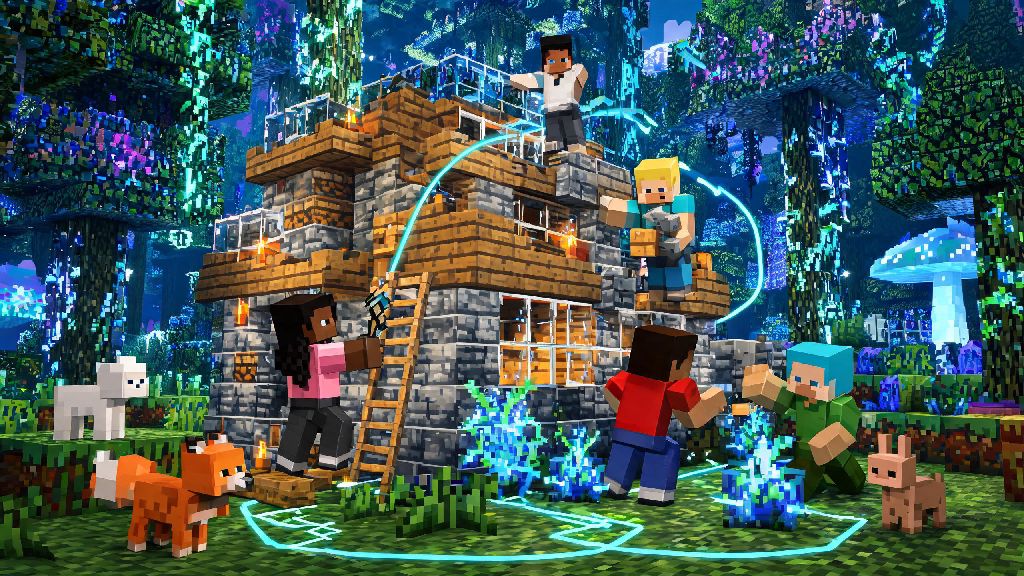
If you’ve spent weeks building a cozy cottage or exploring a vast cave system alone in Minecraft Java, you’ve probably wondered what it would be like to share that world with friends. Learning how to play multiplayer Minecraft Java opens up a whole new side of the game, from building massive collaborative bases to surviving hordes of creepers on a hard mode server with your crew. I’ve been playing Java Edition multiplayer since 2017, and I’ve worked through every common connection hiccup, weird server rule, and compatibility quirk you can imagine. This guide breaks down every way to play with others, no advanced tech skills required.
How to Play Multiplayer Minecraft Java: 4 Common Play Methods
You don’t have to stick to one way to play with others, but each option has different setup requirements, player limits, and use cases. I usually pick my method based on how many people I’m playing with, whether we’re all on the same local network, and how much control I want over the world settings. The four most popular options for Java Edition multiplayer are:
For most new players, I recommend starting with either a LAN world or public server first, before investing in Realms or setting up your own server. LAN is completely free, and public servers let you test different play styles without committing to a private world with friends. Just remember that public servers have their own rules, so always read the spawn page carefully before you start breaking blocks or interacting with other players.
Step-by-Step Setup for LAN and Realms Play
If you’re playing with people in the same house or apartment, LAN is the fastest way to get started. Open your single-player world, hit escape to open the menu, and click Open to LAN at the bottom of the screen. You can adjust settings like whether cheats are allowed and what game mode to use, then click confirm. Other players on the same Wi-Fi network will see your world pop up in their multiplayer menu, and can join in one click.
The only catch with LAN is that your world will only be available as long as you have the game open on your device. If you shut down your game, everyone else gets kicked out, and you can’t access the world when you’re away from home. That’s where Realms comes in for small groups that want to play on their own schedule.
To set up a Realm, head to the multiplayer menu, click Create Realm, pick a plan based on how many players you want to invite, and follow the prompts to upload an existing single-player world or start a new one. You can invite up to 10 other Java Edition players via their Minecraft username, and the server stays online 24/7 even when no one is logged in. Realms does cost a small monthly fee, but it’s worth it for groups that play regularly and don’t want to deal with server maintenance.
Tips for Joining and Playing on Public Java Servers
Public servers are one of the best parts of Minecraft Java multiplayer, with thousands of unique communities to choose from, ranging from casual creative building servers to hardcore survival worlds with permanent death rules. Before you join any server, make sure your Java Edition is updated to the latest version, because most servers only support the most recent official release. If you try to join with an outdated version, you’ll get an error message and won’t be able to connect.
When you first spawn on a new server, take 5 minutes to read the rules at spawn, and look for a tutorial area if one is available. Many servers have strict rules against griefing, stealing, or spamming in chat, and breaking those rules can get you permanently banned with no warning. If you’re looking for a specific type of server, you can use server listing sites to filter by game mode, player count, and mod support to find one that matches your interests.
I’ve met some of my closest gaming friends on public survival servers, so don’t be afraid to say hi in chat if you see other players online. Just be careful about sharing personal information like your real name or location with people you don’t know, as you would with any online community. One of the best things about exploring multiplayer is finding niche communities with people who share your love for weird build challenges or modded exploration packs you can’t play alone.
Troubleshooting Common Multiplayer Connection Issues
Even if you follow every step perfectly, you might run into connection issues when playing multiplayer Minecraft Java, and most of them have simple fixes. The most common issue is a “connection timed out” error when trying to join a friend’s world or server. First, check that you have a stable internet connection, and that both you and the host are running the same version of Minecraft Java. If you’re on a LAN network, make sure all devices are connected to the same Wi-Fi, and that your firewall isn’t blocking Minecraft’s access to the local network.
If you’re getting a “invalid session” error, log out of your Minecraft account completely and log back in, then restart your game. That fixes 90% of session-related issues for Java Edition players. If you’re joining a modded server, make sure you have exactly the same mods and mod versions installed as the server, or you’ll crash immediately when you try to connect. Most modded servers have a downloadable mod pack you can use to make this process easier, so you don’t have to track down each mod individually.
You may also run into “whitelist” errors when trying to join private servers. That just means the host hasn’t added your Minecraft username to their list of approved players. Shoot them a quick message to ask to be added, and you’ll be able to join once they update the list. If you still can’t connect after trying these fixes, reach out to the server host or admin for help, as they may have specific access requirements you don’t know about.
At the end of the day, the best part of Minecraft is getting to share the weird, wonderful worlds you build with people you care about, or even new friends you meet online. Whether you’re playing on a LAN world with your little sibling after school, running a community build project on a Realm with your college friends, or exploring a custom survival server with hundreds of other players, there’s a multiplayer option that fits your needs. Don’t let small setup hurdles stop you from learning how to play multiplayer Minecraft Java – once you get your first co-op world up and running, you’ll never want to play alone again.