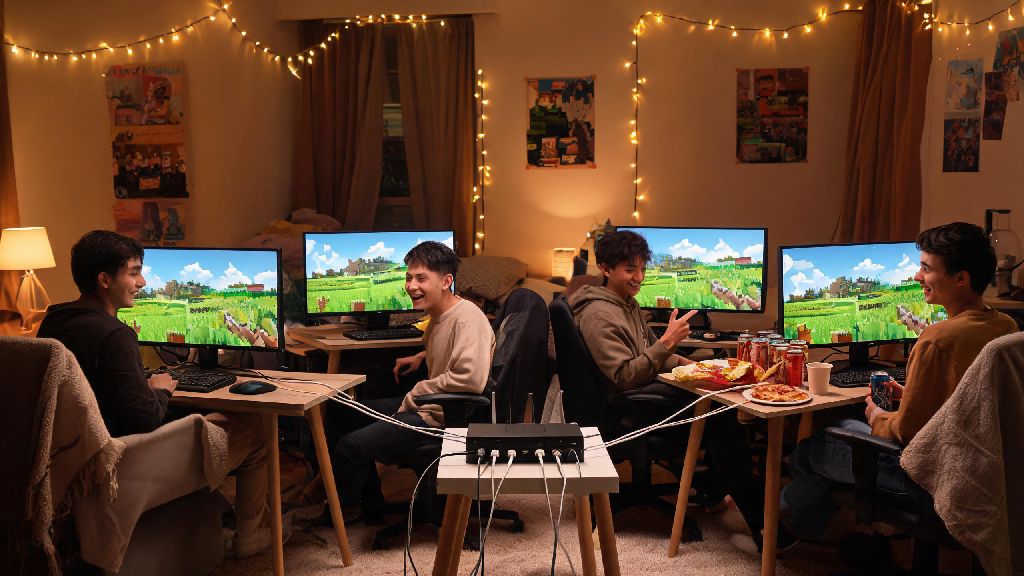
There’s nothing quite like playing Minecraft with friends sitting right next to you, no random lag spikes from distant servers, no random strangers joining your build, and no subscription fees required for most setups. That’s why so many casual and regular players alike ask how do you play Minecraft LAN without running into annoying setup issues. We’ve tested every common setup across PC, console, and mobile to pull together this no-fluff guide, so you can skip the hours of troubleshooting and jump straight into building, exploring, or fighting creepers together.
How Do You Play Minecraft LAN: Basic Setup for Windows/Mac PCs
PC setup is the simplest place to start, since Java and Bedrock editions both have built-in LAN support that works right out of the box for most users. First, make sure every player’s device is connected to the exact same local network: no splitting between home Wi-Fi and a mobile hotspot, no using a guest Wi-Fi network for one player and the main network for another. Always double check that every connected device is on the exact same local network — this is the number one mistake that makes LAN worlds fail to show up for new players.
Next, the host opens their existing single-player Minecraft world, or creates a new one if you’re starting fresh. Once the world loads, press the Escape key to open the menu, then click the “Open to LAN” button. You’ll be able to pick the default game mode for joining players (Survival, Creative, Adventure) and toggle cheats on or off for everyone. When you click “Start LAN World”, you’ll see a port number pop up in the in-game chat, and other players on the same network will see the world appear in their Multiplayer menu within 10 to 15 seconds.
If the world doesn’t show up automatically, joining players can use the “Direct Connect” option. The host can find their local IP address in their device network settings, then share that plus the port number from chat (formatted like 192.168.1.12:59876) with other players, who can paste that into the Direct Connect bar to join manually.
Fixing Common Minecraft LAN Connection Errors
Even if you follow all the basic steps, you might run into small issues that stop players from connecting, and most of them have super simple fixes. The most common error is a firewall block: when you first open a LAN world on Windows or Mac, you’ll get a pop-up asking if you want to allow Minecraft to communicate through your firewall. If you clicked “Deny” by accident, you can go into your device’s security settings, find the firewall permissions list, and toggle Minecraft to be allowed through both public and private networks.
Another super common issue is version mismatch. All players must be running the exact same Minecraft version and edition to join the same LAN world. If the host is running Java Edition 1.20.4, a player on Bedrock Edition won’t be able to connect at all, and a Java player on 1.20.3 will also get a connection error. You can easily switch versions in the Minecraft Launcher by going to the “Installations” tab and selecting the version the host is using.
It's normal to hit small snags during setup, and many players keep casual, short-session games on hand to fill the 5 to 10 minute gaps while someone fixes their firewall settings or updates their game version. One popular low-stakes option for these quick breaks is Yono Rummy, which fits perfectly into short waiting periods without pulling you away from your Minecraft session for too long.
If you’re still running into issues, try restarting your router to reset the local network, and make sure no one has any VPNs active that might route their connection outside the local network. VPNs change your device’s IP address and will almost always stop LAN connections from working properly.
Setting Up Minecraft LAN for Consoles and Mobile Devices
LAN play works slightly differently for consoles (Xbox, PlayStation, Nintendo Switch) and mobile (iOS, Android) devices, but it’s still very simple to set up as long as you know the small extra requirements. For all console and mobile setups, you’ll still need every device connected to the same local Wi-Fi network first, no exceptions.
For console players, one person opens their Minecraft world, then goes to the in-game settings and makes sure “Multiplayer Game” and “Visible to LAN Players” are both toggled on. Other players on the same network will find the world under the “Friends” tab in their Minecraft menu. Console players need an active online subscription for their platform (Xbox Live, PlayStation Plus, Nintendo Switch Online) even for LAN play — this is a common surprise for players who assume LAN play doesn’t require any paid subscriptions.
For mobile players, the host opens their world, goes to settings, then toggles “Local Server Multiplayer” on. Other mobile players on the same network will see the world pop up in their list of available worlds immediately. If you want to play cross-play between PC, mobile, and console, every player has to be running Minecraft Bedrock Edition, as Java Edition can only connect to other Java Edition devices.
Advanced LAN Play Tips for Better Sessions
Once you’ve got the basic setup down, these small tips will make your LAN sessions run way smoother, even if you’re playing with 4 or more people at once. We’ve tested all of these over dozens of group play sessions, and they cut down on lag and frustration by a huge margin:
If you want to play modded LAN sessions, every player needs to have the exact same mods, mod loader (Forge, Fabric, Quilt), and mod version installed on their device. Even one missing mod will cause the connection to fail immediately. Don't install random mod packs from untrusted sources if you're playing modded LAN, they can contain malware or corrupted files that break your game. Stick to well-known mod platforms to keep your devices safe.
If you're playing with younger players, you can turn off PvP in the LAN settings to prevent accidental fights and keep the session fun for everyone. You can also adjust the difficulty level at any time from the host’s in-game menu, so you can switch between peaceful and hard mode depending on what the group wants to do. All progress from the LAN session saves automatically to the host’s single-player world, so you can pick right back up where you left off at your next group session.
At the end of the day, figuring out how do you play Minecraft LAN is way less complicated than many people make it out to be, as long as you follow the basic steps and watch out for common errors like version mismatches or network differences. You can set up a full session in less than a minute once you’ve done it a couple times, and there’s no better way to play Minecraft than with friends in the same room, no lag, no random server issues, and full control over your world. If you run into issues, just work through the troubleshooting steps we listed, and you’ll be building and exploring together in no time.