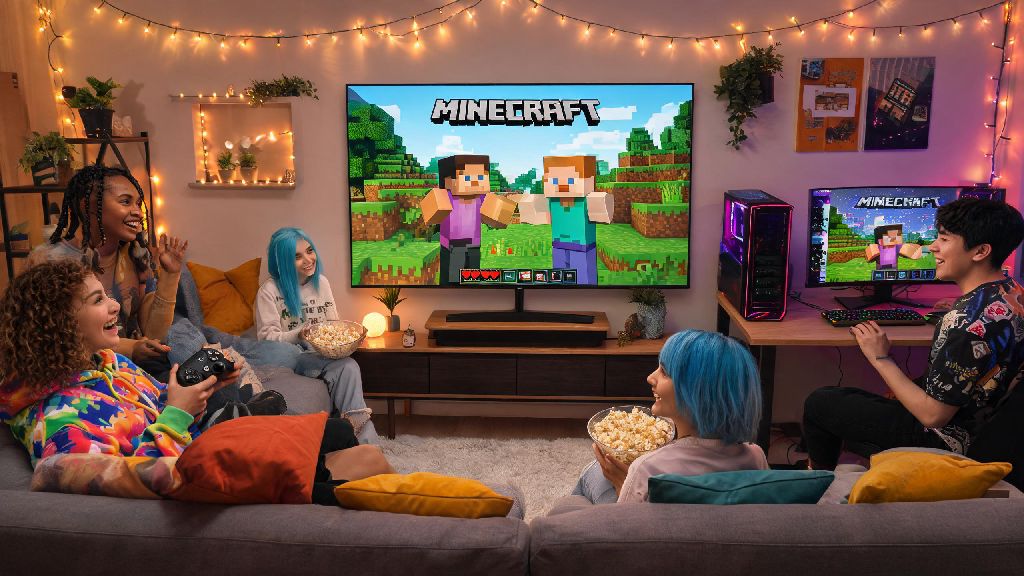
If you’ve ever sat on your couch with your Xbox controller while your best friend plays Minecraft on their gaming PC, you’ve probably wondered can console Minecraft play with PC without jumping through a dozen hoops. For years, cross-device play was a mess of locked versions and platform exclusives, but Mojang has made massive progress to make crossplay accessible for most players. I’ve tested crossplay across every major console and PC version over the past two years, so I’m breaking down exactly what works, what doesn’t, and how to get your group in the same world in 10 minutes or less.
What You Need to Know Before Testing If Console Minecraft Can Play With PC
The first and most important rule to remember is that crossplay only works between matching editions of the game, not across Java and Bedrock. Only Bedrock Edition supports crossplay between console and PC, so if your PC friend is running the original Java Edition, you won’t be able to join their world right out of the box. Bedrock Edition is the default version on all PlayStation, Xbox, and Switch consoles, and it’s also available for Windows PCs through the Microsoft Store or Xbox app. I made this exact mistake last year when I tried to join my little cousin’s PS5 world with my Java copy, and spent 20 minutes confused before I realized I had the wrong version installed. You don’t have to repurchase the game if you already own Java either, as Microsoft gives all Java Edition owners a free copy of Bedrock Edition for Windows. You will also need an active online membership for your console (PlayStation Plus, Nintendo Switch Online, Xbox Game Pass Core) to join multiplayer crossplay sessions, just like you would for any other console multiplayer game. PC players don’t need any extra subscriptions beyond a regular internet connection to join or host crossplay worlds.
Step-by-Step Setup for Console and PC Crossplay
Once you confirm everyone is on Bedrock Edition, the setup process is far simpler than most people expect. The biggest change Mojang rolled out in recent years is requiring all players to link a free Microsoft account to their Minecraft profile, regardless of their platform, to enable crossplay. That means even PlayStation and Switch users who never had a Microsoft account before will need to make one to play with PC friends. Before you start sending invites, run through this quick checklist to avoid common setup errors:
Common Crossplay Issues and How to Fix Them
Even with the simple setup, you might run into small issues every now and then, especially after a new Minecraft update rolls out. The most common problem I see is invites not showing up for one or more players, which almost always traces back to either missing Microsoft friend connections or outdated game versions. If you get a "version mismatch" error, force a game update on both console and PC, because platforms sometimes roll out Minecraft updates at slightly different times over the course of 24 hours. Another frequent issue is connection errors caused by strict NAT types on consoles. If your console shows a strict or moderate NAT type in its network settings, you won’t be able to connect to most PC-hosted worlds, and you might struggle to host worlds for PC players yourself. You can fix this easily by enabling UPnP in your router’s settings, or switching from a Wi-Fi connection to a wired Ethernet connection if that’s an option. I ran into a weird issue last month where my PlayStation friend couldn’t join my PC-hosted world even though we had all the right settings. It turned out a recent PlayStation system update had toggled his crossplay setting off by default in Minecraft’s multiplayer menu. If you’re having connection problems, double check that the “allow cross-platform play” toggle is switched on for every player, as system updates sometimes reset these settings without warning.
Limitations of Console and PC Crossplay You Should Expect
While crossplay works well for most casual play sessions, there are a few limitations you should be aware of before you plan a big group play session. As we mentioned earlier, Java Edition players still can’t join Bedrock crossplay sessions without using unofficial third-party mods, and using those mods can get you banned from official Minecraft servers if you don’t set them up correctly. If your group has a mix of Java and Bedrock PC players, it’s far easier to just have everyone switch to Bedrock for the session, since it’s free for all Java owners. Modded worlds have very limited crossplay support, even if everyone is on Bedrock Edition. If you’re using mods on your PC Bedrock copy, console players will only be able to join if those exact mods are available for their console’s version of Minecraft, which most large mod packs aren’t. Small, simple mods like custom furniture or minor quality of life tweaks often work across platforms, but big mod packs that add new biomes or mobs rarely work for crossplay. You’ll also notice performance differences between console and PC players if you’re playing in a very complex world with lots of redstone, large builds, or hundreds of mobs. PC players with powerful hardware will run the world far smoother than players on older consoles like the original Xbox One or base Nintendo Switch. If you’re planning a big build project with a large group, it’s best to host the world on a PC instead of a console to cut down on lag for everyone. Custom skins will work for all players no matter their device, but custom resource packs or shaders will only show up for the player that has them installed, unless the host has enabled a pack that is available for all platforms. You don’t have to worry about missing out on core gameplay features if you’re on console though, as all crossplay sessions use the same core Bedrock gameplay mechanics across every device.
At the end of the day, the answer to can console Minecraft play with PC is a clear yes, as long as you stick to Bedrock Edition and take a few minutes to set up your accounts and settings correctly. You don't need to pay for any extra subscriptions beyond your normal console online membership, and the setup process is far simpler than it was even two years ago. Next time you want to play with friends across different devices, you won't have to stress about being locked out of the same world. Just double check your versions, link your accounts, and jump in.