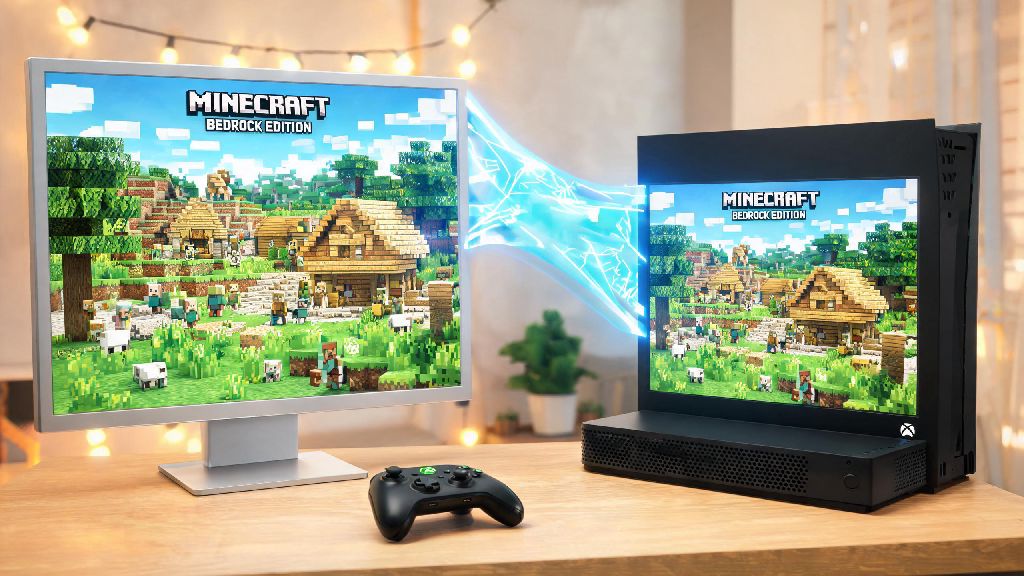
If you’ve ever sat on your PC waiting for a friend who only plays Minecraft on Xbox to join your survival world, you’ve probably asked can Minecraft pc play with xbox sooner or later. I remember waiting 20 minutes a few months back trying to troubleshoot this exact issue with my little cousin, who only has access to an Xbox Series S for his Minecraft sessions. I spent half an hour scrolling through outdated forum posts before I figured out exactly what works, what doesn’t, and how to skip all the frustrating trial and error. This guide breaks down everything you need to know to connect PC and Xbox Minecraft accounts without the headache.
Can Minecraft PC Play With Xbox? What You Need to Know First
The short answer is yes, but there’s one critical caveat that trips up most new players. You and your friends all need to be on the same Minecraft edition to connect, and that edition has to be Minecraft Bedrock. Java Edition, the original PC version of Minecraft, does not support native cross-play with any console platforms, including Xbox, right out of the box.
Bedrock Edition is available for PC via the official Minecraft Launcher or Microsoft Store, and it’s the default version installed on all Xbox One, Xbox Series S and Xbox Series X consoles. If you bought Minecraft for PC before 2018, you likely have access to both Java and Bedrock editions for free, so you don’t have to spend extra money to play with Xbox friends.
You also don’t need any special paid services for most of the setup. You only need a free Microsoft account to link your PC and Xbox Minecraft profiles. The only paid requirement falls to Xbox players, who need an active Xbox Live Gold or Game Pass Core subscription to access online multiplayer, same as they would for any other Xbox game.
Step-by-Step Cross-Play Setup for PC and Xbox Players
Once you confirm everyone is running Minecraft Bedrock and has their Microsoft account set up, the actual connection process only takes a few minutes. Follow these simple steps to get your cross-play session running:
If you don’t see the world pop up after two minutes, close and reopen Minecraft on the joining device. I’ve run into this issue a handful of times, and a quick restart almost always fixes the sync problem without extra troubleshooting.
Common Cross-Play Issues and How to Fix Them
Even if you follow all the setup steps perfectly, you might run into small connection issues now and then. Most of these have super simple fixes that take less than a minute to implement. The most common issue is a version mismatch, where one player is running an older build of Minecraft Bedrock than the other. All players need to be running the exact same build of Minecraft Bedrock to connect, so check for updates on both devices if you get a "version incompatible" error.
Another frequent issue is strict NAT type blocking connections. You can check your NAT type on Xbox via the Network Settings menu, and on PC via the Settings tab of the Xbox app. If either device shows a Strict or Moderate NAT type, enable UPnP on your home router to open the required ports for Minecraft cross-play. This fix works for 90% of connection failed errors I’ve encountered with cross-play sessions.
If you’re playing on a child Microsoft account, you might get blocked by default family safety permissions. The account admin will need to log into the Microsoft Family Safety dashboard and enable cross-play permissions for multiplayer games. A lot of parents turn this setting off by default to prevent kids from playing with strangers, so it’s an easy fix if you get a permission denied error when trying to join a world.
Limitations to Know Before Playing Cross-Play Between PC and Xbox
Cross-play works really well for most casual play sessions, but there are a few limitations you should be aware of to avoid frustration. First, as we mentioned earlier, Java Edition can’t natively cross-play with Xbox. There are third-party mods that claim to enable Java to Xbox cross-play, but Never use unapproved third-party cross-play mods on official Minecraft servers, as they can result in a permanent account ban from Minecraft’s online services.
Control differences are another thing to keep in mind if you’re playing competitive game modes. PC players using a mouse and keyboard have a noticeable advantage in PvP matches or fast-paced building challenges compared to Xbox players using a controller. If you’re playing minigames with friends, you might want to set ground rules like asking PC players to use a controller to keep things fair for everyone.
Custom mods and texture packs also have limited cross-compatibility between PC and Xbox. If you’re using custom mods or high-resolution texture packs on your PC Bedrock world, Xbox players won’t be able to join unless they download and install the exact same packs first. Some high-resolution packs also won’t run well on older Xbox One consoles, so stick to default or low-resolution packs if you’re playing with friends on older hardware.
At the end of the day, the answer to can Minecraft pc play with xbox is a resounding yes, as long as you stick to Bedrock edition and follow the simple setup steps we covered. I’ve spent dozens of hours playing cross-play survival worlds with my cousin and our group of friends over the past year, and once you get past the initial setup, it’s almost completely seamless. You don’t need any fancy equipment or paid subscriptions beyond what you already use for regular Minecraft multiplayer, and the only real headaches come from easy-to-fix issues like outdated clients or wrong permission settings. Next time you want to team up to take down the Ender Dragon or build a massive base with a friend on Xbox, you won’t have to waste time scrolling through outdated forums to figure out how to connect.