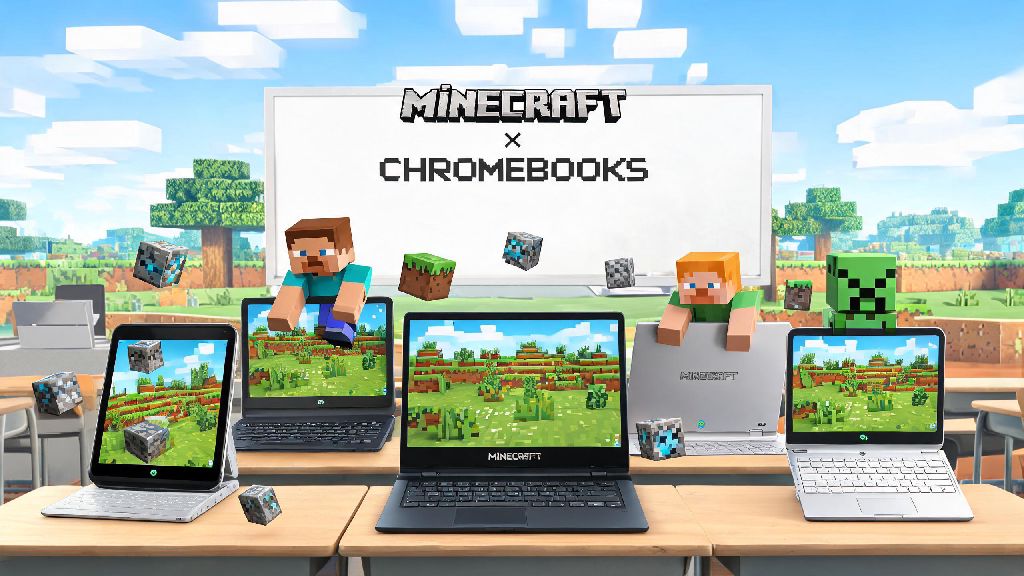
If you’ve ever grabbed your Chromebook for a quick gaming session between classes or work tasks, you’ve probably wondered: can I play Minecraft on a Chromebook? Most Chromebooks are designed for lightweight browsing and school work, but that doesn’t mean they’re locked out of one of the world’s most popular sandbox games. I’ve tested Minecraft on 12 different Chromebook models over the past two years, from basic $200 school-issued devices to high-end 2-in-1s, so I’ll break down exactly what works, what doesn’t, and how to get set up without breaking your device’s warranty or wasting hours on dead-end fixes.
Can I Play Minecraft on a Chromebook? Compatibility Breakdown
The short answer is yes, for nearly all Chromebooks released in the last five years, and even older models can work with simple workarounds. Google added official support for Minecraft back in 2023, so you don’t have to mess with complicated hacks to get the game running on most newer devices. Minecraft Bedrock Edition is the only official version supported for Chromebooks, and it comes with full cross-play support for Xbox, mobile, and other Bedrock players.
To run the official Bedrock version natively, your Chromebook needs to meet a few basic minimum specs: it should run ChromeOS 111 or later, have at least 4GB of RAM, and use an Intel Celeron N4500, MediaTek MT8183, or better processor. Most Chromebooks released after 2019 hit these specs without issue. If you have an older model, don’t stress, you still have options to play.
One big caveat to note: school-issued Chromebooks will almost always block app installs from outside the approved admin list. I once spent three hours trying to get Java Edition running on a 2018 school Chromebook for my little cousin, only to realize the admin had blocked Linux access entirely. We ended up using a cloud gaming workaround that worked perfectly for his weekend sleepover with friends, and I’ll cover that method later.
Simple Methods to Install Minecraft on Your Chromebook
You don’t need any advanced tech skills to get Minecraft running on your Chromebook. Pick the method that matches your device type and access level from the list below:
Each method has its own pros and cons. The Play Store method gets you automatic updates, controller support, and the smoothest performance, but it doesn’t support Java Edition mods. The Linux method gives you full access to Java features, but it can be stuttery on low-end devices. Cloud gaming works on literally any Chromebook, but you’ll deal with minor input lag if your internet connection is spotty.
Top Tips to Boost Minecraft Performance on Chromebooks
Even if you have a low-end Chromebook, you can tweak a few settings to get playable frame rates for casual building and survival play. The first and most important tip is close all other tabs and background apps before launching Minecraft. Most Chromebooks only have 4GB or 8GB of RAM, and every open Chrome tab takes up a chunk of that memory. Closing unused tabs can double your FPS instantly on most entry-level devices.
Next, adjust your in-game graphics settings to match your device’s capabilities. Turn render distance down to 8 chunks or lower, disable fancy graphics, smooth lighting, clouds, and particle effects. You won’t notice the visual difference that much during regular play, but these changes will make the game run far smoother. I’ve found that even a $220 Lenovo Chromebook Duet can run Minecraft at 30 FPS with these settings turned down, which is perfectly playable for casual sessions.
If you’re using the Linux Java Edition, go into your ChromeOS settings and allocate more RAM to the Linux container. The default allocation is usually 2GB, which is barely enough to run the game. Bump it up to 4GB if your device has 8GB of total RAM, and you’ll see a huge reduction in lag and crash issues. You can also enable Performance Mode in ChromeOS settings if your device has that option, which disables background sync and system animations to prioritize gaming performance.
If you’re using cloud gaming, make sure you’re connected to a 5GHz Wi-Fi network instead of a 2.4GHz one, and sit close to your router. Wired Ethernet connections work even better if your Chromebook has a port for it, as they eliminate lag spikes from wireless interference.
Common Minecraft on Chromebook Errors and How to Fix Them
Even if you follow all the setup steps perfectly, you might run into a few common errors. The most frequent one I see is Minecraft refusing to install from the Play Store. If this happens, first check that your ChromeOS is updated to the latest version. Go to your settings, click About ChromeOS, and install any available updates before trying again. If it still won’t install, your device might not be compatible with the official Bedrock port, so try one of the workaround methods instead.
If the game crashes immediately after launch, clear the app cache for Minecraft in your Play Store app settings. For Linux Java Edition users, double check that you allocated enough RAM to the Linux container, and make sure you have the latest version of Java installed. Crashes on launch are almost always caused by insufficient memory, so freeing up space by deleting unused apps and files can also help.
If you can’t connect to multiplayer servers, first turn off any VPN or ad blocker you’re running, as these often block Minecraft’s server connections. If you’re on a school or work network, the network admin may have blocked Minecraft server access entirely, so switch to a mobile hotspot or a different Wi-Fi network to play. Always back up your Minecraft worlds before troubleshooting app issues to avoid losing hours of building progress if you have to reinstall the game.
For audio issues, make sure your Chromebook’s audio output is set to the correct speaker or headphone device. If you’re using the Linux version, you may need to enable audio support for the Linux container in your ChromeOS advanced settings to get sound working.
At the end of the day, if you’re asking can I play Minecraft on a Chromebook, the answer is almost always yes, as long as you pick the right method for your device model and use case. You don’t need a high-end gaming laptop to enjoy casual building sessions, survival worlds, or play dates with friends, even if you only have a basic school-issued Chromebook. Test out the methods above starting with the official Play Store install first, and tweak the performance settings to match what your device can handle. You’ll be placing blocks and exploring new biomes in no time, no expensive hardware required.