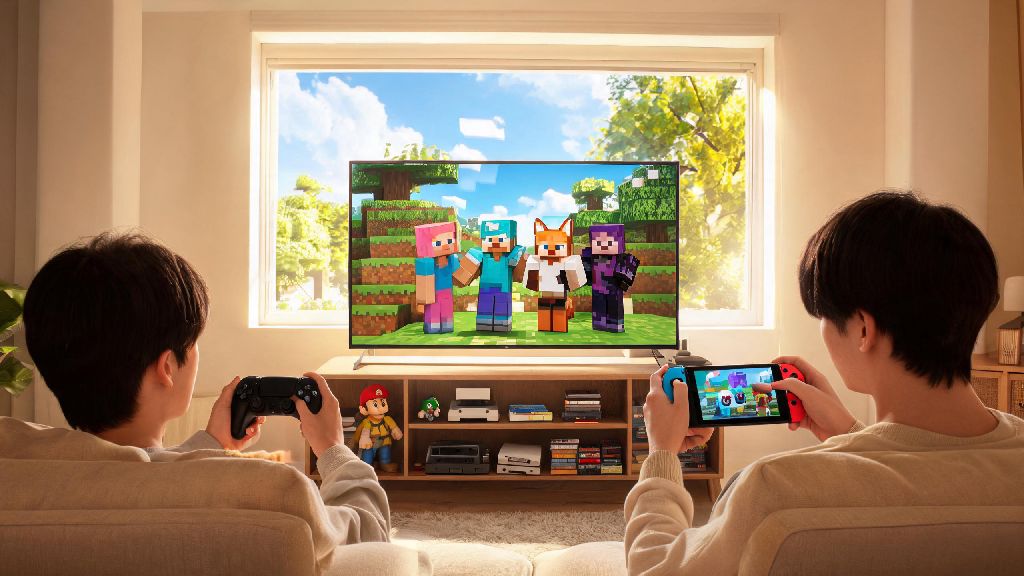
There’s nothing better than loading up a Minecraft world on your Switch and diving into a building spree or survival run with the people you care about. But if you’ve ever stared at the main menu confused about how to play Minecraft with friends on Switch, you’re not alone. Many players struggle to navigate the different multiplayer options, from couch co-op to crossplay with friends on other platforms. The good news is no paid mods or extra hardware are required for any of these methods, and we’re breaking down every option with clear steps, pros, cons, and quick fixes for common issues you might run into.
What You Need Before Starting Your Multiplayer Session
Before you jump into any multiplayer game, there are a few basic requirements you need to check off to avoid wasting time troubleshooting later. Some of these only apply to online play, while others are for local sessions, so you can skip the ones that don’t match the play style you’re planning to use. We’ve listed all the non-negotiable requirements below to make it easy to follow.
You’ll also need a free Microsoft account linked to your Minecraft profile if you want to use crossplay or join public servers. This takes less than two minutes to set up through the Minecraft settings menu, and you don’t have to pay for any Microsoft services to use it. If you’re only playing local split screen with people in the same room, you can skip the Microsoft account and Nintendo Switch Online subscription entirely.
How to Play Local Split-Screen Minecraft with Friends on Switch
Local split screen is the easiest option if you’re playing with people in the same physical space, like family at home or friends at a sleepover. It’s completely free, no internet required, and you can get a game going in less than a minute once you have all your controllers paired. Split-screen play only works when your Switch is docked to a TV, it won’t run in handheld mode due to screen size limitations, so make sure you have your dock set up before you start.
To start a split-screen session, open Minecraft and load your existing world or create a new one. Double check that the “Multiplayer Game” toggle is switched on in the world settings before you load in. Once you’re in the world, turn on the second controller and press the + button to bring up the join menu. Select the Nintendo profile you want the second player to use, and they’ll spawn right next to you in the world. You can repeat this process for up to 4 total players.
The biggest upside to split screen is that there’s zero lag, and you don’t have to deal with any connection issues. The only real downside is that the screen gets pretty cramped when you have 4 players sharing one TV, and you all have to stay relatively close to each other in the game world to avoid the screen stretching too far. If you’re playing with younger kids, we recommend turning on keep inventory in the world settings so they don’t get frustrated if they fall off a cliff or lose a fight to a creeper.
How to Join Private Friend Worlds for Online Minecraft Play on Switch
If you want to play with friends who aren’t in the same room, joining or hosting a private friend world is the best option. You get all the benefits of your own custom world, and you don’t have to deal with random players joining uninvited. Crossplay is enabled by default for all Switch Minecraft worlds, so your friends can join even if they’re playing on Xbox, PC Bedrock Edition, PS5, or mobile, as long as everyone is linked to a Microsoft account.
To join a friend’s existing world, open Minecraft and go to the Play tab, then select the Friends tab at the top of the screen. You’ll see a list of all your Nintendo and Minecraft friends who are currently in an open world, and you can click the world name to join immediately. If you want to host your own world, load the world you want to share, press the + button to open the in-game menu, select “Invite to Game”, and pick the friends you want to send invites to.
If you can’t see a friend’s world in your friends list, the most common fix is to make sure both of you have the latest Minecraft update installed. Outdated versions won’t connect to each other, so check the eShop for any pending updates. If you still can’t connect, try restarting your router or closing and reopening Minecraft, that fixes 90% of common connection errors for private worlds. You can also try adding each other as Minecraft friends directly instead of just Nintendo friends, that often fixes visibility issues.
How to Join Public Minecraft Servers With Friends on Switch
If you want to play custom game modes like Bed Wars, Skyblock, or build challenges with a bigger group, public servers are the way to go. There are hundreds of servers available for Switch players, ranging from small community-run worlds to massive servers with thousands of active players at any given time. You can join custom servers too if you have the server IP address, so you can play on a private server run by your friend group instead of a public one.
To join a pre-vetted public server, open Minecraft and go to the Play tab, then select the Servers tab at the top. You’ll see a list of curated servers that are optimized for Switch play, including Hypixel, The Hive, and CubeCraft. Just click the server you want to join, and you’ll be dropped into the main lobby in a few seconds. If you want to join a custom server, scroll to the bottom of the Servers tab, select “Add Server”, enter the server IP address and port number, and save it to your server list for future access.
If you’re playing with friends, you can send them an invite to the server once you’re in the lobby, or just tell them the server name so they can join the same lobby on their own. The biggest upside to servers is the huge variety of game modes you won’t find in regular survival worlds, but there are a few downsides too. Busy servers can have lag during peak hours, and some unmoderated servers have toxic players, so we recommend sticking to the curated official servers if you’re playing with younger kids, as they have strict chat filters and active moderation teams.
No matter if you’re hosting a sleepover with a group of friends or linking up with a crew spread across three different countries, you now know exactly how to play Minecraft with friends on Switch. You don’t need to mess with complicated settings or pay for extra services beyond the standard Nintendo Switch Online subscription for online play. I’ve been using all these methods for years with my own friend group, and even the most tech-newbie person I play with was able to join our world on their first try after following these steps. Next time you’re in the mood to build a giant castle, beat the Ender Dragon, or mess around in a Bed Wars lobby, you’ll be able to bring your whole crew along in minutes.