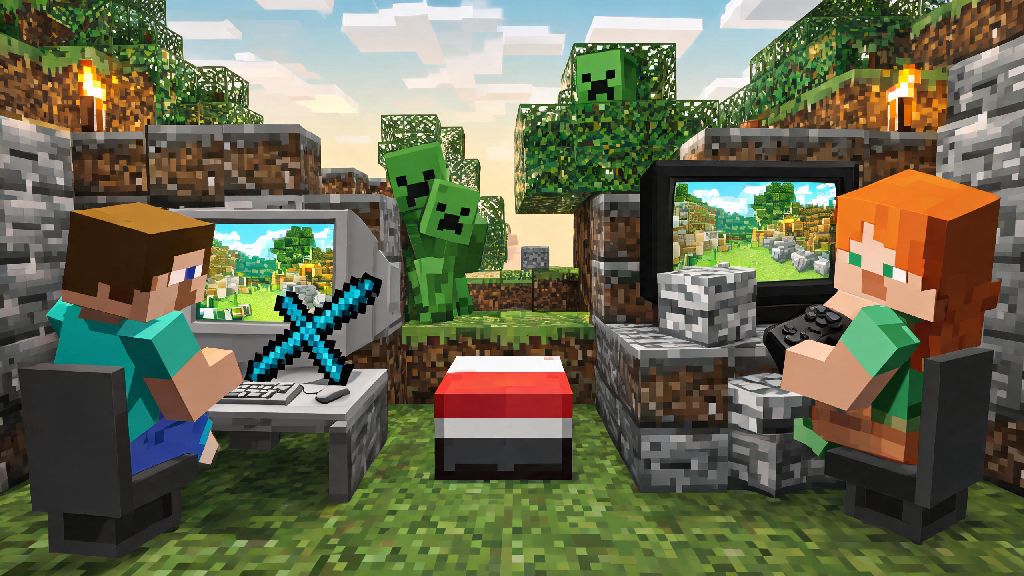
There’s nothing quite like exploring a random Minecraft seed, building a cozy base, or fighting off a creeper horde with a friend by your side. For new players, figuring out how to play Minecraft with two players can feel confusing at first, especially if you’re on different devices or don’t have a steady internet connection. I’ve tested every method over the past 8 years of playing the game with my little sibling and cross-country friends, and I’ve broken down all the simplest, no-fuss options that work for every version and device. You don’t need expensive server subscriptions or technical know-how to get your co-op session up and running in 10 minutes or less.
How to Play Minecraft with Two Players Locally: No Internet Required
Local play is the easiest option if you and the other player are in the same physical space, and it works even if you have no Wi-Fi or mobile data available. The exact steps change a little depending on your device, but the core requirements are the same across all versions. You don’t need a paid Minecraft Realms subscription for local play at all, which makes it a great pick for casual players who don’t want extra monthly costs. If you’re trying to figure out how to play Minecraft with two players for a quick after-school or weekend session, local play is easily the fastest option.
If you’re playing on a console like Xbox, PlayStation, or Switch, split-screen play is as simple as turning on your second controller, opening Minecraft, and loading your existing world. The second player will get a prompt to join the game right on the home screen, and you can adjust the split-screen orientation in the settings menu if you prefer side-by-side over top-bottom view. Keep in mind that split-screen only works for up to four players total, but it’s perfectly optimized for two-person play, with no lag or dropped connections if your console is running well.
For PC, mobile, or mixed local device play, LAN play is your best bet. The host just needs to open their single-player world, open the pause menu, and select “Open to LAN.” They’ll get a 5-digit code that the second player can enter in the “Friends” tab of their Minecraft menu to join instantly. I use this method all the time when I’m playing with my roommate on our laptops, and we’ve never had a connection issue even when we’re using a phone hotspot for the network while camping.
Setting Up Online Two-Player Minecraft for Cross-Platform Play
If you and the other player aren’t in the same location, online play is the way to go, and modern Minecraft makes cross-platform play easier than ever if you’re all on Bedrock Edition. Java Edition players can still play online together, but they can’t connect to Bedrock players, so make sure you confirm which edition you both own before you start setup.
The most reliable option for casual two-player online play is Minecraft Realms. Realms are private, 24/7 servers hosted by Mojang, so you don’t have to leave your computer or console on for the other player to access the world when you’re offline. The basic Realms plan for up to three players is very affordable, and it includes automatic backups so you never lose your build progress if something crashes. You just set up the Realm, send an invite to the second player’s Minecraft gamertag, and they can join any time they want, no extra setup needed on their end.
If you don’t want to pay for a subscription, you can also use a free public server that supports two-player play, or set up a temporary peer-to-peer online world. For peer-to-peer play, the host just needs to open their world to friends, and the second player can join through the friends tab as long as the host is online. The only downside here is that the world is only available when the host is playing, so you can’t log on to build something while the other person is at work or school. For Java Edition players who don’t want to pay for Realms, you can also set up a custom self-hosted server if you have a little extra technical knowledge, but for most two-player groups, the free peer-to-peer option is more than enough.
Cross-platform play works seamlessly for all Bedrock Edition players, so someone on an iPhone can play with someone on a PlayStation 5 or a Windows PC as long as they’re friends on Xbox Live. You don’t need an Xbox Live Gold subscription if you’re playing on mobile or PC, but console players will need their respective platform’s online subscription to access online play, just like any other online game.
Common Two-Player Minecraft Issues and Simple Fixes
Even with the simplest setup, you might run into a few snags when you’re trying to get your two-player game running. I’ve dealt with every possible error over years of playing with friends across different devices, and most of them take less than a minute to fix if you know what to look for.
The most common issue is the second player being unable to find the host’s world, either on LAN or online. 9 times out of 10, this is because the players are on different versions of Minecraft. Double check that both of you have the latest update installed, and that you’re both on either Java or Bedrock Edition before you try anything else. If you’re on LAN, make sure both devices are connected to the exact same Wi-Fi network, and that neither of you has a VPN running that might be routing your traffic to a different location. If you’re playing with a younger player, make sure parental controls on their account don’t block multiplayer access, as that’s another common hidden issue that prevents players from joining each other’s worlds. You can adjust these settings in your platform’s account dashboard, or through the Minecraft parental control portal.
Another common problem is lag during two-player play, especially if you’re on a low-bandwidth internet connection or an older device. You can fix most lag issues by turning down your render distance, turning off fancy graphics settings, and closing any other apps or games running in the background on your device. If you’re playing on a Realm, lag is rarely an issue since the server is hosted offsite, but if you’re playing peer-to-peer, the host should be the person with the fastest internet connection to reduce lag for both players.
If you get a “not invited” error when trying to join a friend’s online world, make sure the host has added your gamertag to their allowed list, and that you’ve accepted their friend request on your respective platform. For Java Edition players, make sure the host hasn’t turned on “online mode” if you’re using a custom launcher, though I always recommend using the official Minecraft launcher to avoid account safety risks.
Fun Game Modes to Try for Your Two-Player Minecraft Session
Once you’ve got your two-player game up and running, you might get tired of standard survival mode after a few sessions. There are tons of fun custom game modes and challenges you can try to shake things up, and most of them don’t require any mods or extra downloads to work.
My personal favorite two-player challenge is the “speedrun vs. hunter” mode. One player is the speedrunner, who has to beat the Ender Dragon as fast as possible, and the other player is the hunter, who has to track down and kill the speedrunner before they finish the game. You can set rules to give the speedrunner a 10-minute head start, or make the hunter have to gather their own resources before they can start hunting, depending on how competitive you want to be. This mode works best on a new random seed so neither player knows the map layout, and it’s a great way to kill an hour when you’re bored.
Co-op build challenges are another great option for more casual players. You can pick a theme, like a medieval castle, an underwater base, or a floating sky city, and set a 2-hour timer to see how much of the build you can finish together. You can also split up tasks, like one person gathers resources while the other designs the layout, to make the process go faster. I’ve built some of my favorite Minecraft bases doing these challenges with my best friend, and we still go back to those worlds years later to show off what we made. You can even turn it into a friendly competition by seeing who can design the better room for your shared base.
If you like more relaxed play, you can try a “no death” survival run, where both of you have to start a new survival world and see how long you can go without either of you dying. If either player dies, you delete the world and start over. It’s way more fun than it sounds, and you’ll end up being way more careful when exploring caves or fighting the Wither than you would be in a standard survival world. You can also add extra rules, like no using diamond tools, to make the challenge even harder if you’re an experienced player.
At the end of the day, Minecraft is meant to be shared, and you don’t need fancy equipment or technical skills to enjoy the game with a friend. Whether you’re playing locally on the same couch or across the world on different devices, there’s a simple setup option that works for your budget and device type. Next time you’re looking for a fun activity to do with a friend, try out these methods to learn how to play Minecraft with two players, and don’t be afraid to mess around with custom game modes to make your sessions even more memorable.