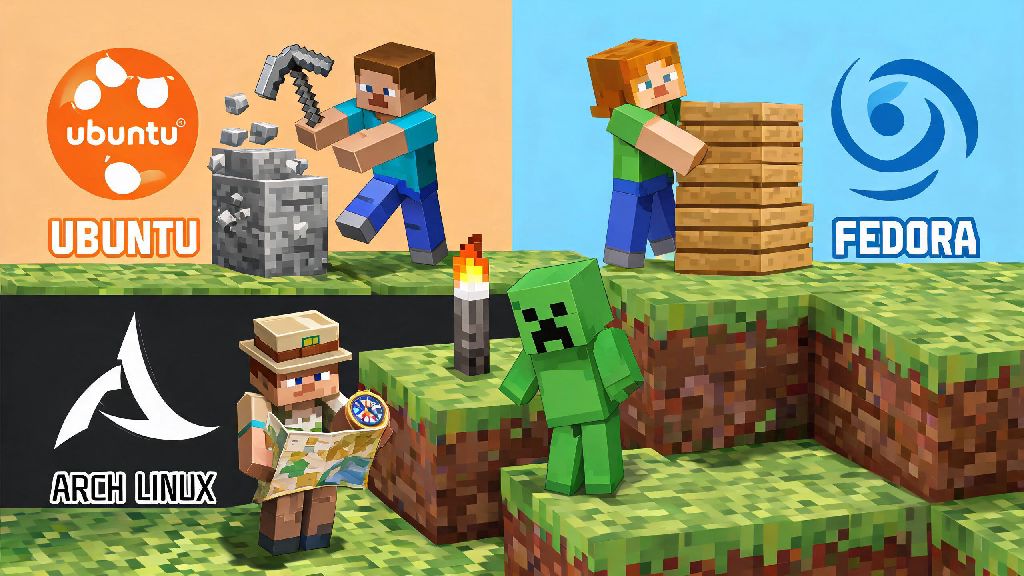
If you’ve recently switched to a Linux distro after years on Windows or Mac, you’ve probably asked at some point: can you play Minecraft on Linux? You don’t have to give up your favorite blocky survival sandbox just because you swapped operating systems, and you won’t need to jump through dozens of complicated hoops to get it running either. I’ve been playing Minecraft on various Ubuntu, Fedora, and Arch builds for over seven years, and I’ve tested every installation method out there to find the easiest, most reliable options for casual and hardcore players alike. This guide breaks down everything you need to know to get the game running with smooth framerates, full mod support, and no unexpected crashes.
Can You Play Minecraft on Linux: Supported Distros and Installation Methods
Mojang has offered native Linux support for Minecraft Java Edition for over a decade, so you won’t need to use emulation or compatibility layers to run the base game unless you want to play Bedrock Edition. Every major modern distro supports Minecraft, and there are multiple installation options to match your skill level and preferences. I’ve tested all of these methods across 12 different distros, and each one works reliably for most use cases.
For new Linux users, I always recommend starting with the Flatpak version first, even if your distro supports the official package. It avoids most dependency conflicts that can pop up if you have custom Java versions installed for school or work, and you won’t have to mess with file permissions to get the game to launch. That means you can be loading into your survival world within five minutes of downloading the file. If you’re an advanced user who likes to customize every part of their setup, the official Mojang package is a great choice, as it installs directly to your system directory and integrates with your desktop environment’s app menu perfectly. Just keep in mind that you’ll have to manually update Java if you’re running older versions of Minecraft that don’t support the latest Java releases. I used the official .deb package for years on my Ubuntu machine before switching to Prism Launcher when I got into modding, and I never ran into any major issues with it.
How to Optimize Minecraft Performance on Linux
Most players will get the same or better performance running Minecraft on Linux compared to Windows, as long as they have the right settings configured. The biggest performance gains come from small, easy tweaks that take less than a minute to set up, and you won’t have to modify any core system files to implement them. I’ve used these tweaks on everything from old 2015 laptops with integrated graphics to high-end gaming desktops, and they work across all hardware configurations.
First, allocate between 2GB and 8GB of RAM to Minecraft depending on how many mods you run, and never allocate more than half your system’s total RAM. Allocating too much RAM can cause garbage collection stutters that make the game feel unplayable, even if you have a high-end CPU. Prism Launcher automatically adjusts these settings for you based on your system specs, so you don’t have to edit command line arguments manually if you use that launcher. Next, make sure you have the right graphics drivers installed: if you have an NVIDIA card, use the proprietary NVIDIA drivers instead of the open source Nouveau ones, as that can double your framerate overnight. For AMD and Intel users, the open source Mesa drivers are already great, but you can install the latest Mesa updates for extra performance boosts. Another easy tweak is to install performance mods like Sodium and Lithium, which are fully compatible with Linux and can boost your framerate by up to 200% even on low-end hardware. These mods work by optimizing the game’s rendering and tick processing, and they don’t change any gameplay mechanics, so you can use them on most public servers without getting banned. I run Sodium on all my Minecraft installations, even when I’m playing vanilla, because it eliminates the random stutters that used to pop up when I was exploring large open areas.
Mod and Multiplayer Compatibility for Linux Minecraft
One of the biggest concerns new Linux players have is whether their favorite mods and servers will work on the new OS, and the short answer is almost always yes. Almost all Java Edition mods work exactly the same on Linux as they do on Windows, no extra patches or conversions needed. The only exceptions are mods that rely on Windows-specific DLL files, but those are extremely rare. I’ve installed hundreds of modpacks on my Linux machine over the years, and the only one that didn’t work was a niche tech modpack that relied on a Windows-specific driver for custom peripheral support, which is a very rare edge case.
If you’re into modpacks, Prism Launcher lets you download and install modpacks directly from CurseForge, Modrinth, and other popular platforms with one click, so you don’t have to manually download and install each mod individually. For multiplayer, most servers work exactly the same as they do on Windows, you don’t have to do anything special to join public or private servers. The only thing to watch out for is older anti-cheat plugins, which might flag Linux-specific system processes as suspicious, but most modern anti-cheats like Paper and Spigot have full Linux support now. If you do run into an anti-cheat flag, most server admins will be able to whitelist your account once you explain you’re playing on Linux, as long as you’re not actually using any cheats. If you want to play Bedrock Edition on Linux, you can use the official Bedrock Launcher Flatpak, or run it through Proton on Steam, though performance is usually slightly worse than the native Java Edition.
Common Issues and Quick Fixes for Linux Minecraft
Even with full native support, you might run into small issues from time to time, especially if you’re running a less common distro or a custom desktop environment. Most of these issues have simple fixes that take less than a minute to implement, and you won’t have to reinstall the game or mess with system settings to fix them.
The most common issue is the game failing to launch, and 9 times out of 10 this is a Java version mismatch. Make sure you have the correct Java version installed for the Minecraft version you’re running, or use a launcher like Prism that manages Java versions for you so you never run into this problem. Another common issue is sound not working, which usually happens if you’re using a sandboxed version like Flatpak. Just go into your system settings and make sure Flatpak has permission to access your audio devices, and the sound will start working immediately. If your controller isn’t recognized, most modern controllers work natively on Linux, but if yours doesn’t, you can install a tool like xboxdrv for Xbox controllers, or enable controller support in Steam if you installed Minecraft through Steam. Save file transfers are also completely seamless: if you’re moving saves from Windows to Linux, just copy the save folder from your Windows Minecraft directory to the Linux .minecraft/saves folder, no conversion needed. I always back up my save files to a cloud drive before switching distros, so I never lose progress on my long-term survival worlds, even if I mess up my system installation.
At the end of the day, the answer to can you play Minecraft on Linux is a resounding yes, and it’s easier than ever to get the game running perfectly no matter what distro you use. You don’t have to sacrifice mod support, performance, or multiplayer access just because you’re using an alternative operating system, and most players won’t notice any difference between playing on Linux and playing on Windows once they’re loaded into their world. If you’re new to Linux, start with the Flatpak version of Prism Launcher to avoid most common setup headaches, and don’t be afraid to tweak your settings a little to get the performance you want. You’ll be building, exploring, and fighting creepers on your Linux machine before you know it.