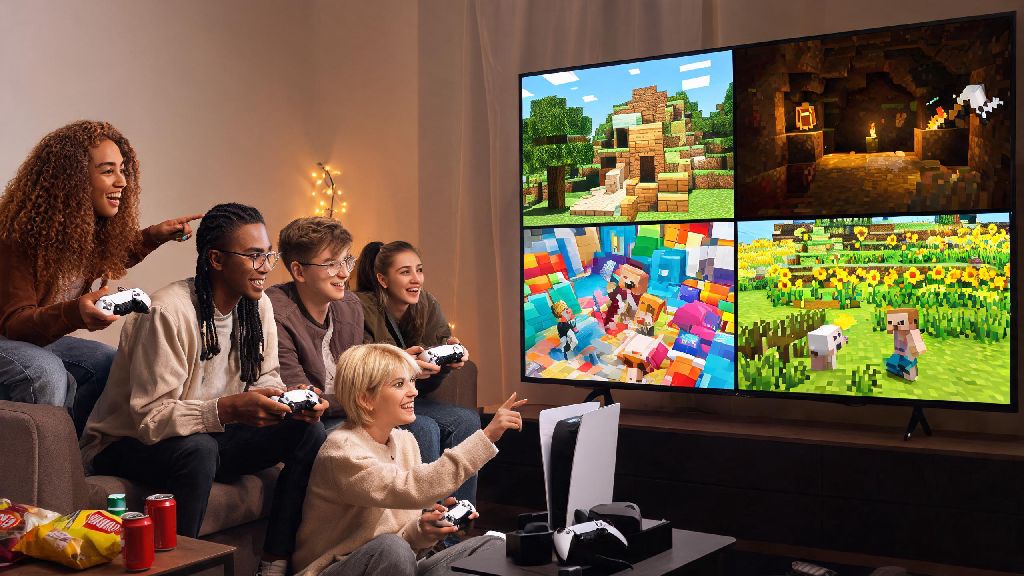
If you’ve ever spent hours building a sprawling castle or surviving a horde of creepers alone, you know Minecraft gets 10x more fun when you bring friends along. Whether you want to team up for a survival run, show off your latest build, or mess around with silly minigames, figuring out how to play Minecraft with others doesn’t have to be complicated. I’ve tested every method across PC, Switch, PlayStation, and mobile over the last 8 years, so I’ll break down exactly what works for every group, no tech degree required. You won’t have to mess with confusing settings for hours to get your group connected, I promise.
How to Play Minecraft with Others: 4 Core Methods to Choose From
The right connection method depends on how many people you’re playing with, where they’re located, and how much control you want over your world. I’ve ranked them from easiest to most advanced, so you can pick what fits your group best:
Local co-op is the best option if you’re all in the same physical space, like hanging out at a friend’s house or with family at home. It only works on consoles (PlayStation, Xbox, Switch) and requires enough controllers for every player, with a max of 4 people per session. The only downside is your screen gets split between all players, so it can feel cramped if you’re playing on a small TV. No account linking or extra fees are needed, which makes it perfect for impromptu play sessions.
If your friends are in different locations, Minecraft Realms is the simplest low-effort option. For around $8 a month, you get a 24/7 hosted world that up to 10 people can join at any time, even if the person who created the world is offline. It works across all Bedrock edition platforms (console, mobile, Windows PC), so you don’t have to worry about port forwarding or connection errors. It’s not the best choice if you want to use lots of custom mods, but it’s ideal for casual survival or build groups.
Public servers are great if you want to meet new people or play pre-made minigames like Bed Wars or Skyblock. There are thousands of free servers for every playstyle, from roleplay worlds to hardcore survival servers. You just need the server’s IP address to join, but be aware that unmoderated servers can have trolls or toxic players. Self-hosted servers give you full control over every setting, mod, and player rule, but they require a strong internet connection and basic tech knowledge to set up and secure.
Cross-Platform Play Setup: Common Fixes for Connection Issues
Cross-platform play used to be a huge headache, but Mojang has simplified it a lot in recent years. That said, there are still a few common snags that trip people up when they’re trying to connect friends on different devices.
Every player needs to sign into a free Microsoft account to play cross-platform, even if you’re on PlayStation or Switch. You don’t need an Xbox subscription for this, just a valid email to make an account. Once everyone is signed in, you can add each other as Xbox friends, and you’ll be able to see each other’s open worlds or Realms in your friends list.
The most common connection error comes from version mismatches between players. Make sure all players are on the same game version before trying to connect – if someone hasn’t updated their Minecraft app in a few months, they won’t be able to see your world. This is extra important for Java edition players, who often use older game versions to run specific mods. If you’re playing on Java, you can change your active version in the Minecraft launcher before joining a server.
Keep in mind that Java and Bedrock editions of Minecraft are not natively compatible. Java edition only works on PC, Mac, and Linux, while Bedrock is the version used for consoles, mobile, and Windows 10/11. If you have a mix of Java and Bedrock players in your group, you can run a Java server with the Geyser mod installed to let Bedrock players join. It takes 10-15 minutes to set up, but there are plenty of step-by-step tutorials to walk you through the process. If you have a strict NAT type on your router, you may also need to enable UPnP in your router settings to let other players connect to your world directly.
Safe Play Tips for Families and Young Players
Playing Minecraft with others can be a great way for kids to collaborate and make friends, but it’s important to set guardrails to keep them safe, especially on public servers. I’ve talked to dozens of parents who had bad experiences with unmoderated servers, so these small adjustments will save you a lot of stress later.
Stick to curated, family-friendly public servers if you’re letting kids play with strangers. Big, well-known servers have active moderation teams, chat filters, and strict rules against toxic behavior, harassment, and inappropriate content. You can find lists of recommended family-friendly servers from trusted Minecraft content creators or parenting sites to avoid risky smaller servers.
If your kid is only playing with people you know, use Realms or a private whitelisted server instead of public servers. Whitelisting means only players you specifically approve can join the world, so no random strangers can pop in uninvited. You can also adjust in-game safety settings to disable voice chat, turn on profanity filters, and block untrusted players from sending friend requests or messages.
Never share personal information like your address, full name, or school name in public server chats. Even if a player seems friendly, it’s best to keep personal details private. If someone is being toxic, harassing you, or asking for personal information, you can block them immediately and report them to the server’s moderation team or Mojang’s safety team. Most servers have a reporting feature built into the chat menu, so you don’t have to put up with bad behavior.
Fun Group Play Ideas to Keep Your Sessions Interesting
Once you have your group connected, you might be wondering what to do besides just building and surviving. I’ve run hundreds of group Minecraft sessions over the years, and these ideas always go over well with both casual and hardcore players.
Survival challenges are a great way to mix up regular play. You can try a hardcore run where the whole world gets deleted if one player dies, a speedrun to beat the Ender Dragon in under an hour, or a “no wood” challenge where you have to survive using only resources you find in the Nether or End. You can also set build competitions where everyone has 30 minutes to build something based on a random theme, like a haunted house or a space station, and vote for the winner at the end.
If you’re playing on a public server, minigames like Bed Wars, Hide and Seek, or TNT Run are perfect for large groups. They’re fast-paced, easy to learn, and you don’t have to spend hours setting anything up. For more creative groups, you can collaborate on a big community build, like a whole city or a theme park, and assign different roles to each player. Set clear ground rules for your group before you start, especially if you’re playing on a shared survival world. Simple rules like no stealing other players’ items, no blowing up builds as a prank, and shared community chests for resources will avoid a lot of unnecessary fights. I once had a friend refuse to play with our group for 3 months after someone blew up his Nether portal as a joke, so taking 2 minutes to agree on rules is always worth it.
For more advanced groups, modded playthroughs can completely change the game. Mod packs like Pixelmon (which adds Pokemon to Minecraft) or Create (which adds complex machinery and automation) give you hundreds of hours of new content to explore together. Just make sure every player has the same mods installed before you start, or you’ll run into connection errors.
At the end of the day, the best part of Minecraft is the memories you make with other people, not how perfect your setup is. You don’t need a fancy server or expensive hardware to have a great time – even a simple local split-screen session with your siblings or roommates can turn into a story you laugh about for years. Now that you know how to play Minecraft with others, grab your friends, pick a method that fits your group, and go build something awesome. And if you run into a weird connection bug? Just restart your game first, that fixes 90% of issues I’ve ever run into.