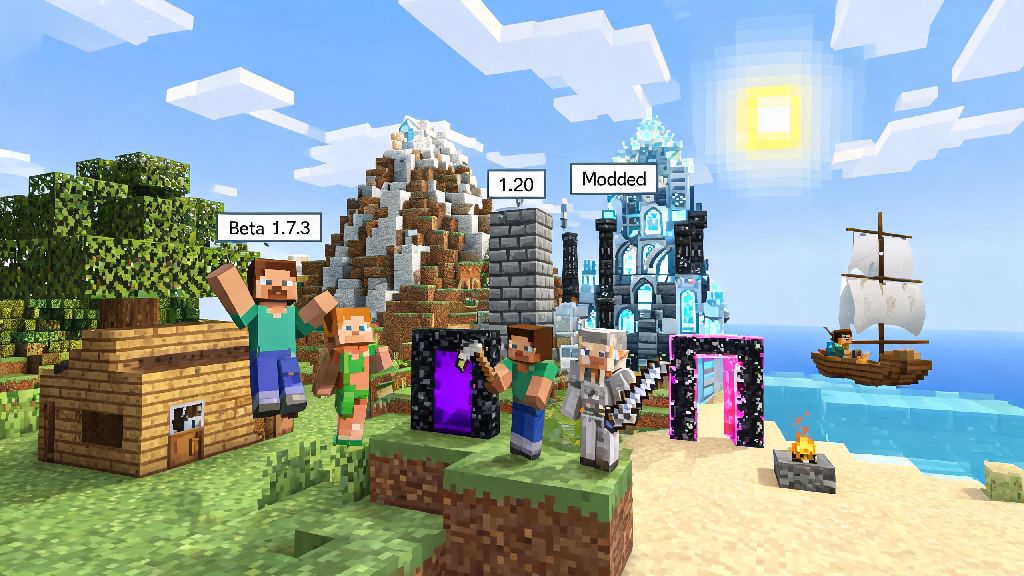
If you’ve ever scrolled through old Minecraft playthroughs online and felt a pang of nostalgia for the original floaty combat, beta biomes, or that one mod pack that only worked on 1.7.10, you’re not alone. Learning how to play Minecraft older versions is a super common request from long-time players who want to relive their first building sprees or test mods that never got updated to newer releases. You don’t have to worry about breaking your current game or losing your 100-hour survival world, either—all the steps we cover below are designed to keep your existing data completely intact, even if you swap between versions every day.
How to Play Minecraft Older Versions Using the Official Launcher
The official Mojang launcher is the safest, most reliable way to access legacy game builds, and it requires no extra downloads to get started. First, open your launcher and navigate to the “Installations” tab at the top of the screen. You’ll see a toggle labeled enable historical versions near the top of the page—flip that on to unlock every public Minecraft release dating back to the 2009 alpha builds.
Next, click “New Installation” to create a dedicated profile for the version you want to play. Pick a clear name for the profile (like “1.7.10 Vanilla”) so you don’t mix it up with your current game, then select the version you want from the dropdown menu. Most importantly, allocate separate save folders for each legacy profile, so worlds from different versions never interact with each other. This small step takes less than a minute, and it’s the easiest way to avoid headaches when you learn how to play Minecraft older versions for the first time.
Once you save the profile, it will show up in your main launcher menu alongside your regular game installation. You can swap between them at any time, no restarts required. Just make sure you close one version before opening another to avoid file conflicts.
Key Preparations to Avoid Losing Existing Game Data
The biggest mistake new players make when testing old versions is forgetting that older game builds can’t recognize blocks, items, and mechanics added in later updates. If you open a 1.20 survival world in 1.8, for example, every block added after 1.8 will be permanently deleted from your save, with no way to recover it. A few simple pre-checks eliminate this risk entirely.
You also want to never open a world created in a newer version in an older release, even if you think you only used basic blocks. Hidden data like new biome tags, entity behaviors, and inventory items will still cause corruption that can ruin the world even if you move it back to the newer version later. If you want to play an old version with friends, make sure everyone is running the exact same build and mod list to avoid connection errors.
Third-Party Launcher Options for Advanced Version Control
The official launcher works great for casual players who only want to test one or two old versions, but if you run multiple mod packs across different releases, third-party launchers will save you a lot of time. Tools like Prism Launcher and MultiMC are built specifically for version and mod management, and they automatically separate every installation’s save, mod, and resource pack folders so you never have to worry about cross-contamination.
If you plan to swap between 3 or more different builds regularly, these tools make the process of how to play Minecraft older versions far less tedious than the official launcher. They also automatically install the correct Java version for each release, so you don’t have to manually adjust Java paths or troubleshoot compatibility errors for old builds. That said, only download third-party launchers from their official, verified sources to avoid malware or account theft risks.
One downside to third-party launchers is that they are not officially supported by Mojang. If you run into account login issues or game crashes caused by the launcher itself, you won’t be able to reach out to Mojang support for help. For most modded players, the tradeoff is worth it, but if you’re new to legacy versions, start with the official launcher first to get the hang of the process.
Common Issues When Playing Legacy Minecraft Versions (And Fixes)
Even with perfect setup, you might run into small bugs when playing old versions, especially if you’re running them on a modern operating system. The most common error is a GLFW crash on launch, which happens when old game builds don’t recognize new graphics driver updates. Update your graphics drivers before launching any legacy versions to fix 90% of these crashes right away. If that doesn’t work, adjust the Java path in your profile settings to match the Java version required for your chosen release—versions older than 1.12 need Java 8, while 1.13 to 1.16 use Java 11, and 1.17+ use Java 17.
Another common issue is missing skin or cape support for versions older than 1.3. That’s not a bug—Mojang changed its skin server system years ago, so old builds can’t pull modern skin data. You can fix this by installing a simple legacy skin mod for the version you’re playing, or you can just play offline if skins don’t matter to you. If you’re playing modded, make sure every mod you download is made for the exact version you’re running, even if the mod page says it’s “compatible with similar releases.” Even a small version mismatch can cause crashes or world corruption.
You might also notice lower frame rates on older versions if you’re running a high-end modern PC. That’s because old Minecraft builds don’t support modern rendering optimizations like Sodium. You can install legacy versions of performance mods to fix this, just make sure they match your game build exactly.
At the end of the day, there’s no right or wrong reason to fire up an old Minecraft build—whether you want to beat the Ender Dragon with the old combat system, build a world with the original beta terrain generation, or just mess around with your favorite discontinued mod. Knowing how to play Minecraft older versions safely lets you enjoy all of that without risking the worlds you’ve spent years building on newer releases. Don’t rush through the setup steps, take two minutes to back up your saves first, and you’ll be exploring those classic blocky landscapes in no time.