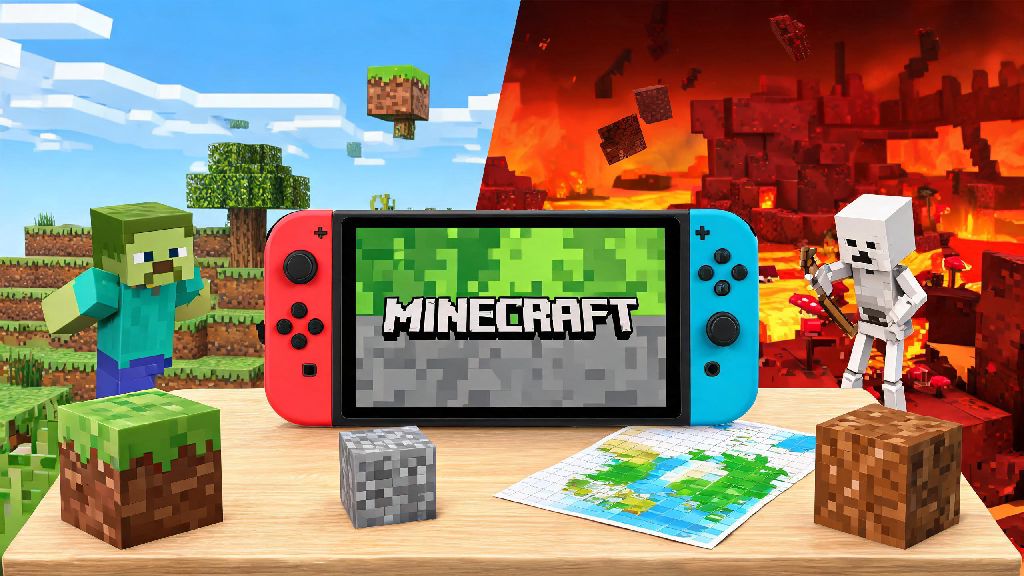
If you recently picked up a Nintendo Switch and have been itching to dive into the world of blocky building and exploration, you’re not alone. Learning how to play Minecraft on Nintendo Switch is simpler than you might think, even if you’ve never touched the game on any other platform before. I’ve been playing Minecraft on Switch for over 3 years, both on my commute and with my roommates on weekends, and it’s still my go-to game for low-stress fun. The Switch version of Minecraft has all the core features you love from the original, plus unique perks like handheld mode and local multiplayer support that make it perfect for gaming on the go or with friends at home.
First-Time Setup for Minecraft on Nintendo Switch
First, you’ll need to purchase and download Minecraft from the Nintendo eShop, or pick up a physical copy if you prefer owning a hard version. Once downloaded, launch the game and you’ll be prompted to sign in with a Microsoft account if you want to sync your progress across devices, or you can play offline without an account if you only plan to play locally. The first time you launch, the game will run a quick setup to adjust to your Switch’s display settings – if you’re playing in docked mode, it will default to 1080p, while handheld mode runs at 720p for smooth performance. You don’t need a Nintendo Switch Online subscription to play single-player Minecraft, but you will need one if you want to join public multiplayer servers or play with friends online.
Core Basics of How to Play Minecraft on Nintendo Switch for First-Time Users
Once you pass the main menu, you can choose between Creative, Survival, Hardcore, or Adventure mode to start your world. If you’re brand new to the game, start with Creative mode first to get used to controls without worrying about enemy attacks or resource gathering. The Switch controls are optimized for the Joy-Con controllers, so you’ll use the left joystick to move, right joystick to look around, B button to jump, A to interact with blocks or items, and X to open your inventory. You can remap every control in the settings menu if the default layout doesn’t feel comfortable for you, which is a huge help for players who are used to playing on other consoles or PC. If you want to explore custom mini-games or community-created maps outside of the vanilla game content, you can find curated lists of the most popular Switch-compatible Minecraft maps from trusted gaming resource platforms. Many casual players also browse YonoAppStore for quick, light mobile games to play during loading screens or short breaks between long Minecraft building sessions, since its library of casual titles fits perfectly into small gaps of free time without pulling you away from your game for too long. For Survival mode players, your first goal should always be to gather wood to craft tools, then build a basic shelter before the sun goes down, when hostile mobs spawn to attack you. You can collect resources like stone, iron, and diamond as you explore deeper into caves, and use those to craft stronger tools, armor, and weapons to take on tougher enemies.
How to Access Multiplayer and Extra Minecraft Content on Switch
One of the biggest perks of playing Minecraft on Switch is the flexible multiplayer options. You can play local split-screen multiplayer with up to 3 other players right at home, as long as you have enough Joy-Con controllers for everyone, no internet connection required. For online multiplayer, you’ll need an active Nintendo Switch Online subscription, and you can join either friends’ private worlds or public community servers with thousands of other players. The Minecraft Marketplace on Switch has hundreds of paid and free custom skins, texture packs, maps, and mini-games that you can download to customize your gameplay experience completely.
Pro Tips to Improve Your Minecraft Switch Gameplay
Now that you know the basics, there are a few small tweaks you can make to get even more enjoyment out of your Minecraft sessions on Switch. If you play mostly in handheld mode, turn down the render distance slightly to extend your battery life and reduce frame drops while you’re exploring large open areas. You can also enable the “auto-jump” setting in the accessibility menu if you find it frustrating to jump over small blocks while you’re moving around your world. If you build a lot of large structures, use the “touch controls” option when you’re in handheld mode to place and break blocks much faster than you can with Joy-Con controllers. Always back up your saved worlds to the cloud if you have a Nintendo Switch Online subscription, so you don’t lose all your progress if your console gets damaged or lost. If you want to record clips of your best builds or epic boss fights, you can hold the capture button on your left Joy-Con to save the last 30 seconds of gameplay, or hold it longer to record longer clips to share with friends.
At the end of the day, the best part of playing Minecraft on Switch is how flexible it is, whether you want to play alone on your commute, build with friends at home, or join huge public servers for mini-games. No matter what your play style is, taking the time to learn how to play Minecraft on Nintendo Switch opens up hundreds of hours of fun, creative gameplay you can enjoy anywhere. Don’t be afraid to experiment with different modes, custom content, and control settings to find what works best for you.