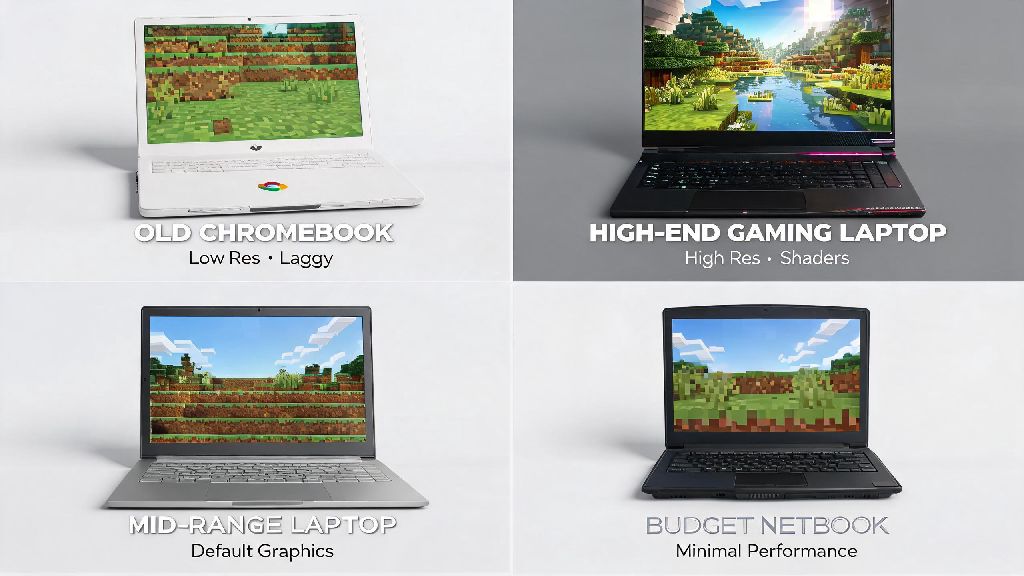
If you’re heading off to college, traveling for work, or just don’t have space for a full desktop setup, you’ve probably wondered: can you play Minecraft on a laptop? The short answer is almost always yes, but your experience will vary wildly depending on your device’s specs, the version you run, and the tweaks you make to optimize performance. I’ve tested Minecraft on everything from a 7-year-old budget Chromebook to a high-end gaming laptop over the past 6 years, so I’m breaking down exactly what you need to know to get the best possible play experience no matter what laptop you own.
What Specs Do You Need to Play Minecraft on a Laptop?
The biggest factor that determines your gameplay quality is your laptop’s hardware, and requirements differ a lot between the two main versions of the game. Bedrock Edition is designed to run on lower-power devices, including phones and tablets, so it will work on nearly any laptop made in the last decade. Java Edition is more resource-heavy, especially if you plan to use mods, shaders, or large custom mod packs.
If you only have a Chromebook, you can still run the official Bedrock Edition from the Google Play Store, as long as your Chromebook was released after 2019 and supports Android apps. Older Chromebooks can run the Education Edition or browser-based Minecraft Classic if you just want to mess around with friends for a few hours.
Easy Tweaks to Boost Minecraft Performance on Laptops
Even if your laptop is on the lower end of the spec range, you can make small, free adjustments to get a smooth 60fps experience without sacrificing too much visual quality. The most impactful change you can make is to lower your in-game render distance – dropping it from 32 chunks to 12 or 16 will cut your GPU usage by nearly 70% in most cases, and you barely notice the difference in regular survival play.
You can also turn off fancy graphics, smooth lighting, and cloud rendering for extra framerate gains. These are small visual changes that add up to big performance improvements, especially on laptops with integrated graphics. If you’re playing Java Edition, install the OptiFine mod – it’s designed specifically to optimize performance, and it adds support for custom graphics settings that let you turn off unnecessary features like extra particle effects. You don’t have to be a modding expert to install it, either; the setup wizard walks you through every step in under two minutes.
Make sure you close any background apps you’re not using while playing. Web browsers with 10 open tabs, streaming apps, and cloud storage sync tools can eat up RAM and processing power that you need for Minecraft. When you play Minecraft on a laptop, you also want to make sure your device is well ventilated to avoid overheating. Laptops are smaller than desktops, so they heat up faster when running games, and overheating will cause your processor to slow down to prevent damage. Set it on a hard, flat surface instead of a blanket or couch cushion to keep air flowing through the vents.
Common Mistakes That Ruin Laptop Minecraft Gameplay
A lot of people assume their laptop is too slow for Minecraft, when really they’re making simple mistakes that are dragging performance down. The most common one is running the wrong edition of the game for their device. If you have a low-end laptop with only 4GB of RAM, you’re going to struggle to run Java Edition even with all the performance tweaks in the world. Switching to Bedrock Edition will instantly give you a smoother experience, and you can still play with most of your friends even if they’re on Java, thanks to cross-play support for most servers now.
Another mistake is trying to run too many mods at once on a laptop that can’t handle it. Even high-end gaming laptops can lag if you’re running 50+ mods and high-resolution shaders at the same time. Start small, add mods one at a time, and test performance after each addition to see what your device can handle.
Don’t forget to plug your laptop in while you’re playing, either. Most laptops switch to a low-power mode when running on battery, which cuts processor and graphics performance by up to 50% to save charge. I learned this the hard way on a road trip a few years ago – I spent 20 minutes tweaking in-game settings before I realized I’d forgotten to plug my laptop into the car charger, and that was the whole reason my framerate was so low.
Is a Gaming Laptop Worth It for Minecraft?
If you don’t already own a laptop and you’re shopping specifically for one to play Minecraft, you don’t have to spend a fortune on a top-of-the-line gaming laptop. For most players, a mid-range laptop with 8GB of RAM, an 11th-gen or newer Intel Core i5 processor, and integrated Iris Xe graphics will run both Bedrock and base Java Edition perfectly well at 60fps, even with a few small mods. These laptops usually cost between $500 and $700, and they’re light enough to carry around for school or work too.
If you want to run heavy mod packs, shaders, or record your gameplay to share online, then a gaming laptop with a dedicated graphics card is worth the investment. Look for one with NVIDIA RTX 3050 or better graphics, 16GB of RAM, and a Core i7 or AMD Ryzen 7 processor. These usually cost between $800 and $1200, and they’ll handle any Minecraft setup you want to run, plus other new games if you play other titles too.
You don’t need to spend more than $1500 on a laptop just for Minecraft, though. Even the most demanding mod packs and 4K shader packs run perfectly well on mid-range gaming laptops, so you’re just wasting money if you splurge on a high-end flagship model for Minecraft alone.
At the end of the day, you don’t need a fancy desktop setup to enjoy everything Minecraft has to offer. Whether you’re building a small survival base with friends or exploring a massive custom modded world, you can play Minecraft on a laptop as long as you pick the right edition, adjust your settings to match your specs, and avoid common performance mistakes. Even if you have an older budget laptop, you can still get a smooth, enjoyable gameplay experience without spending extra money on upgrades. The best part is you can take your worlds with you wherever you go, so you never have to pause your next big build just because you’re away from home.