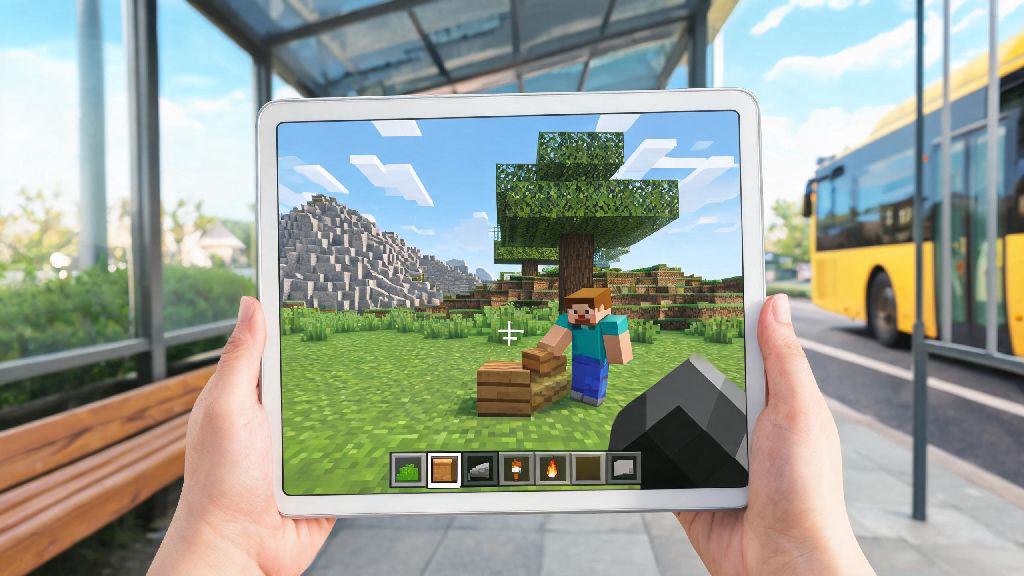
If you’ve ever wanted to dive into blocky worlds while waiting for a bus, curled up on the couch, or traveling without your gaming PC, you’ve probably wondered how to play Minecraft on iPad. The device’s large touchscreen and portable form factor make it a surprisingly solid option for both casual creative builds and intense survival runs, as long as you know the right setup and tweaks to avoid common frustrations. I’ve been playing Minecraft on iPad for years, both for quick creative sessions and long survival worlds with friends, and I’ve picked up all the small hacks to make the experience feel just as smooth as playing on a console or desktop.
How to Play Minecraft on iPad: First-Time Setup Steps
The first thing you need to know is that only the Bedrock Edition of Minecraft is available for iPad, so you won’t be able to run Java Edition worlds or mods designed for desktop Java players. That said, Bedrock Edition has almost all the same core features as Java, plus crossplay support, so you won’t miss out on much for casual or even semi-serious play. Always download the official Minecraft app from the Apple App Store to avoid malware or fake versions that steal your account details, as there are lots of knockoff apps that pretend to be Minecraft for iOS.
Once you’ve downloaded the app, sign in with your Microsoft account to sync existing worlds, skin packs, and marketplace purchases you already own on other Bedrock devices, like an Xbox or Android phone. If you don’t have a Microsoft account yet, you can create one for free in the app, though you’ll need it to play online with friends. If you have an Apple Arcade subscription, you can also access Minecraft: Bedrock Edition through that at no extra cost, which is a great deal if you already use the service. Once you’ve completed these steps, you’re ready to start exploring, building, and surviving however you want, which is the best part of figuring out how to play Minecraft on iPad.
Adjusting Controls for Comfortable, Intuitive Gameplay
The default touch controls work fine for short sessions, but a few small tweaks will make the experience feel way more natural, especially if you’re used to playing on a console or PC. First, head to the Settings menu and select Controls to adjust the size of on-screen buttons, their position, and touch sensitivity to match your hand size and playstyle. Turn on the "split controls" option if you prefer to place blocks and mine with separate thumbs, rather than tapping the screen randomly and hitting the wrong spot mid-fight.
If you plan to play for longer than 30 minutes at a time, I highly recommend pairing a Bluetooth controller with your iPad. The game natively supports Xbox, PlayStation, Backbone, and most other popular Bluetooth controllers with no extra apps or setup required, so you just have to pair the controller to your iPad via Bluetooth and launch the game. I’ve found that a compact Bluetooth controller makes long survival sessions way more comfortable, especially if you’re used to console controls, but touch controls work perfectly for quick 15-minute creative builds. Customize your button layout to move frequently used items like your pickaxe or food to easy-to-reach spots on the screen, so you don’t fumble to switch items when a creeper sneaks up behind you.
Fixing Common Performance Issues to Avoid Lag
Even newer iPad Pro models can lag if you have too many settings cranked up, especially if you’re running a large world with lots of redstone contraptions, mob farms, or custom terrain. The biggest cause of lag on iPad is render distance, so start by lowering that to 8 to 12 chunks, which is more than enough for most playstyles on a smaller screen. Turn off fancy graphics and smooth lighting if you’re playing on an older iPad model, as these features use a lot of processing power for minimal visual difference on a 10 or 11-inch screen.
There are a handful of quick, easy fixes you can try if you’re still dealing with consistent frame drops:
I’ve tested these tweaks on an 8th generation iPad and an M2 iPad Pro, and they work for both models, so you don’t have to splurge on a top-tier device to get smooth gameplay. Avoid using texture packs higher than 16x16 on older iPads, as high-resolution textures will cause consistent frame drops even if all your other settings are low. These small adjustments make a huge difference, and they’re some of the first things I tell new players who ask me how to play Minecraft on iPad without constant lag.
Playing With Friends and Syncing Worlds Across Devices
One of the biggest perks of the Bedrock Edition is native crossplay support, so you can play with friends on Xbox, PC, Nintendo Switch, or Android right from your iPad. To join a friend’s open world, just make sure you’re both signed into Microsoft accounts, and you’ll see their world pop up in your Friends tab as long as they have their world set to public. If you want to host a world for friends, make sure your iPad is connected to a stable Wi-Fi network, as mobile data can cause lag or random disconnections for everyone in the server.
If you’re playing casual survival with new players who are still getting used to touch controls, enable the "Keep Inventory" gamerule so no one gets frustrated if they die and lose all their items while learning the ropes. If you want to access your worlds across multiple devices, you can upload your iPad world to Minecraft Realms if you have a subscription, so you can start a build on your iPad and finish it on your desktop PC later. If you don’t have Realms, you can also manually export worlds to iCloud to back them up, so you don’t lose your progress if you delete the app or get a new iPad. Always back up your worlds to iCloud at least once a week, I learned this the hard way when my old iPad crashed and I lost a 6-month survival world I’d poured hundreds of hours into.
At the end of the day, learning how to play Minecraft on iPad opens up a whole new way to enjoy the game, no matter where you are. You don’t need fancy gear or tons of technical knowledge to get a great experience, just a few small tweaks to settings and controls to fit your playstyle. Whether you’re building a tiny cottage for a casual creative session or fighting the Ender Dragon with friends on a crossplay server, the iPad’s portability makes it one of the most underrated devices for Minecraft play. Next time you’re stuck waiting somewhere, pull out your iPad and dive into your world – you might be surprised how much fun you have.