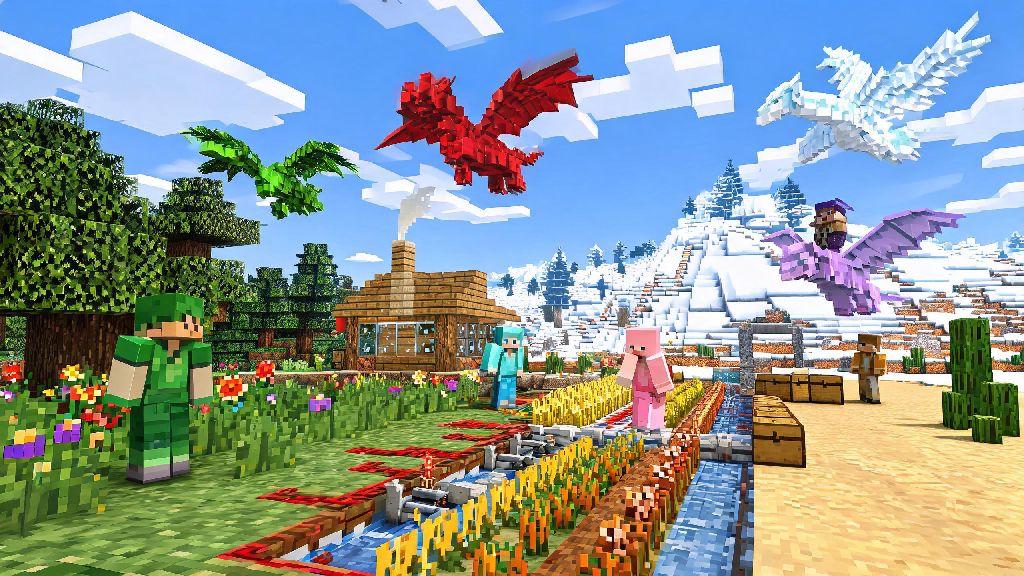
If you’ve ever scrolled through Minecraft gameplay clips and wondered how people have entire worlds with custom dragons, automated farming systems, and entirely new biomes, you’re almost certainly looking at a modpack. Most new players get intimidated by modding because they assume it requires tons of coding knowledge or expensive hardware, but that couldn’t be further from the truth. I’ve been messing around with modded Minecraft for over 8 years, and I’ve helped dozens of friends learn how to play modpacks on Minecraft without spending hours troubleshooting broken installs. This guide breaks down the entire process into simple, actionable steps, even if you’ve never installed a single mod before.
How to Play Modpacks on Minecraft: First Steps Before Installing Anything
You don’t want to jump straight into downloading the first modpack you see, because a little prep work will save you hours of frustration later. First, figure out what kind of gameplay you’re looking for. Do you want a skyblock challenge, a magical fantasy world, a tech-focused automation pack, or a modpack that adds new creatures and biomes without changing core vanilla mechanics? Narrowing this down will help you pick a pack that fits your tastes, instead of wasting time on one that doesn’t interest you.
Next, always check the modpack's official page for minimum requirements first. Modpacks can range from 10 small, lightweight mods to over 300 complex mods that need decent hardware to run smoothly. Most packs will list exactly how much RAM, what processor speed, and how much storage space you need to run them without lag. If you have an older computer, stick to smaller packs with under 50 mods until you get a feel for how your system handles modded gameplay.
Finally, back up any existing vanilla Minecraft saves you don’t want to lose, and make sure you have access to your Minecraft account login. you will need a valid, paid Minecraft account to run nearly all public modpacks. Cracked or pirated versions of Minecraft almost never work with modern modding tools, and they often come with hidden malware that can harm your device, so it’s not worth the risk.
Pick the Right Launcher for Your Modpack Needs
A modding launcher is a tool that handles all the complicated parts of installing modpacks for you, from matching mod versions to downloading required dependencies. You don’t have to use the default Minecraft launcher for modpacks, and in most cases, it’s actually easier to use a third-party launcher built specifically for modded gameplay. There are dozens of launchers available, but these are the most trusted options for all skill levels:
If you’re brand new to modded Minecraft, start with the CurseForge App. It’s the most beginner-friendly option, and you won’t have to mess with any manual settings for most popular modpacks. never download individual mods from random third-party sites, as they often contain malware or broken files. Stick to mods hosted directly through your trusted launcher to stay safe.
Install and Optimize Your First Modpack
Once you’ve picked your launcher, the installation process for most modpacks is almost entirely automatic. For example, on CurseForge, you just search for the modpack you want, click the “install” button, and wait for the launcher to download all required files. The entire process usually takes 5 to 15 minutes, depending on the size of the modpack and your internet speed.
Before you launch the pack for the first time, take 30 seconds to adjust your RAM allocation. This is the most common setting that causes crashes or lag for new players. Small modpacks (under 50 mods) usually need 4GB of RAM, medium packs (50 to 150 mods) need 6 to 8GB, and large packs (over 150 mods) need 8 to 12GB. Never allocate more than 50% of your total system RAM to Minecraft, or you will cause lag for your entire computer. For example, if you have 16GB of RAM total, don’t allocate more than 8GB to Minecraft.
When you first launch the pack, expect it to take a few minutes to load, even on a fast computer. Modpacks have to load hundreds of custom assets on the first launch, so a long load time doesn’t mean something is broken. Once you get into the game, you can tweak in-game settings to improve performance: turn down your render distance if you have lag, turn off fancy graphics or smooth lighting if you have an older GPU, and disable any custom shader packs that come pre-installed if you don’t need them.
Fix Common Modpack Gameplay Issues
Even if you follow every step perfectly, you might run into small issues when you first start playing modpacks. Most of these issues have super simple fixes that don’t require any technical knowledge. The most common issue is a crash on first launch, which 90% of the time is caused by allocating too little RAM. Go back to your launcher settings, bump up the RAM allocation by 1 or 2GB, and try launching again.
If you see missing textures, black screens, or items that don’t appear correctly in the game, that usually means one of the mod files got corrupted during download. Always use the "repair install" feature before trying to manually fix mod issues, as it will automatically replace broken or missing files. This feature is available in all the launchers we listed earlier, and it fixes 99% of file-related issues in less than 2 minutes.
If you’re trying to play a modpack with friends and can’t connect to the server, first double check that you have the exact same version of the modpack as the server. Even a small update to one mod will cause you to get kicked from the server if your version doesn’t match. If you’re playing on a LAN connection with people on the same wifi network, make sure all players have the same modpack version and that your firewall isn’t blocking Minecraft connections.
Modded Minecraft opens up thousands of hours of new gameplay that you’ll never get in vanilla, and you don’t need to be a tech expert to access it. Start small with a lightweight modpack, use a trusted launcher, and don’t panic if you run into small issues on your first try—even seasoned modded players deal with occasional crashes. Once you get the hang of how to play modpacks on Minecraft, you’ll be able to tweak and customize your gameplay to fit exactly what you want, whether that’s a hardcore skyblock challenge, a magical fantasy world, or a fully automated tech factory. The only limit is your imagination.