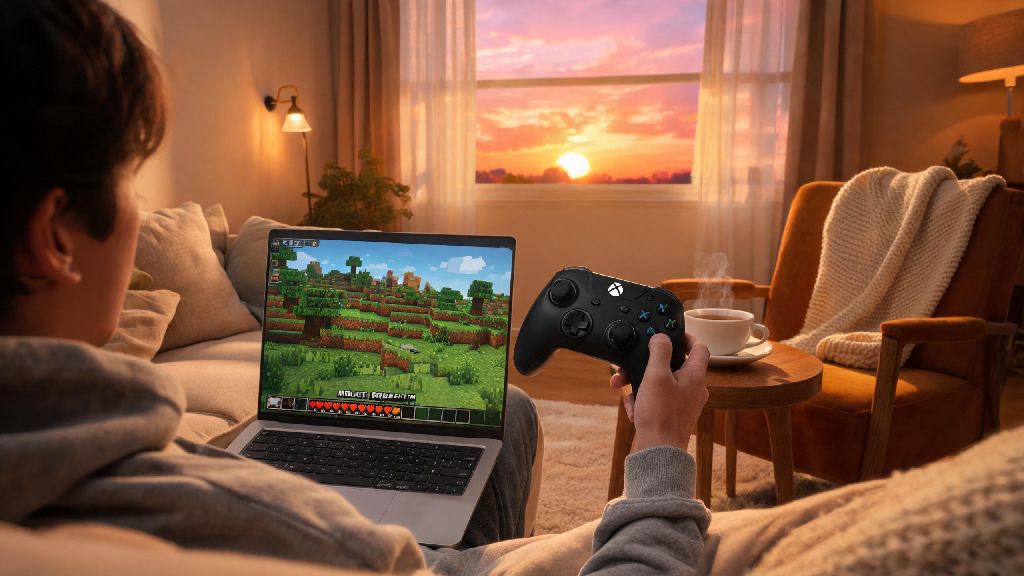
I’ve lost count of how many times I’ve grabbed my Xbox controller after a long day of work, only to remember my go-to Minecraft world is on Java Edition, not the Bedrock version I play on my console. For years, I stuck to clunky keyboard and mouse controls even when I wanted to lounge on my couch, because I thought setting up controller support for Java was too complicated. If that sounds familiar, you’ll be happy to learn how to play Minecraft Java with controller in just a few short steps, no advanced tech skills required.
Key Differences Between Controller Support on Minecraft Java and Bedrock
First, it’s important to understand why controller setup works differently across the two main Minecraft versions. Bedrock Edition, which runs on consoles, mobile, and some PC distributions, has native controller support built right in. You just plug in your controller, launch the game, and it works instantly. Java Edition, on the other hand, was built exclusively for PC first, so it was designed around keyboard and mouse inputs from the start.
That doesn’t mean controller support is impossible, though. It just means you’ll have to take a few extra steps to get it working smoothly. A lot of new players assume they have to switch to Bedrock entirely to use a controller, but that’s far from the truth. You can keep all your favorite Java mods, texture packs, and custom worlds while playing with a controller once you have the right setup.
How to Play Minecraft Java with Controller Using the Popular Controllable Mod
The most reliable way to get full controller support for Java is with the Controllable mod, the most widely used controller mod for the game. It’s been around for years, gets regular updates, and is compatible with almost every other popular Minecraft mod, so you don’t have to give up your existing modpack to use it. First, you’ll need to install either Forge or Fabric mod loaders, depending on which one you already use for your existing mods.
Once your mod loader is set up, just download the version of Controllable that matches your Minecraft Java version and drop it into your mods folder. When you launch the game next, you’ll see a new controller settings menu in your game options, where you can plug in any compatible Xbox, PlayStation, or Switch controller and adjust settings to your preference. The mod even includes optional rumble support and quick access to inventory and crafting menus with a single button press, so it feels just as natural as playing on Bedrock. The only downside is that you’ll have to update the mod every time you update your Minecraft Java version, but that only takes a few seconds.
Native Controller Setup Options for Minecraft Java (No Mods Required)
If you don’t want to install mods on your Java instance for any reason, you can use Steam Input to map your controller inputs to keyboard and mouse commands instead. This method works even for vanilla Minecraft Java instances, so it’s perfect if you play on public servers that ban mods or you don’t want to mess with mod loaders. First, add Minecraft Java as a non-Steam game to your Steam library.
Then, launch Steam in Big Picture Mode, navigate to the controller settings, and enable input support for your specific controller type (Xbox, PlayStation, Switch Pro, etc.). You can use a pre-made Minecraft controller mapping from the Steam community, or create your own custom mapping that matches the Bedrock control layout you’re used to. Keep in mind that this method doesn’t have the same level of native integration as the Controllable mod. You might notice slight input lag on older PCs, and you won’t get features like rumble support or automatic controller detection when you plug in your device mid-game. It’s a great backup option, though, if mods aren’t an option for you.
Essential Tips to Optimize Your Controller Gameplay on Minecraft Java
Once you have your controller set up, a few small tweaks can make your gameplay feel far more polished, so you don’t find yourself switching back to keyboard and mouse halfway through a mining session. First, spend a few minutes adjusting dead zone adjustment settings in either your mod menu or Steam Input settings. The dead zone is the amount you have to move an analog stick before the game registers the input, and getting this right prevents unwanted camera drift when you’re holding the controller loosely.
Next, download or create button mapping presets that match the playstyle you prefer. If you play a lot of survival, you might want to bind your shield to the left bumper instead of a face button so you can access it faster during mob fights. If you build often, you can bind a quick hotbar swap to the back paddles if your controller has them. There are a few common mistakes you’ll want to avoid to keep your setup running smoothly:
One small thing I always do is test my controller layout in a creative flat world first before jumping into my main survival world. That way I can adjust any weird button mappings without risking losing my hard-earned gear to a creeper explosion because I hit the wrong button mid-fight. If you play with friends on a server, you can also share your custom mapping files with them so everyone can use the same control layout if they want.
At the end of the day, you don’t have to choose between the customizability of Minecraft Java Edition and the comfort of playing with a controller. Whether you opt for the full feature set of the Controllable mod or the simplicity of Steam Input for vanilla play, you can get a seamless experience that fits your playstyle. Next time you want to kick back and play without hunching over your desk, you’ll know exactly how to play Minecraft Java with controller in just a few minutes.