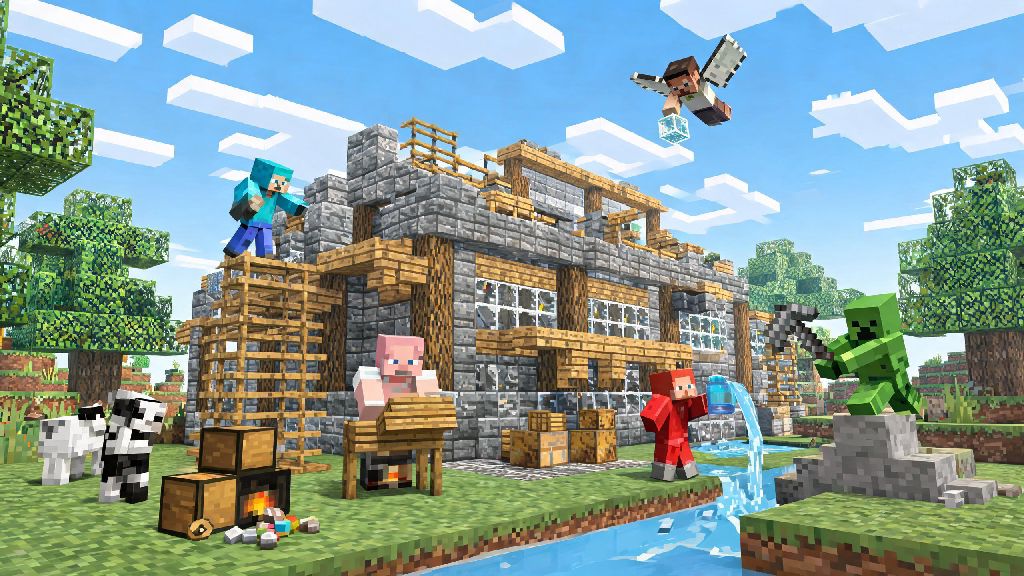
If you’ve spent hours building a cozy cabin or defeating the Ender Dragon alone in Minecraft Java, you’ve probably wondered what it would be like to share that world with friends. Learning how to play minecraft multiplayer java opens up a whole new side of the game, from collaborative megabase builds to chaotic minigame tournaments with dozens of players. It’s easier than you might think to get set up, even if you’ve never joined a server or shared a world before. We’ve broken down every option for multiplayer play, plus fixes for the most common hiccups that pop up when you’re trying to connect.
How to Play Minecraft Multiplayer Java: 3 Core Play Options to Choose From
Not all multiplayer setups work for every group, so your first step is picking the option that matches how you want to play. If you only game with people in the same house as you, you don’t need to pay for a fancy server setup. If your friends live across the country and play at different times, you’ll want something that stays online even when you’re logged off. The three main options all have their own pros, cons, and ideal use cases:
LAN play is the fastest way to test out multiplayer if you’re just starting out, since you don’t have to enter any IP addresses or create accounts for external services. Realms are the most low-effort option for long-distance friend groups, since Mojang handles all the server maintenance and backups for you. Public servers are perfect if you want to meet new players or try custom game modes that you can’t access in private worlds. If you're new to learning how to play minecraft multiplayer java, we recommend starting with LAN play first to get the hang of the connection process before you pay for a Realm or join a public server.
Step-by-Step Setup for Each Multiplayer Mode
Once you pick the right play option for your group, setup only takes a few minutes for most cases. You don’t need any advanced technical skills for any of the standard options, even if you’ve never messed with game settings before.
For LAN play, start by opening the single player world you want to share. Hit the escape key to open the menu, then click “Open to LAN”. You can pick whether to set the default game mode for new players, and toggle cheats on or off. When you click “Start LAN World”, a 5-digit code will pop up on the bottom of your screen. Other players on the same Wi-Fi network can open the multiplayer tab from their main menu, and the LAN world will show up automatically, or they can enter the code manually if it doesn’t pop up. Always double-check that all players are running the exact same Minecraft Java version before you start troubleshooting connection issues, that's the most common mistake new players make.
For Realms, open the main menu and click the “Minecraft Realms” button. Select “Create Realm”, choose the plan that fits your group size (the standard plan lets you invite up to 10 players), and name your world. You can upload an existing single player world to the Realm, or start a brand new one from scratch. Once the Realm is live, click the “Invite” button and enter your friends’ Minecraft usernames to send them access. They’ll get a notification next time they log in, and can join with one click. Realms automatically back up your world every 30 minutes, so you don’t have to worry about losing progress if something crashes.
For public servers, first find a server that fits what you want to play (stick to well-known, community-vetted servers to avoid unsafe content or scams). Copy the server’s IP address, open the multiplayer tab in your main menu, and click “Add Server”. Paste the IP address into the server address field, name the server whatever you want for your own reference, and click “Done”. The server will show up in your multiplayer list, and you can join by clicking it and selecting “Join Server”. Some servers require you to register an account on their website first, or install a custom modpack to play, so check the server’s rules page before you try to connect.
Common Minecraft Java Multiplayer Issues and Quick Fixes
Even if you follow all the setup steps correctly, you might run into the occasional error when trying to connect. Most issues that pop up when you're figuring out how to play minecraft multiplayer java are easy to fix in less than five minutes, so don't panic if you get an error message on your first try.
The most common error is “Connection Timed Out”. For LAN games, this usually means Minecraft is blocked by one of the players’ firewalls. Go to your computer’s firewall settings, make sure Minecraft is allowed to make public and private connections, and try again. For public servers, double-check that you entered the IP address correctly, and check the server’s social media pages to see if it’s down for scheduled maintenance.
“Version Mismatch” errors happen when you’re running a different version of Minecraft Java than the server or LAN world you’re trying to join. You can fix this by opening the Minecraft Launcher, going to the “Installations” tab, creating a new installation with the exact version the server is running, and launching that version before you join. If you're playing on a modded server, you'll need to install the exact same modpack and mod version as the server to avoid this error, even if your base Minecraft version matches.
“Invalid Session” errors usually mean your Microsoft account isn’t logged in properly. Close the game and the launcher completely, log back into your account, and try again. Note that cracked (pirated) copies of Minecraft Java can’t join most multiplayer servers, since they don’t have a valid account linked to them. If you’re trying to host a public server without using Realms, you’ll need to set up port forwarding on your router to let people outside your Wi-Fi network connect, but that’s an advanced step we don’t recommend for new players.
Tips for a Safe and Fun Multiplayer Experience
Playing Minecraft with other people is one of the best parts of the game, but there are a few simple rules you can follow to make sure your experience stays positive, whether you’re playing with close friends or strangers on a public server.
Never share personal information like your full name, address, phone number, or school name with people you meet on public servers, even if you think you trust them. Most large servers have active chat moderation, but it’s still better to keep personal details private. If you’re playing with younger kids, stick to family-friendly servers that have strict chat filters and active moderation teams to block inappropriate content.
Always read the server rules before you start playing on a new public server. Many servers ban griefing (destroying other people’s builds), stealing items from other players’ chests, or spamming chat, and you can get permanently banned if you break the rules without reading them first. If you’re joining a modded server, only download modpacks from the server’s official website or a trusted mod platform to avoid downloading malware.
Make a backup of any single player world you're going to open to multiplayer, just in case someone accidentally (or intentionally) destroys parts of it, you can roll back to the backup with no lost progress. If you’re playing with a small group of friends, set clear ground rules upfront, like whether people can take items from shared chests without asking, or what areas are off-limits for building. That avoids a lot of unnecessary arguments later on.
At the end of the day, Minecraft is designed to be enjoyed with other people, and figuring out how to play minecraft multiplayer java doesn’t have to be a complicated process. Whether you’re playing a casual LAN world with your roommates, building a long-term base with friends on a Realm, or competing in minigames on a massive public server, there’s a multiplayer option that fits exactly what you’re looking for. Don’t get discouraged if you run into connection issues the first time you try to set it up, most problems have a quick fix that only takes a minute to implement. Once you’re connected, you’ll wonder why you ever played alone for so long.