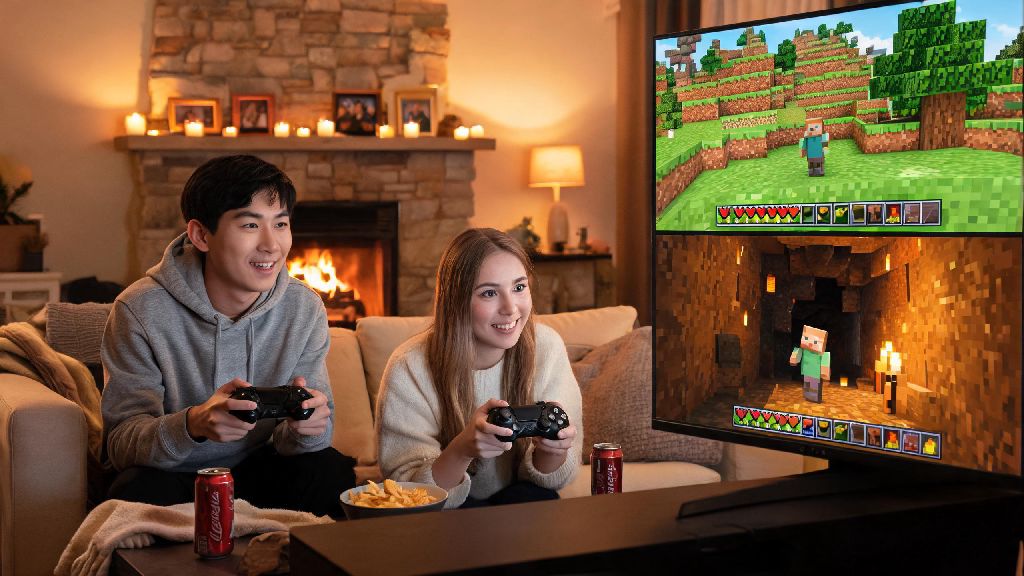
There’s nothing better than firing up Minecraft after a long week, loading up your favorite survival world, and getting to share all your hard work with someone you care about. But if you’ve only ever played solo, figuring out how to play 2 player Minecraft can feel way more complicated than it needs to be, especially if you and your friend are on different devices. We’ve tested every possible setup across PC, PlayStation, Xbox, Switch, and mobile over the last 6 years, so we’ve cut out all the confusing jargon to give you only working, step-by-step methods.
How to Play 2 Player Minecraft Locally (No Internet Needed)
If you and the other player are in the same physical space, local play is by far the easiest, most reliable option, with zero lag and no subscription fees required for most setups. The most popular local option is split screen, available on all modern consoles including Xbox One/Series, PlayStation 4/5, and Nintendo Switch. You’ll just need two controllers connected to the same console, and a TV or monitor that supports at least 720p resolution—this is a super common mistake people make, as split screen won’t work on lower resolution displays.
If you’re playing on PC or mobile, or you don’t want to share a single screen, LAN play is your best bet. One player just needs to open their existing single player world, hit the escape menu, click “Open to LAN”, choose your preferred game mode and whether cheats are allowed, and the world will automatically pop up in the other player’s multiplayer menu. If you run into common LAN issues getting the world to show up, there are three quick checks you can run first:
One small note for console players: you don’t need an active PS Plus, Xbox Live Gold, or Nintendo Switch Online subscription to use local split screen or LAN play. Many players assume they do, and end up wasting money on a subscription they don’t actually need for local sessions.
Cross-Platform Remote 2 Player Minecraft Setups
If you and the other player aren’t in the same house, you don’t have to give up on playing together. Cross-platform play is supported across almost all modern Minecraft versions, as long as both players have a free Microsoft account linked to their Minecraft profile. The easiest option for most people is Minecraft Realms, Mojang’s official hosted server service. For around $8 a month, you get a 24/7 server that supports up to 10 players, with automatic backups and zero port forwarding required. It works seamlessly across every platform, so you can play on PC while your friend uses their Switch without any extra work.
If you don’t want to pay for a Realm, there are free options too. Services like Aternos let you host small 2-player servers for free, though you will have to sit through short ads when you start the server, and it will shut down automatically after a few minutes of inactivity. If you’re a little more tech savvy, you can also host a server on your own PC and use port forwarding to let your friend connect, though this does come with minor security risks if you don’t set it up correctly. Xbox Live/Game Pass family sharing can also cut down on costs if you and the other player are on Microsoft devices, as you can share a single Game Pass subscription to access Minecraft for free.
Best Game Modes for 2 Player Minecraft Sessions
Once you have your setup working, you might be surprised by how many different ways you can play 2 player Minecraft that feel completely different from solo play. Co-op survival is the most popular option for long-term play: you can split tasks to make progress faster, with one player farming and building while the other explores mines and fights mobs. It’s way more fun to take down the Ender Dragon or beat a Wither with a friend by your side than to do it alone.
If you don’t want to worry about creepers blowing up your hard work, co-op creative is perfect for building massive, ambitious projects you’d never take on by yourself. My best friend and I spent 3 months building a full floating castle with a working rollercoaster and hidden treasure rooms in creative mode a few years back, and it’s still one of my favorite gaming memories. Competitive 2 player modes are also a great way to mix things up if you’re feeling playful: you can do build battles, speedrun challenges, or even join small duels servers for games like bedwars or skywars.
If you want a more structured experience, you can also download custom 2-player adventure maps from sites like Planet Minecraft. These maps have custom puzzles, storylines, and boss fights designed specifically for two players, so you don’t have to come up with your own goals to stay entertained.
Fixes for Common 2 Player Minecraft Connection Errors
Even if you follow all the steps perfectly, you might run into a few common errors when setting up 2 player play, but most of them have super simple fixes. The “Connection Timed Out” error is the most common for remote play, and it usually means either the host’s firewall is blocking incoming Minecraft connections, or your port forwarding setup is incorrect if you’re self-hosting. If you don’t want to mess with port forwarding settings, you can use a free tool like Hamachi to create a virtual LAN network over the internet, which lets you connect as if you’re on the same wifi network.
The “Incompatible Version” error is another common one, and it just means you and the other player are running different versions of Minecraft. This is extra common if one of you uses snapshots or modded versions, so double check that you’re both on the same exact build before troubleshooting further. The “Invite Not Showing Up” error is most common on consoles, and it’s almost always fixed by restarting your game, or making sure both players are added as friends on your platform’s network (PSN, Xbox Live, etc).
One of the biggest myths we see all the time is that you need a paid online subscription to play 2 player Minecraft remotely on any device. You don't need a paid online subscription for cross play on PC or mobile—that requirement only applies to console players. If you’re playing on PC or mobile, all you need is a free Microsoft account, no extra fees required.
At the end of the day, the best part of Minecraft is how flexible it is, and playing with a second player lets you get way more creative and have way more fun than you ever could solo. Once you get the hang of how to play 2 player Minecraft, you can tweak your setup to fit exactly what you want, whether that’s a casual local split screen session on a rainy day or a long-term co-op survival world you play with a friend across the country. If you run into any weird issues we didn’t cover here, drop a comment below and we’ll help you figure out a fix.