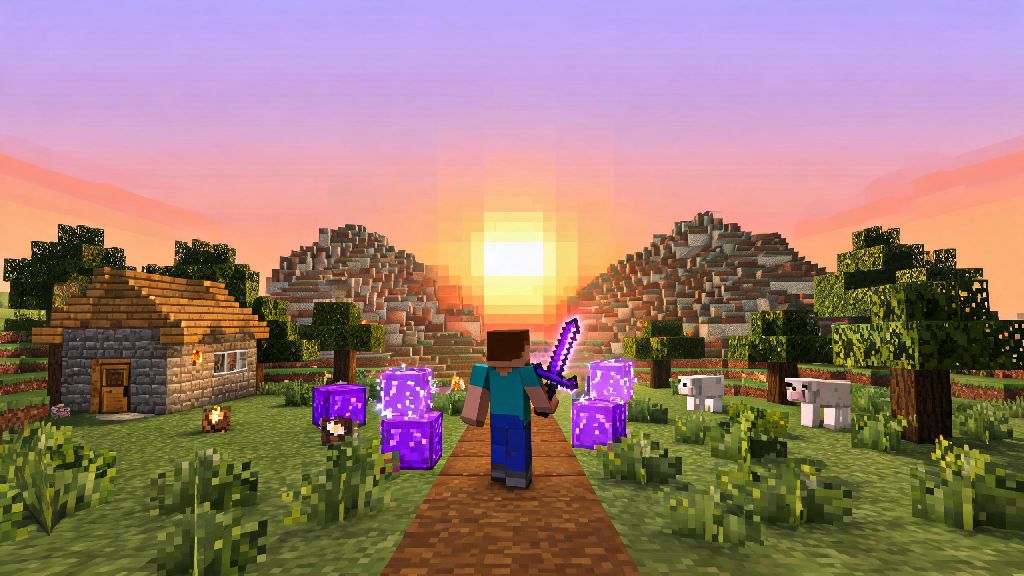
If you’ve been playing Minecraft for more than a few years, you almost certainly have fond memories of specific updates that felt like magic when they first dropped. Maybe it’s the 1.7.10 era, when thousands of iconic mods were released and modpacks like Tekkit Classic dominated multiplayer servers, or the beta 1.7.3 days before hunger or creative mode were even added to the game. Learning how to play old versions of Minecraft lets you jump straight back to those exact moments, no matter how many updates the game has gotten since. You don’t need any fancy technical skills to do it either, as long as you follow the right steps to keep your account and files safe. This guide covers all the legitimate methods you can use, plus common pitfalls to avoid so you can get back to playing your favorite legacy builds in minutes.
How to Play Old Versions of Minecraft Using the Official Launcher
The safest and easiest way to access legacy Minecraft builds is through the official Minecraft launcher you already use for the latest version of the game. Mojang keeps almost every public version of the game archived on its servers, so you don’t have to download any random files from untrusted sites to use this method. It’s perfect if you just want to play vanilla old versions, or run basic mod loaders without extra hassle.
To get started, open your official launcher and navigate to the “Installations” tab at the top of the screen. Look for the checkbox that says “Allow content from historical versions” and toggle it on – this will unlock all the old alpha, beta, and full release versions in the version dropdown menu. Click “New installation”, give your build a recognizable name (like “Beta 1.7.3 Vanilla” for example), select the version you want from the dropdown, and choose a separate folder for its saves if you don’t want to mix them with your current worlds. Hit “Create”, then go back to the main Play tab, select your new installation from the dropdown next to the Play button, and launch the game.
There are a few small drawbacks to using the official launcher for legacy play, though. Older versions don’t support newer account features like character custom skins from the Minecraft Marketplace, so you might see default Steve or Alex skins even if you have a custom one uploaded to your account. Very early alpha versions can also have stability issues on modern operating systems like Windows 11 or the latest MacOS releases, since they were built for much older hardware and software. Always back up your existing worlds before loading them in an older version, as backwards compatibility is not supported and you can permanently corrupt your save files.
Third-Party Launchers for Advanced Legacy Minecraft Play
If you want to run modded old versions, manage multiple legacy builds at once, or access extra features the official launcher doesn’t offer, a trusted third-party launcher is your best bet. These launchers are built by the Minecraft community specifically for power users, and they make it way easier to juggle modded instances, different game versions, and custom settings without messing up your main game install.
Popular options like Prism Launcher and MultiMC are completely free, open-source, and safe to use as long as you download them from the right places. They let you create separate instances for every version you want to play, so mods for 1.7.10 won’t conflict with mods for 1.12.2, for example. They also automatically install the correct version of Forge, Fabric, or other mod loaders for whatever legacy build you’re using, so you don’t have to manually download and install them yourself.
Only download third-party launchers from their official, verified sources to avoid malware or account theft – never click random links from YouTube comments or unknown forums to get these tools. When looking for a good third-party launcher for legacy play, look for these key features:
Most third-party launchers also let you allocate more RAM to specific instances with just a few clicks, which is essential if you’re running heavy modpacks for old versions that need extra memory to run smoothly.
Common Issues When Running Old Minecraft Versions (And Fixes)
Even if you follow all the setup steps correctly, you might run into small issues when running legacy Minecraft builds, especially if you’re using a very old version on a modern computer. Most of these issues are easy to fix with a few small adjustments, no technical expertise required.
The most common issue is crashes on launch, which usually happens because very old versions aren’t optimized for modern operating systems. If you get a black screen or immediate crash when you launch an alpha or beta build, try running the game in compatibility mode for Windows 7 or 8 if you’re on a Windows PC, or adjust your Java settings if you’re on a Mac. Allocating 2GB to 4GB of RAM to the instance will also fix most crash issues for modded legacy builds, as old modpacks weren’t built to run on the default RAM allocation most launchers use.
World corruption is another common problem, and it’s almost always avoidable if you take the right precautions. Never load a world created in a newer version of Minecraft in an older build, as it will erase all new blocks and items that didn’t exist in the legacy version, and permanently break your terrain generation. If you want to play an old world in a legacy version, make a separate copy of the world file first, and only open the copy in the old build so you don’t damage the original.
Multiplayer login issues are also common for old versions, since the authentication system Mojang uses now is different than the one it used 10+ years ago. If you can’t log into a legacy server, check if the server supports offline mode, or make sure you’re using the correct account type for the version you’re playing. Keep in mind that offline servers have less anti-cheat protection, so you’re more likely to run into cheaters if you play on them.
Fun Ways to Enjoy Legacy Minecraft Builds
Once you’ve got your old version set up and running smoothly, there are tons of fun ways to make the most of your legacy playthrough, whether you’re playing alone or with friends.
Many players boot up old versions just to relive their first ever Minecraft playthrough. If you started playing during the beta era, loading up beta 1.7.3 and playing without hunger, sprint, or any of the newer biomes can feel like stepping back in time to your first night hiding from creepers in a dirt hut. You can even try to recreate your first ever base exactly how you built it years ago, if you still remember what it looked like.
Legacy modpacks are another huge draw for old Minecraft versions. Modpacks like Feed The Beast Infinity Evolved for 1.7.10, Tekkit Classic for 1.2.5, and Sky Factory 2 for 1.7.10 still have massive active player bases, even though they’re years old. These modpacks have hundreds of unique mods that were never updated to newer versions of the game, so you can only play them on their original legacy builds.
Competitive PvP players also almost exclusively play on 1.8, since it has the original combat system without the attack cooldown that was added in 1.9. There are thousands of active 1.8 PvP servers running right now, with game modes like bedwars, skywars, and UHC that are still more popular on 1.8 than on newer versions of the game. You can even record playthroughs of old versions to share with the Minecraft community, since many players love watching nostalgic content about updates they grew up with.
At the end of the day, learning how to play old versions of Minecraft is a simple, low-effort way to get more enjoyment out of a game you probably already love. Whether you use the official launcher for quick vanilla play, or a third-party launcher for modded legacy builds, the process only takes a few minutes as long as you follow the safety tips we covered. Don’t be afraid to experiment with different versions you missed out on, or go back to the update that made you fall in love with the game in the first place. I still boot up my 8-year-old 1.7.10 modded world at least once a month, and it still feels just as fun as it did the day I first created it.