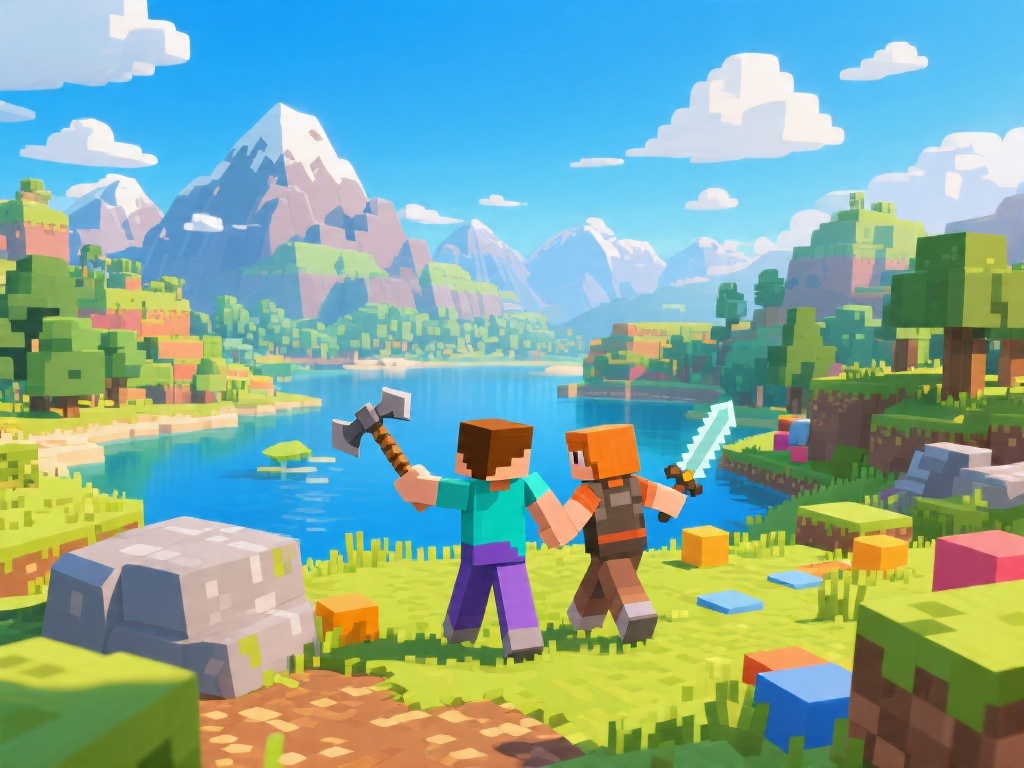
How to Play 2-Player on Minecraft: Step-by-Step Guide
If you're looking to expand your Minecraft experience with a friend, you've come to the right place. Playing Minecraft in 2-player mode allows for cooperative building, collaborative adventures, and shared fun. Here's a step-by-step guide to get you started.
Step 1: Choose the Right Version of Minecraft
Before diving into the world of Minecraft, ensure you have the appropriate version. The most common versions that support 2-player mode are Minecraft Java Edition and Minecraft Windows 10 Edition. These versions have built-in multiplayer capabilities.
Step 2: Create Two Minecraft Accounts
If you haven't already, create two Minecraft accounts. Each player will need their own account to join a multiplayer session.
Step 3: Set Up a Minecraft Server
To play 2-player on Minecraft, you'll need to set up a Minecraft server. This can be done on your computer or by using a cloud-based service like Minecraft Realms. Here's how to set up a Minecraft server on your computer:
1. Download and Install Minecraft Server Software: Go to the official Minecraft website and download the Minecraft server software for your operating system.
2. Extract the Files: Once downloaded, extract the files from the zip archive to a location on your computer.
3. Run the Server: Open the server folder and double-click on the Minecraft_server.jar file. The server will start, and you'll see output in the command window.
4. Set Up Port Forwarding: To ensure that other players can connect to your server, set up port forwarding on your router to the port number your server is using (default is 25565).
5. Customize the Server Properties: You can customize your server settings by editing the server.properties file within the server folder.
Step 4: Start Playing
Once your server is set up, follow these steps to start playing:
1. Start the Server: Make sure your server is running in the background.
2. Join the Server: Both players will need to open Minecraft and enter the IP address of your server into the multiplayer search field.
3. Start a World: Choose a world to join or start a new one. Ensure both players select the same world to join the 2-player session.
Tips for 2-Player Minecraft
- Communicate: Clear communication is key to a successful 2-player experience. Use voice chat or in-game messaging to keep each other updated.
- Collaborate on Projects: Plan and work on projects together. It's even more fun to build or create something as a team.
- Stay Safe: Be cautious when exploring together. It's easy to get lost or encounter hostile mobs.
---
In conclusion, playing 2-player on Minecraft is a fantastic way to enjoy the game with a friend. By following these steps, you can easily set up and start a multiplayer session. Happy building and exploring!
---
Note: The information provided in this article is based on general Minecraft knowledge and practices as of the time of writing. For the most up-to-date information, refer to the official Minecraft website or support forums.