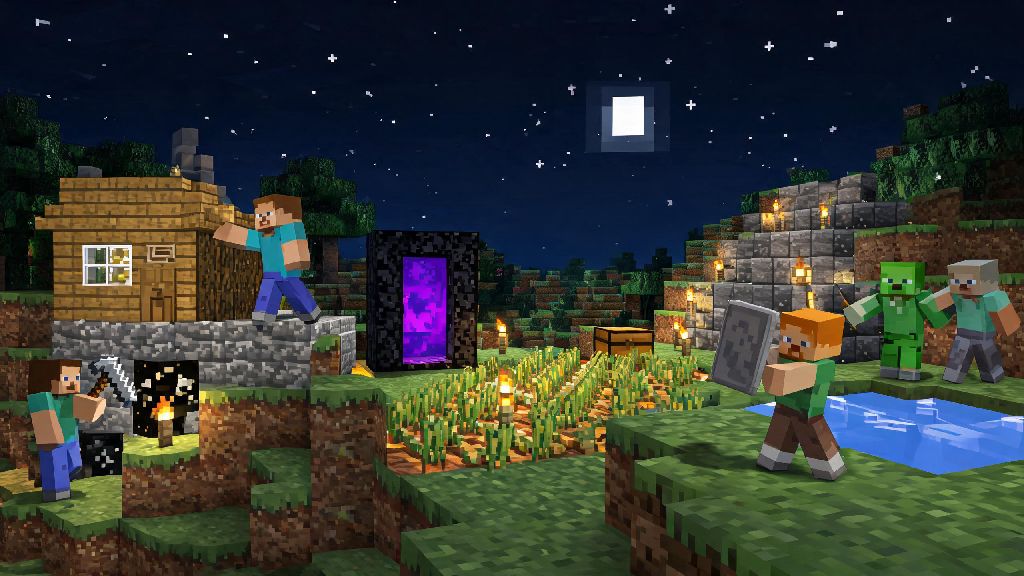
If you’ve ever watched your friends build sprawling castles or fend off creeper attacks at night and wondered how do I play Minecraft on the computer, you’re not alone. Millions of new players pick up the game every month, and the PC version remains the most flexible, feature-rich way to experience everything Minecraft has to offer. I’ve been playing the PC edition for over 10 years, and I still remember how overwhelming the first launch felt, with all the edition options, control settings, and game mode choices. This guide breaks down every step you need to go from first purchase to your first full night of survival, no prior gaming experience required.
How Do I Play Minecraft on the Computer: First Steps Before You Launch
The first call you have to make is which PC edition of Minecraft to buy. There are two main options: Java Edition and Bedrock Edition. Java Edition is exclusive to PC, supports thousands of free mods, custom maps, and community-run servers with unique game modes, but it runs a bit slower on low-end laptops. Bedrock Edition lets you crossplay with friends on mobile, console, and Nintendo Switch, runs smoother on older devices, and supports paid DLC skins and texture packs from the Minecraft marketplace.
Always buy your copy of Minecraft directly from the official Minecraft website or authorized platform like the Microsoft Store to avoid stolen keys or account bans. Third-party key resellers often sell accounts obtained through fraud, and you can lose access to your game and all your worlds with no warning if the original owner reports the account stolen. You’ll also need a free Microsoft account to log in, as Mojang no longer supports old standalone Mojang accounts as of 2021.
You don’t need a fancy gaming PC to run Minecraft, either. Most basic laptops made in the last 5 years can run the game smoothly on default settings. If you have an older device, you can lower render distance and turn off fancy graphics in settings to boost performance before you even load your first world.
Setting Up Controls and Game Settings for Your First Playthrough
Default Minecraft controls might feel awkward if you don’t play a lot of PC games, but you can rebind every single button to fit your preferences. The basic default controls are: WASD to move, mouse to look around, left click to break blocks, right click to place blocks or use items, space to jump, left shift to sneak, and E to open your inventory. If any of these feel uncomfortable, head to the controls menu to swap them out. I know a lot of new players who rebind the inventory key to F instead of E for easier access.
There are a few key settings you should adjust right away to make your first playthrough much easier. Turn on "Show Coordinates" in the game settings so you can always find your way back to your base. This is especially helpful if you wander far from home looking for resources and don’t want to get lost. You should also turn on subtitles if you have trouble telling different in-game sounds apart. Subtitles will tell you exactly when a creeper is sneaking up behind you, even if you’re playing with the sound off.
If you notice lag when you move around, drop your render distance to 8 or 10 chunks. You don’t need to see 32 chunks ahead when you’re just starting out, and lowering this setting will make the game run way smoother on most devices. You can always turn it back up later once you get a feel for how your computer handles the game.
Choosing the Right Game Mode for Your Playstyle
A lot of new players assume you have to jump straight into standard survival mode, but Minecraft has multiple game modes to fit every type of player. You don’t have to fight mobs or gather resources if you don’t want to, and you can switch between modes anytime if you enable cheats when you create your world. You can enable cheats when creating a new world to switch between game modes whenever you want without losing progress.
These are the best game modes for new players to try first:
I always tell new players to avoid Hardcore mode until they’ve played for at least a few weeks. Hardcore mode is the same as regular survival, but you only get one life. If you die, your entire world gets deleted permanently, and you can’t get it back. It’s a fun challenge for experienced players, but it’s way too stressful for people who are still learning the basics.
Common Mistakes New PC Minecraft Players Should Avoid
Don't dig straight down or straight up, that’s the number one mistake new players make. You could fall into a lava pool, a deep cave system, or have gravel or sand fall on your head and kill you instantly. Always dig a staircase down when you’re mining, it’s way safer and makes it easier to carry all the resources you find back up to the surface.
Don’t leave your base without marking it somehow. Even if you have coordinates turned on, it’s easy to get turned around when you’re exploring a new forest or mountain range. Put up a tall tower made of cobblestone or dirt with torches on all sides so you can see it from hundreds of blocks away. I still do this for all my bases, even after playing for 10 years, because I have a terrible sense of direction.
Don’t click random links in server chat, even if they say they give you free skins or Minecoins. Most of these are phishing links that will steal your account information. I lost my first Minecraft account back in 2014 because I clicked a fake free skin link, so I know how frustrating it is to lose all your worlds and progress over a silly mistake. If you want custom skins, you can upload them for free directly through the official Minecraft website.
Also, don’t stress about memorizing every crafting recipe right away. You can look up recipes online as you need them, and most players only remember the most common ones like tools, torches, and chests off the top of their head anyway. The point of the game is to have fun, not to pass a test on all the crafting combinations.
At the end of the day, figuring out how do I play Minecraft on the computer is way simpler than it looks once you break down the steps. You don’t need a fancy gaming PC, you don’t need to know all the crafting recipes off the top of your head, and you don’t have to play the way anyone else tells you to. The best part of Minecraft is that you can make the game whatever you want it to be, whether that's a casual building game, a challenging survival experience, or a place to hang out with friends. Take your time, experiment with different settings and modes, and don’t get frustrated if you die a few times when you’re first starting out, every long-time Minecraft player has lost hundreds of hours of progress to a random creeper explosion or a misstep into lava.