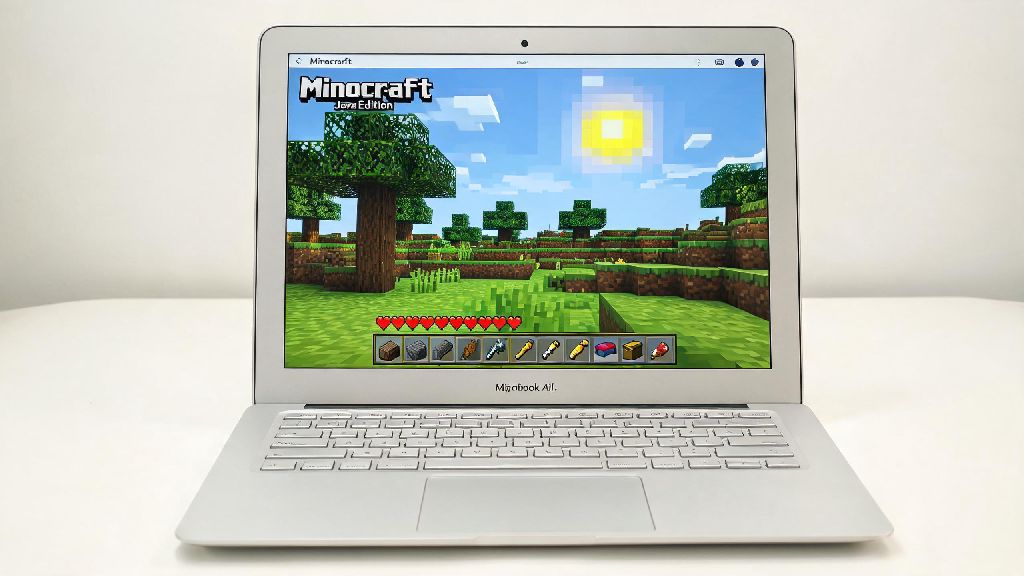
If you just picked up a new M4 MacBook Air or Pro in 2026 and love sandbox games, you’ve probably asked: can you play Minecraft Java on Mac? For years, Mac users had to jump through hoops with emulation tools or third-party launchers to run the Java version of the game, often dealing with constant crashes and low frame rates. But Mojang’s steady updates over the past few years have completely changed the game for Apple device owners, and playing Java Edition on Mac is now easier and more stable than ever. This guide will walk you through everything you need to know, from compatibility checks to installation steps and performance tweaks to get the best possible gameplay experience.
Can You Play Minecraft Java on Mac in 2026? Official Compatibility Breakdown
The short answer is yes, almost every modern Mac can run Minecraft Java Edition natively in 2026, no workarounds required. Mojang rolled out full native support for Apple Silicon chips back in 2022, and the 2026 launcher is optimized to work seamlessly with M1, M2, M3, and M4 series chips, as well as 64-bit Intel Mac models released after 2016. All Mac models released after 2020 with either Apple Silicon or 64-bit Intel processors are officially supported for Minecraft Java Edition in 2026.
If you have an older Intel Mac released between 2013 and 2016, you might still be able to run the game, but you’ll likely run into performance issues if you have less than 8GB of RAM. You also won’t get official support from Mojang for these older devices, so any crashes or bugs you run into will have to be fixed with community workarounds. But if you have a Mac from the last 10 years, you almost certainly can get the game running one way or another.
One of the biggest perks of the 2026 update is that you don’t need to use Rosetta 2 translation anymore for Apple Silicon devices. Native support means the game runs 30-40% faster than it did with emulation, and you’ll see far fewer crashes even when running large modpacks or high-resolution texture packs. The 2026 Minecraft Java launcher supports cross-play between Mac, Windows, and Linux players, so you can join your friends’ worlds no matter what device they use.
Step-by-Step Installation Process for Minecraft Java on Mac in 2026
Installing Minecraft Java on your Mac in 2026 takes less than 10 minutes if you have a stable internet connection. You don’t need any special tools or technical knowledge, just a valid Microsoft account that owns a copy of Minecraft Java Edition. Remember that as of 2022, all new Minecraft purchases come with both Java and Bedrock Edition, so you don’t have to pay extra for either version.
Follow these simple steps to get the game installed:
Once the game files finish downloading, it will launch automatically. You can adjust your game settings, install mods, or load your existing saved worlds right away. Always download the launcher directly from the official Minecraft website to avoid malware or modified versions that can steal your account credentials. Third-party launchers might have extra features, but they often come with security risks, and Mojang doesn’t support accounts that use unapproved launchers.
Top Performance Tips for Running Minecraft Java on Mac in 2026
Even with native support, you might still run into performance issues if you don’t adjust your settings properly, especially if you’re running large modpacks or high-resolution texture packs. The good news is that most Macs released in the last five years can run Minecraft Java at 60+ FPS with the right settings, even with medium shaders enabled.
First, adjust your in-game video settings to match your Mac’s hardware. For M1 or M2 MacBook Air models with 8GB of RAM, keep your render distance between 12 and 16 chunks, turn off smooth lighting, and disable fancy graphics if you notice frame drops. For M3 or M4 Pro/Max models, you can crank render distance up to 32 chunks, enable fancy graphics, and even run most popular shader packs without dropping below 60 FPS.
Another easy way to boost performance is to allocate more RAM to the game. By default, the 2026 launcher allocates 2GB of RAM to Minecraft Java, which is enough for vanilla gameplay but not enough for modpacks. For Apple Silicon Macs, you can allocate up to half of your total RAM to Minecraft Java for significantly smoother performance, especially if you run modpacks. For example, if you have 16GB of RAM, allocate 8GB to the game for the best results. Don’t allocate more than half your total RAM, though, because that will slow down the rest of your system.
You should also close any unnecessary background apps while you’re playing, especially web browsers with dozens of open tabs, video editing software, or streaming apps. These apps take up valuable RAM and processing power that could be used for the game, and closing them can boost your frame rate by 20% or more in many cases. If you’re playing on a MacBook, plug it in while you play too, because battery mode limits your processor’s speed to save power, leading to lower frame rates.
Common Minecraft Java on Mac Issues (And How to Fix Them in 2026)
Even with the improved support in 2026, you might run into a few common issues when playing Minecraft Java on Mac. Most of these issues are easy to fix in just a few minutes, and you don’t need any technical skills to resolve them.
The most common issue is the launcher being blocked by Mac’s Gatekeeper security feature. If you get an error saying the app can’t be opened because it’s from an unidentified developer, just go to your System Settings, navigate to Privacy & Security, and click “Open Anyway” to allow the launcher to run. You only have to do this once, and it will work normally every time after that.
Another common issue is the game crashing when loading modpacks. Most crashes in 2026 are caused by outdated mod files, not compatibility issues between Minecraft Java and Mac hardware. Make sure all the mods you’re using are updated to work with the latest version of Minecraft Java, and that you’re using the correct version of the mod loader (either Forge or Fabric) for your game version. If you’re still crashing, try removing mods one by one to find the one that’s causing the problem.
If you notice sudden frame drops while playing, check if your Mac is overheating. MacBooks don’t have the best cooling systems, and long gaming sessions can cause them to throttle their performance to avoid overheating. You can fix this by using a laptop cooling pad, playing in a cool room, or lowering your graphics settings a bit to reduce the strain on your processor and graphics card. If you run into repeated unresolvable issues, you can use the built-in repair tool in the 2026 Minecraft launcher to reset game files without deleting your saved worlds. This tool fixes most corrupted file issues in just a couple of minutes.
So now you have a clear answer to can you play Minecraft Java on Mac in 2026, plus all the information you need to get the game running smoothly on your device. Mojang has put a lot of work into improving Mac support over the last few years, and the experience is now almost identical to playing on a Windows PC, even for modded gameplay. Whether you’re playing vanilla survival with friends or testing out a new 200-mod modpack, you don’t have to worry about compatibility issues anymore as long as you follow the steps and tips in this guide. Next time you’re looking for new ways to improve your gameplay, check out our other Minecraft guides for building tips, mod recommendations, and more.