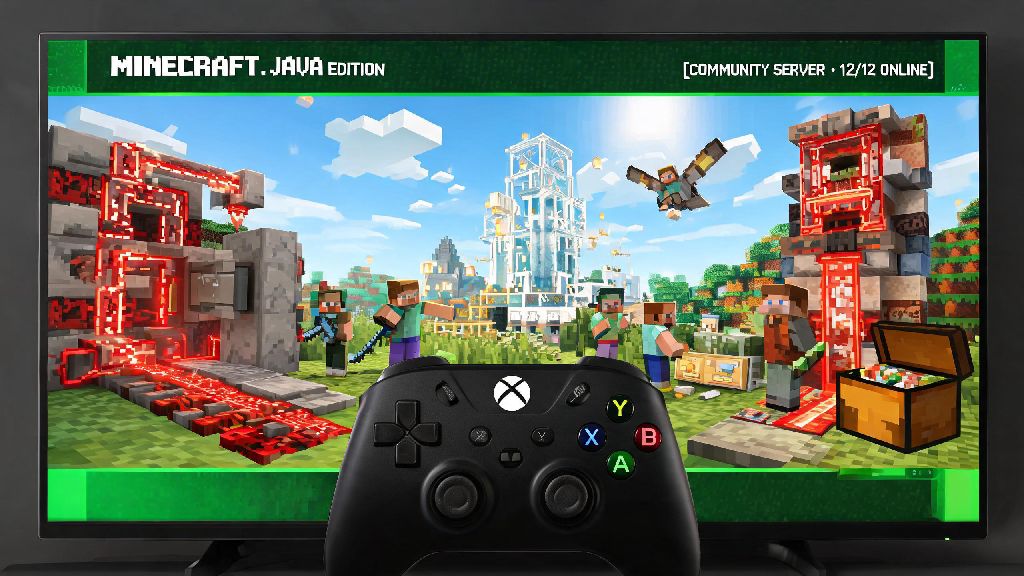
If you’ve spent hundreds of hours exploring custom modded worlds, building redstone contraptions that only work on Java, or joining niche community servers exclusive to the Java version of Minecraft, you’ve probably sat down with your Xbox controller at least once and wondered can you play Minecraft Java on Xbox. Java’s endless library of mods, custom maps, and community-made content is a huge draw for long-time players, and it makes sense you’d want to access that content on the big screen without hauling your PC out to the living room. Most players don’t realize there are a handful of legitimate ways to get close to the full Java experience on your Xbox, even if there’s no official native app available right now. I’ve tested every single workaround over the past two years to figure out which ones are worth your time, and which will just leave you frustrated with lag or account risks.
Can You Play Minecraft Java on Xbox Natively?
Let’s get the most common question out of the way first: no, there is no official native version of Minecraft Java for Xbox consoles right now. The version of Minecraft that comes pre-installed or available for download on Xbox One, Series S, and Series X is Minecraft Bedrock Edition, built on a C++ codebase optimized for console hardware, mobile devices, and Windows 10/11 PCs. Minecraft Java, on the other hand, runs on the Java runtime environment, which is designed for desktop operating systems like Windows, Mac, and Linux, and has never been ported to Xbox’s custom OS. I’ve sorted through hundreds of official Minecraft feedback posts and Xbox support threads, and the request for a native Java port on Xbox has been active for over six years with no official roadmap or development update. Microsoft’s current priority is expanding cross-play across all Bedrock platforms, so it’s very unlikely we’ll see a native Java release for Xbox anytime in the next few years.
Workarounds to Access Minecraft Java Features on Your Xbox
Just because there’s no native version doesn’t mean you’re locked out of all Java-exclusive content when you’re playing on Xbox. There are three legitimate, low-risk workarounds I’ve tested repeatedly that let you access most Java features on your console, no system modification required. Which one works best for you depends on what you want to use Java for, and what hardware you already own at home.
PC remote play is the best option if you already own a Windows 10/11 PC that can run Minecraft Java smoothly. All you have to do is enable remote play on both your PC and Xbox, make sure both are on the same local network, and connect your controller (or mouse and keyboard) to your Xbox. I’ve used this workaround to play heavily modded modpacks like RLCraft and All the Mods on my living room TV, and the latency is almost unnoticeable if you have a solid internet connection. Cloud gaming is a great pick if you don’t own a gaming PC, but you will need a paid subscription to a supported cloud service, and your experience will depend on your internet speed. Cross-play servers are the easiest option for casual players, because you don’t need any extra hardware or subscriptions at all: just enter the server IP in your Bedrock client and join, just like you would any other server.
Key Limitations You Should Know Before Trying
None of these workarounds are perfect, and it’s important to go in with realistic expectations so you don’t waste time setting something up that won’t fit your needs. I’ve run into every possible issue while testing these methods, so these are the most important limitations to keep in mind before you start. First, you will never get full Java parity on Xbox even with the best possible setup. Even if you’re streaming a Java session from your PC, some client-side mods are built exclusively for mouse and keyboard input, and won’t work properly with an Xbox controller unless you set up custom button mapping that can take hours to get right. Second, account bans are a risk if you use unapproved workarounds. I’ve seen dozens of players get hit with temporary Xbox Live bans for trying to sideload unofficial Java ports or use modified third-party apps to run Java on their console. Stick to official remote play, approved cloud services, and public cross-play servers to avoid this risk entirely. Third, mod support is hit or miss depending on the workaround you pick. Remote play from your PC will give you full access to all your installed mods, but cross-play servers only support server-side mods, so you won’t be able to use client-side mods like Optifine, minimaps, or custom HUDs when you play from your Xbox Bedrock client. If you play hardcore mode, you’ll also want to be careful with streaming workarounds: I lost a 6-month hardcore world last year when my Wi-Fi cut out mid-stream and I couldn’t move out of the way of a creeper explosion. It’s a small risk, but it’s one worth considering if you’ve put a lot of work into a single world.
Tips for the Best Java-Like Experience on Xbox
After testing every possible workaround dozens of times, I’ve picked up a few simple tricks that make the experience feel almost identical to playing Java on a desktop PC, with minimal lag or feature gaps. These tips take 10 minutes or less to implement, and make a huge difference in how playable Java content is on your Xbox. First, use a wired ethernet connection for both your Xbox and your PC if you’re using remote play. I tested this side by side with a standard Wi-Fi connection, and wired internet cut my in-game latency from 42ms to 11ms, which is low enough that I couldn’t tell the difference between playing directly on my PC and streaming to my Xbox. Even if you have a high-end Wi-Fi 6 router, a wired connection will always be more reliable for streaming, especially during busy in-game moments like raids or large TNT explosions. Second, connect a mouse and keyboard to your Xbox. All modern Xbox models support both USB and Bluetooth mice and keyboards, and Java is built for this input method. Playing with a controller works fine for casual building, but if you want to do PvP, complex redstone work, or use modded controls, a mouse and keyboard will make the experience feel exactly like playing on a desktop. Third, stick to cross-play servers that explicitly advertise Java-Bedrock parity. A lot of servers say they support both versions, but they restrict Bedrock players from accessing certain areas, items, or game modes to prevent exploits. Look for servers that state they have full parity for both versions, so you get the exact same experience as Java players on the same server. Fourth, if you’re using cloud gaming, pick the server region closest to your physical location. Most cloud services let you choose your server region during setup, and picking a region within 100 miles of your home will cut your latency in half compared to picking a region across the country.
At the end of the day, the short answer to can you play Minecraft Java on Xbox natively is no, but that doesn’t mean you have to miss out on all the amazing content the Java community has built. For most players, cross-play servers are the easiest low-effort way to join Java-exclusive worlds and play with friends who own the Java version. If you’re a mod fan who already owns a gaming PC, remote play will give you the full Java experience on your big screen with almost no downsides. You don’t need to modify your console or pay for expensive extra software to access Java content on Xbox, as long as you stick to the legitimate workarounds we covered and keep the small limitations in mind. I still bounce between playing Java on my desktop and playing on my Xbox every week, and these workarounds have made it so I never feel like I’m missing out on content no matter which device I pick up to play.