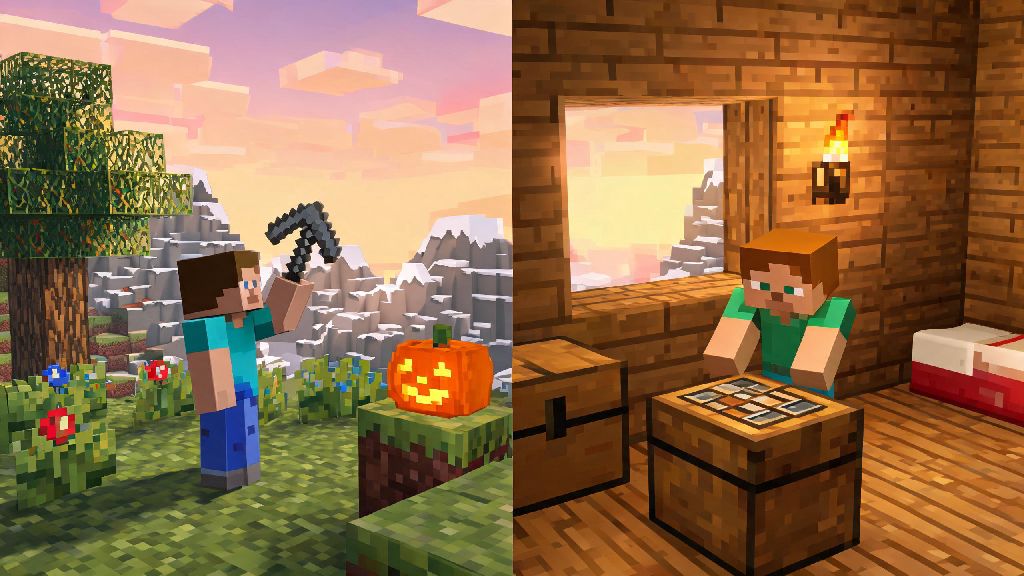
If you’ve ever spent hours mining diamonds alone or fighting off creepers in the dark only to wish you had a friend to share the loot with, you’re far from alone. Minecraft’s best moments almost always happen when you’re playing with someone else, and learning how to play Minecraft on 2 players is way simpler than you might think, no matter what device you’re using. I’ve tested every method across console, PC, mobile, and Nintendo Switch over the last 7 years, so I’ve broken down all the working steps, common pitfalls, and little hacks to get you and your friend in the same world in 10 minutes or less. You don’t need expensive server subscriptions or advanced tech skills for 90% of these methods, either.
How to Play Minecraft on 2 Players: 3 Simple Methods for Any Device
There are three core ways to set up 2 player Minecraft, and the right one for you depends on what devices you’re using and how close you are to the other player. Before you start any setup, there are a few non-negotiable checks to run first to avoid wasted time:
The first method is split-screen play, which only works for console and some Windows PC Bedrock edition users who are in the same physical space. The second is LAN play, perfect for players on the same Wi-Fi network who want to join each other’s worlds without an online subscription (for PC and mobile users, at least). The third is online shared world, which works for players anywhere in the world as long as you have a stable internet connection. All three methods work for both survival and creative modes, so you can pick whatever fits your playstyle.
One quick note: Java Edition players can only play with other Java Edition users, and Bedrock Edition players can only play with other Bedrock users. If one of you is on Java PC and the other is on Xbox (which uses Bedrock), you won’t be able to connect directly, but you can use a cross-edition server if you want to play together. I’d only recommend that for more experienced players, though, since it takes a little extra setup.
Step-by-Step Setup for Split-Screen 2 Player Minecraft
Split-screen is the easiest option if you’re both in the same room and using a console or Windows PC with Bedrock Edition. I use this all the time when my cousin comes over, and it takes less than 2 minutes to set up once you know the steps. First, launch Minecraft on your main device and load the world you want to play in. Then, turn on the second controller and sign into a second profile on your console or PC. You’ll see a prompt pop up on the bottom of the screen asking if the second player wants to join; just press the start button on the second controller to confirm.
One common mistake people make here is forgetting that split-screen only works when your display is set to 720p resolution or higher. Most modern TVs and monitors meet this requirement automatically, but if you get a black screen or the join prompt doesn’t show up, check your display settings first before messing with in-game options. I’ve seen people spend 30 minutes updating their console only to realize their TV was set to 480p for an old retro game they were playing earlier.
You can adjust the split-screen layout in the game settings too, if you prefer a vertical split instead of the default horizontal split. If you’re playing on a smaller TV, turning off the in-game chat and HUD elements for the second player can free up a lot of extra screen space, making it easier to see what you’re doing. Just don’t turn off the coordinate display unless you both know the world really well, or you’ll end up getting lost way more often.
Fixing Common 2 Player Minecraft Connection Issues
Even if you follow all the steps perfectly, you might run into a connection issue every now and then. Most of these are super easy to fix once you know what to look for, and you don’t need any tech skills to resolve 99% of them. Version mismatch is the #1 cause of failed 2 player connections, so always double check that both of you have the same game version installed first. I once spent 45 minutes trying to connect to my little brother’s world before I realized he hadn’t updated his mobile Minecraft in 3 months, so that’s always the first thing I check now.
If you’re trying to use LAN play and the world doesn’t show up in the friends list, check that your firewall isn’t blocking Minecraft. On Windows, you can go to your firewall settings and make sure both public and private network access is turned on for Minecraft. On mobile, make sure both devices have location services turned on, since most mobile operating systems require that for LAN device discovery. That’s another easy fix that most people don’t know about.
If you’re using online play and get a “failed to connect to world” error, make sure both of you have your Microsoft accounts linked properly, and that the world owner has set the world to “friends can join” in the world settings. If one of you has a slow internet connection, turning down the render distance for both players can reduce lag and make the connection more stable. You don’t need 1000 Mbps internet for 2 player play, but you do need at least 5 Mbps upload speed for the world host to avoid constant lag spikes.
Fun 2 Player Minecraft Activities to Try First
Once you’re both in the same world, it can be tempting to just run off and mine separately, but there are tons of fun activities that are way better with two people. If you’re playing survival mode, split up tasks to make progress faster: one of you can mine for stone and coal while the other builds a basic shelter and farms food for the first night. That cuts your setup time in half, and you’ll be ready to explore by the second day.
Another fun idea is to do a shared nether adventure, where you both gear up with iron armor and weapons and head to the nether to find netherite and blaze rods. Having a second person to watch your back while you mine ancient debris makes the whole process way less stressful, and you can split the loot evenly when you get back to the overworld. If you’re feeling competitive, build a small PvP arena or a mini game course like a boat race or parkour challenge to play when you’re tired of mining and building.
If you want to avoid arguments over rare loot, set up a shared chest system early on, with separate chests for building materials, tools, and rare items. I also recommend setting a shared base location before you start exploring, so you don’t end up building two separate bases on opposite sides of the map. That’s a mistake I made with my first 2 player world, and we spent 2 hours walking across the map just to meet up the first time we played.
At the end of the day, learning how to play Minecraft on 2 players opens up a whole new side of the game that you can’t get playing alone. You don’t need fancy setups or technical knowledge to get started – just pick the method that works for your devices, double check your versions and connection, and dive in. Even if you run into a small issue getting connected, the payoff of building, exploring, and surviving together is well worth the 5 extra minutes of troubleshooting. Next time you log on, bring a friend along; you’ll be shocked how much more fun even the most basic mining trips feel when you have someone to share them with.