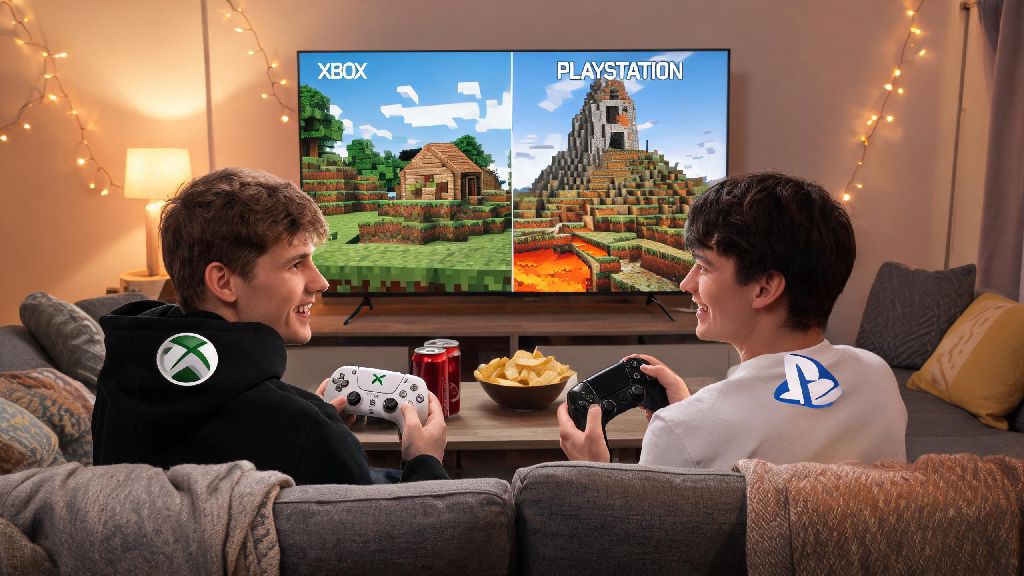
If you’ve ever spent hours mining diamonds alone or building a sprawling base with no one to show it off to, you’ve probably wondered how to play two players on Minecraft. It’s one of the most requested features for new players, and honestly, it turns every ordinary playthrough into a way more fun shared adventure. Whether you’re sitting on the couch next to a friend or connecting with someone across the country, the process is simpler than you might think, even if you’re on different device types. I’ve tested every method over the last 8 years of playing Minecraft, so I’ll walk you through exactly what works, what doesn’t, and how to fix common snags along the way.
How to Play Two Players on Minecraft: Split Screen for Couch Co-Op
Split screen is the most low-effort option if you and the other player are in the same room and using the same console. It works natively on Xbox, PlayStation, and Nintendo Switch, though PC does not have built-in split screen support for Minecraft right now. To get started, you’ll need at least two controllers, both players signed into a profile on the console, and a display with at least 720p resolution. Once you load your Minecraft world, just press the start button on the second controller, select the second player’s profile, and they’ll spawn into your world instantly.
You don’t need an internet connection for split screen play, which is great for travel, camping trips, or if your home Wi-Fi is out. If you’re playing on a Switch, you can even use split screen in handheld mode if you have a controller attached for the second player, though the screen is pretty small for two people. I’d recommend sticking to docked mode if you can, so you both have enough space to see what’s going on. The only real downside is that your field of view is cut in half, so you might miss mobs sneaking up behind you if you’re not paying attention. I’ve definitely died to a creeper because I was only looking at my half of the screen during a Hard mode playthrough, so keep that risk in mind.
LAN Play for Two Players on the Same Wi-Fi Network
If you’re on different devices but connected to the same Wi-Fi network, LAN play is the easiest free way to connect without paying for extra services. This is one of the most reliable ways to play two players on Minecraft if you’re in the same house, and it works for both Java and Bedrock editions, as long as both players are on the same edition. Java players can only connect to other Java players, and Bedrock players (including those on mobile, Windows 10/11, Xbox, and Switch) can only connect to other Bedrock players, so double check that first before you start.
To set it up, the host loads their single player world, opens the pause menu, and selects “Open to LAN”. They can adjust game mode settings, toggle cheats on or off, then confirm to make the world visible on the local network. The second player just needs to navigate to the Multiplayer (Java) or Friends (Bedrock) tab, and the LAN world will pop up automatically for them to join. No extra downloads or accounts are needed beyond what you already use to play Minecraft. If the world doesn’t pop up right away, check that both devices are connected to the same Wi-Fi band (both on 2.4G or both on 5G, not split) and that Minecraft is allowed through both devices’ firewalls. I’ve had this issue before when my laptop was on 5G and my friend’s phone was on 2.4G, and it took 10 minutes to figure out why we couldn’t connect.
Online Play for Two Players on Different Networks
If you and the other player are not in the same house, you’ll need to use an online connection method to play together. The easiest option for most casual players is a Minecraft Realm, which is Mojang’s official hosted server service. A small Realm for up to 3 players is very affordable, and the world is hosted 24/7, so either of you can log in and build even if the other person isn’t online. Realms also automatically back up your world, so you don’t have to worry about losing all your builds if your device crashes. I’ve had that happen with a self-hosted server before, so I always recommend Realms for casual two player play if you can spare the small monthly fee. To set it up, the host purchases a Realm subscription, creates a world, and sends an invite to the second player via their Minecraft gamertag.
You can also join a public server together if you don’t want to pay for a Realm. Just make sure the server is running the same edition of Minecraft as both of you, and that it supports co-op play for two players. Always check server rules before joining – some PvP servers ban teaming in certain game modes, so you don’t want to get banned accidentally for playing with a friend. If you’re more tech-savvy, you can also set up a self-hosted server for free, but that requires port forwarding your router and keeping the host device on whenever you want to play, so it’s usually not worth the effort for just two players. Keep in mind that all online play requires both players to have a valid Microsoft account linked to their Minecraft profile, even if you’re playing on Java Edition.
Common Fixes When You Can’t Connect With a Second Player
Even if you follow all the steps perfectly, sometimes connections don’t work right. I’ve run into every possible error over the years of playing with friends, so these simple fixes solve 90% of common two player connection issues:
If none of these fixes work, try restarting both Minecraft clients and your devices. I once spent an hour troubleshooting a connection issue that went away instantly when I restarted my Switch, so don’t skip that simple step. Also, if you’re playing on a school or work Wi-Fi network, there’s a chance the network blocks Minecraft connections, so you’ll need to use a different network or a mobile hotspot instead to connect.
At the end of the day, figuring out how to play two players on Minecraft opens up a whole new side of the game that you can’t experience alone. Whether you’re beating the Ender Dragon together, building a shared mansion, or just messing around with silly pranks, playing with a friend makes every moment more memorable. Don’t stress if you run into issues at first – even experienced players deal with connection snags from time to time. Try one of the methods that fits your setup, and you’ll be exploring together in no time.