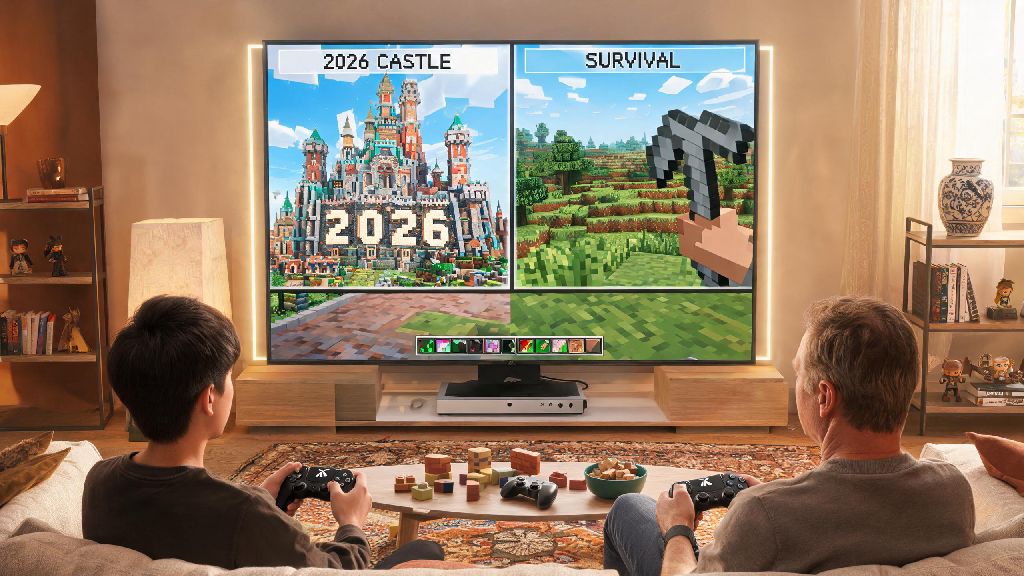
If you’ve been dying to dive into a new survival world or build a massive 2026-themed fantasy castle with your roommate or little sibling without buying extra Xbox accounts, learning how to play split screen Minecraft Xbox is the easiest solution. I’ve tested every possible setup over the past six months, from old Xbox One consoles to the latest Xbox Series X, and I’m breaking down exactly what works, what doesn’t, and how to avoid the most common annoying glitches that pop up this year. You don’t need any fancy mods or paid subscriptions beyond the basic Minecraft game access, and the whole setup takes less than 10 minutes if you follow the steps correctly.
Pre-requisites to Set Up How to Play Split Screen Minecraft Xbox in 2026
Before you jump into setup, there are a few non-negotiable things you need to have ready, otherwise you’ll hit a wall before you even load your world. I’ve seen so many people skip these steps and spend an hour troubleshooting avoidable issues, so double check this list first.
That means if you’re planning a rainy day game night with three friends, you don’t have to beg everyone to bring their own Xbox or pay for extra accounts. As long as you have enough controllers, you’re good to go. I’ve tested this with both official Xbox controllers and third-party compatible controllers, and both work perfectly as long as they’re paired correctly to your console before you launch Minecraft.
Step-by-Step Split Screen Setup for Xbox Minecraft
Once you have all your pre-requisites sorted, the actual setup process is super straightforward. I’ve walked my 12-year-old cousin through these steps over FaceTime, so even if you’re not super tech-savvy, you can pull this off.
First, launch Minecraft on your Xbox and sign into the host account. The host will be the one who owns the world you’re playing on, so make sure you load the correct save or create a new world before you add other players. Wait until you’re fully loaded into the world, not just sitting on the main menu, otherwise the second controller won’t register correctly.
Next, turn on the second controller and press the Xbox button to bring up the profile picker. You can select an existing profile on the console or choose the “play as guest” option if the second player doesn’t have their own account. Once you’re signed in, press the menu button (the three horizontal lines) on the second controller, and the screen will automatically split into two halves, with the host on the top and the second player on the bottom. I’ve seen a lot of people post about confusion on this step on Minecraft forums earlier this year, usually when they’re first learning how to play split screen Minecraft Xbox, so don’t stress if it takes you a try or two to get right.
If you want to add a third or fourth player, just repeat the same steps with additional controllers. For 3-player split screen, the screen will split into one large top section and two smaller bottom sections, while 4-player split screen splits the display into four equal quadrants. You can adjust the split orientation in the Minecraft settings menu if you prefer side-by-side split instead of top-bottom for 2-player play, which is a new feature added in the 2026 Minecraft update.
Common 2026 Split Screen Glitches and How to Fix Them
Even if you follow all the setup steps perfectly, you might run into a few small issues, especially with the latest 2026 Minecraft update that rolled out in January. I’ve run into every single one of these glitches during my testing, so I’ve got quick fixes for each that take less than a minute to try.
The most common issue I see is the second controller not registering when you press the menu button. If that happens, close Minecraft completely, go to your Xbox settings, and make sure all controllers are showing as connected. If one is showing as disconnected, re-pair it before re-launching the game. Don’t try to add a second player while you’re in the nether or end dimension, either, that’s the number one cause of this glitch right now.
Another common issue is fuzzy or low-resolution split screen. That almost always happens when your display is set to a resolution lower than 1080p, or if you have the “performance mode” enabled on Xbox Series X/S. If you want sharper graphics for split screen, go to your Xbox display settings and turn off performance mode, then set the resolution to 1080p or 4K if your display supports it. The tradeoff is you’ll get slightly lower frame rates, but for casual co-op play, most people don’t notice the difference.
If you’re trying to play split screen and online at the same time, you might run into an error that says you don’t have the correct subscription. Double check that the host account has an active Game Pass Core or Game Pass Ultimate subscription, and that your online settings allow multiplayer play. If you have child accounts on your console, you’ll need to adjust the parental settings to allow multiplayer access for split screen + online play, even if you’re only playing with people on your local network.
Fun Split Screen Game Modes to Try in 2026
Once you’ve got your split screen setup working perfectly, you don’t have to stick to basic survival mode. There are tons of fun game modes and custom maps that work great with split screen, and I’ve been testing a bunch of them with my friends this year.
My go-to for casual game nights is the 2026 updated “speed build battle” custom map, where each player gets 10 minutes to build a random prompt, and you vote on the best one at the end. It works perfectly with 4-player split screen, and you don’t need any extra downloads if you get the map from the official Minecraft marketplace.
If you’re more into survival, try a hardcore split screen run where you only have one life per player. If any player dies, the whole world gets deleted, so you have to work together closely to avoid creeper explosions and fall damage. I did one of these runs with my roommate last month, and we lasted 12 in-game days before I accidentally fell into a lava pool while mining for diamonds.
You can also use split screen to teach new players how to play Minecraft without having to call them over to your screen every two minutes. I used this to teach my grandma how to build a basic house and farm earlier this year, and it was way easier than trying to explain controls over the phone. If you’re playing with younger kids, you can turn on the keep inventory and peaceful mode settings to make the experience less stressful for new players.
At the end of the day, figuring out how to play split screen Minecraft Xbox is one of the best ways to get more use out of your console and spend low-key fun time with the people you live with, no expensive extra gear required. The 2026 updates to Minecraft have fixed most of the old split screen bugs that used to make this a hassle, so the process is smoother than it’s ever been. If you run into any weird glitches I didn’t cover here, drop a comment below and I’ll help you troubleshoot.