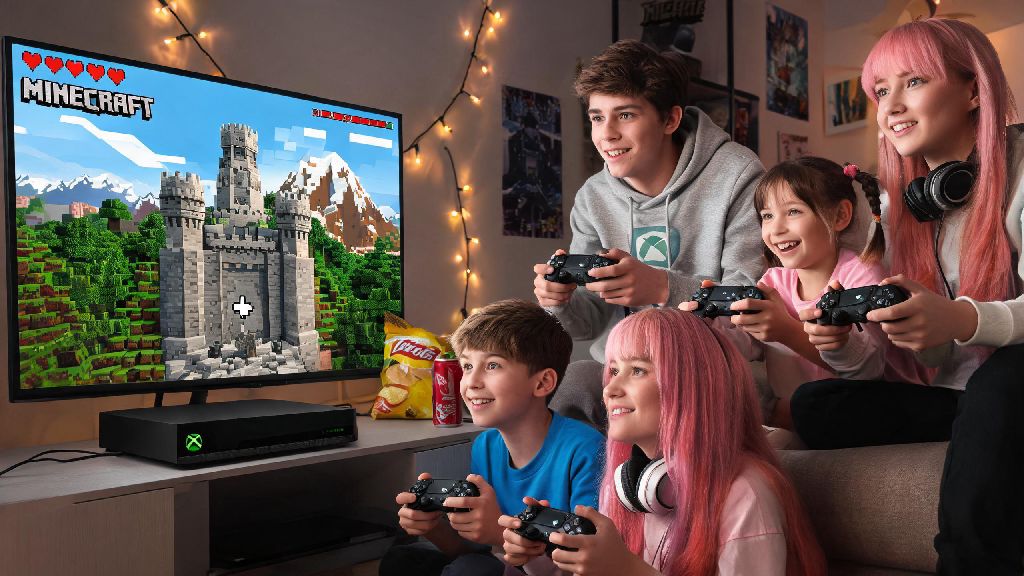
If you’ve ever booted up Minecraft on your Xbox and stared at the menu wondering how to team up with your best friend who lives two states away, or even your little sibling sitting right next to you on the couch, you’re not alone. A lot of players get tripped up by the different multiplayer modes, cross-platform requirements, and random connection errors that pop up out of nowhere. Figuring out how to play multiplayer Minecraft Xbox doesn’t have to be a frustrating process, though. We’ve tested every setup option ourselves, from casual split-screen build sessions to cross-platform survival servers, and pulled together all the info you need to get playing in minutes.
How to Play Multiplayer Minecraft Xbox: 3 Core Setup Options to Choose From
Before you jump into setup, you first need to pick which multiplayer mode fits your situation best. Each option has different requirements, and picking the wrong one is the most common reason players run into issues before they even start playing. The three main modes you can choose from are:
For example, if you’re hosting a game night with three friends coming over, split-screen play is the easiest choice. If you want to play with your college roommate who moved back home last semester, Xbox Live online is the way to go. If half your friend group plays on PlayStation and the other half on Xbox, cross-platform play is your only option. You don’t have to stick to one mode forever, either, you can switch between them depending on who you’re playing with that day.
Step-by-Step Setup for Each Multiplayer Mode
Once you’ve picked the right mode for your group, setup only takes a few minutes if you follow these steps. We’ve skipped all the unnecessary settings you don’t need to touch, so you can get straight to playing.
For split-screen play, first make sure you have enough fully charged controllers for every player. Each player will need to sign in to either their own Xbox profile or a guest profile on your console. Load up your chosen Minecraft world, then have the second player press the menu button on their controller. The screen will automatically split into two, and they’ll spawn right next to you in the world. You can have up to 4 players on split screen at once, though you may notice slight lag on older Xbox One consoles if all four players are exploring different areas of the map.
For Xbox Live online multiplayer, first confirm you have an active Xbox Live Gold or Game Pass Core subscription, as free Xbox accounts can’t access online multiplayer. Load your world, open the in-game menu, and navigate to the “Invite to Game” tab. All of your Xbox friends who own Minecraft will show up in the list, and you can send invites with one click. Your world will only be accessible to people you invite unless you manually change the setting to “Friends of Friends” in the world options menu, which is a good safety feature if you don’t want random players joining.
For cross-platform play, first double check that your Microsoft account is linked to your Minecraft profile (this is usually auto-done on Xbox, but you can confirm in the in-game profile settings). Have your friends link their own Microsoft accounts to their Minecraft copies on their respective devices, then add them as a friend using their Microsoft gamertag, not their platform-specific username. Once they accept your friend request, you can invite them to your world the same way you would an Xbox friend. Note that PlayStation players need to enable cross-platform play in their Minecraft settings first, otherwise they won’t receive your invites.
Common Multiplayer Issues and Simple Fixes
Even if you follow all the setup steps perfectly, you might run into a random error here and there. Most of these issues have super simple fixes that don’t require any technical knowledge, so don’t give up right away if something goes wrong.
If split-screen won’t activate, first check that your TV or monitor is set to a resolution of 720p or higher. Older TVs that only support 480p can’t run split-screen Minecraft, and a lot of people accidentally have their console set to a lower resolution without realizing it. If that’s not the issue, check your console’s privacy settings to make sure guest accounts are allowed to join multiplayer games.
If invites aren’t sending or showing up for your friends, first test your internet connection. A minimum of 3 Mbps upload speed is required for smooth online multiplayer, and anything lower will cause invites to fail or lag mid-game. If your internet is fine, go to your Xbox account privacy settings, navigate to the “Communication & multiplayer” tab, and make sure “You can join multiplayer games” is set to Allow. A lot of parental controls default to blocking multiplayer access, so this is an easy fix if you share a console with family.
If your cross-platform friends don’t show up in your invite list, first confirm that everyone is playing the Bedrock Edition of Minecraft. All cross-platform play requires the Bedrock edition of Minecraft, so if your friend is playing the Java Edition on PC, they won’t be able to join your Xbox world. If everyone is on Bedrock, make sure all players have installed the latest game update, as mismatched versions will block cross-play access. You can check for updates in the “My games & apps” section of your Xbox dashboard.
Tips for a Better Multiplayer Minecraft Xbox Experience
Once you get your multiplayer game up and running, these small tips will make your sessions way more fun and way less stressful, no matter what type of play you’re doing.
If you’re playing with a group of 5 or more people, skip hosting the world on your local console and use a Minecraft Realm instead. Local hosted worlds only support up to 8 players total, and lag gets really bad once you have more than 4 people exploring different areas, since your console is doing all the processing work. Realms are hosted on Microsoft’s servers, so lag is almost non-existent, the world stays online even when the original host is offline, and you can have up to 10 players online at the same time. It costs a small monthly fee, but it’s worth it if you play with the same group regularly.
If you’re playing survival mode with friends, set a couple of basic ground rules before you start building. Things like no stealing from shared chests, no blowing up other people’s builds without permission, and no bringing creepers back to the base might seem silly, but I’ve seen multiple friend groups get into actual arguments over misplaced TNT or stolen diamond gear. It only takes 30 seconds to agree on rules, and it saves a lot of frustration later.
Enable auto-save for your world at 10 minute intervals, especially if you’re running a long build or survival session. If your internet cuts out, or someone’s controller dies and crashes the game, you won’t lose hours of work if the world has been saving regularly. You can adjust this setting in the world options menu before you load into the game. You can also manually save the world at any time by opening the in-game menu and selecting “Save World”.
If you want to play modded multiplayer or custom maps, make sure every player has the exact same mods and map files installed before you start the session. Even one small missing mod or mismatched map version will cause the game to crash for everyone, so it’s worth taking two minutes to confirm everyone has the right files before you start. You can send mod and map files to your friends via the Xbox messaging feature, or share a link to a cloud folder with all the required files.
At the end of the day, playing multiplayer Minecraft Xbox is one of the most fun ways to experience the game, whether you’re building a giant castle with your roommates on split screen or exploring a new survival world with friends spread across the country. You don’t need any fancy equipment or technical knowledge to get it working, just a few minutes to run through the setup steps and fix any small issues that pop up. Once you’re in the game, the only limit is what you and your friends can build together.