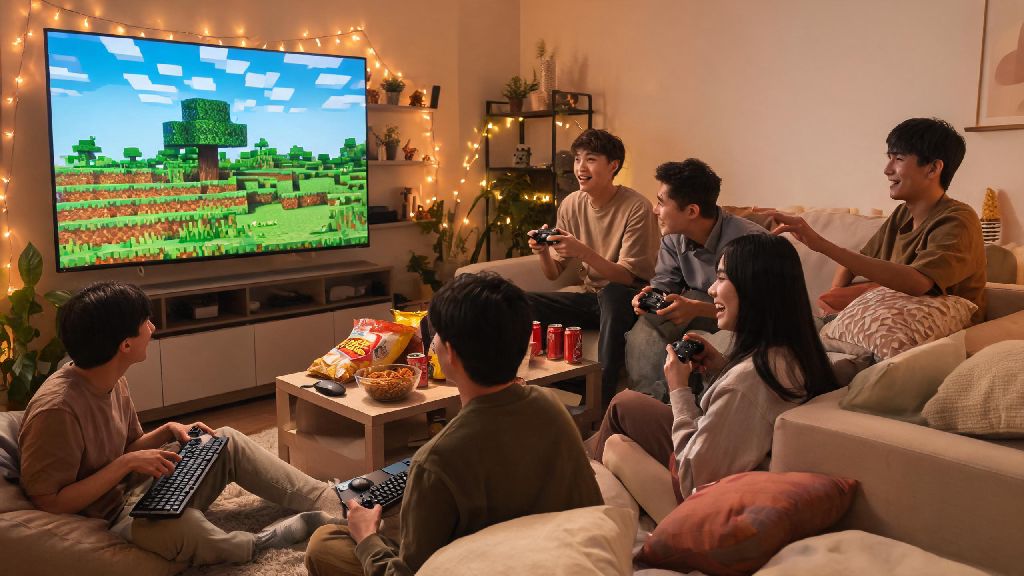
Last month, my three roommates and I wanted to run a 48-hour Minecraft survival marathon in our apartment, but none of us wanted to cough up cash for a monthly server subscription. We spent an hour fumbling through settings, dealing with firewall blocks, and yelling at each other about version mismatches before we finally got our session running. That mess is exactly why I put together this guide to walk you through how to play minecraft lan without all the frustration we went through.
Pre-Setup Checks You Need to Do Before Starting a Minecraft LAN World
Before you even open Minecraft, there are three non-negotiable checks you need to run to avoid 90% of common connection issues. First, make sure every single player is connected to the same local network connection. That means no one is using their phone’s mobile data, even if they’re sitting right next to you—LAN only works for devices on the same Wi-Fi or wired Ethernet network.
Second, confirm every player has a matching Minecraft game version. Even a tiny patch difference, like 1.20.1 vs 1.20.2, will make the world invisible to anyone on the wrong version. If you’re playing Java Edition, you can switch versions in the launcher’s “Installations” tab, and Bedrock players can update their game directly through their device’s app store.
Third, ask everyone to turn off temporary firewall restrictions for Minecraft, or add the game to their firewall’s allowed app list. Windows Defender and Mac Firewall regularly block Minecraft’s local connection requests by default, so this step saves you a lot of headache later. You can turn firewalls back on once your session is up and running if you’re worried about security.
How to Play Minecraft LAN: Step-by-Step Setup for Java and Bedrock Editions
The setup process varies a little depending on if you’re using Java or Bedrock Edition, but both are pretty straightforward once you’ve done your pre-checks. Java Edition has a few more steps but offers more customization options for game mode and permissions, while Bedrock Edition works across almost all devices with one simple toggle.
For Java Edition, follow these steps to launch your LAN world:
For Bedrock Edition, the process is even simpler, and it works across consoles, mobile, and Windows PC. Load your world, open the in-game settings, scroll to the “Multiplayer” tab, and toggle on “Visible to LAN Players.” All other players on the same network will see the world pop up in their “Friends” tab on the main menu, and they can join with one click. It’s worth noting that Bedrock LAN sessions support up to 8 players total, while Java Edition can handle more depending on the host device’s processing power.
Common Minecraft LAN Troubleshooting Fixes for Connection Issues
Even if you follow all the pre-checks and setup steps perfectly, you might still run into connection issues. I’ve had my fair share of these, from worlds that won’t show up to random kicks mid-session, and these fixes work for almost every case. If you’ve spent 20 minutes troubleshooting connection errors with no luck, it’s okay to take a 10-minute break to reset your focus before trying again. Lots of players use short, low-stakes casual games to unwind when they hit tech snags, and Rummy77 is a popular pick for quick, fun rounds that don’t require a lot of setup or focus. Once you’ve had a quick reset, you can work through these fixes one by one to get your session up and running.
First, double-check your network connection. It’s really common for devices to jump to a guest Wi-Fi network without you noticing, especially if you’re in a dorm or apartment building with multiple networks. Make sure everyone is on the exact same network name, and if you’re on Wi-Fi, try moving closer to the router to get a stronger signal.
If the world still won’t show up, try connecting manually using the host’s local IP address. You can find the local IP on Windows by typing “ipconfig” in Command Prompt, looking for the “IPv4 Address” line, and on Mac by going to System Settings > Wi-Fi > Details. If you’re still getting connection refused errors, double-check that all firewalls are allowing Minecraft access, and that no one has a VPN running that might be rerouting their network traffic. VPNs almost always break LAN connections, so turn them off completely before joining.
Tips to Make Your Minecraft LAN Sessions More Fun and Smooth
Once you’ve got your session running, there are a few small tweaks you can make to keep things running lag-free and fun for everyone. First, if you’re the host, limit render distance to 12 chunks or lower. The host device is handling all the world processing for every player, so higher render distances will cause lag for everyone, even if you have a powerful PC. If you notice persistent lag, you can also turn off fancy graphics and particle effects on the host device to free up processing power.
If you’re playing Java Edition and want to add mods, make sure every player has the exact same mods and mod loader version installed. Even a single missing mod will cause players to get kicked immediately, so it’s a good idea to share a zip file of your mod folder with everyone before the session starts. Stick to lightweight, performance-friendly mods if you don’t have a high-powered host device to avoid lag.
You can also plan small group activities to keep things fun, like a base building contest, a nether exploration race, or a collective project to build a giant statue of your favorite meme. If you’re playing survival, set a group rule that no one steals from shared chests or kills each other’s pets unless it’s part of a pre-agreed prank war. It’s also a good idea to save the world every hour or so, just in case the host device crashes and you lose progress. I’ve lost an entire 8-hour building session to a random laptop crash before, so trust me on this one.
Learning how to play Minecraft LAN is one of the best ways to enjoy the game with people in the same space, no expensive server subscriptions or complicated cloud setup required. You don’t need fancy tech to pull off a fun, lag-free session, just a little pre-planning and a few quick fixes for any issues that pop up. Next time you’re hanging out with friends who love Minecraft, give this setup process a try for a memorable co-op experience you can’t get with random online players.