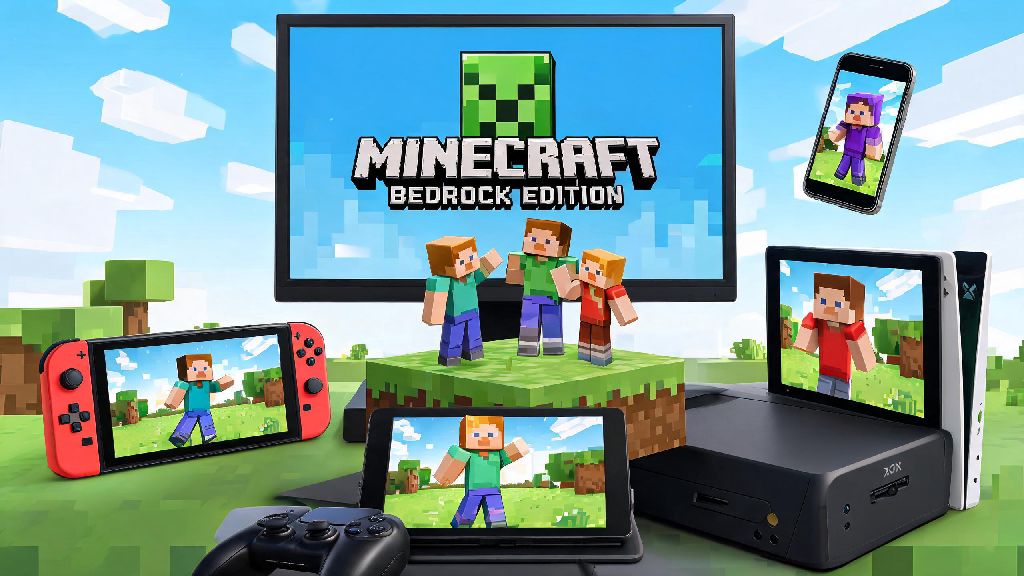
If you’ve ever joined a friend’s Minecraft world only to get hit with a ‘version incompatible’ error, you know how frustrating it is to miss out on group builds or survival runs. Most new PC players default to Java Edition without realizing they can access the crossplay-friendly Bedrock version right on their desktop too. Learning how to play Minecraft Bedrock on PC opens up access to millions of mobile, console, and PC players, plus exclusive marketplace content you won’t find in Java. We’ve tested every setup method to cut through the misinformation, so you can get in game in 10 minutes or less without risking sketchy third-party downloads.
How to Play Minecraft Bedrock on PC: Official Download Methods
The only safe way to get Bedrock on your PC is through official Mojang or Microsoft channels, so skip the random file sites that promise free copies. As of 2022, every official Minecraft purchase for Windows includes both Java and Bedrock Editions at no extra cost, so you don’t have to pay twice if you already own Java. First, head to the official Minecraft website, download the standard Minecraft Launcher, and log in with the Microsoft account linked to your Minecraft purchase. You’ll see both Java and Bedrock in the left-hand menu; select Bedrock, choose your install location, and hit the play button to start the automatic installation.
If you have an Xbox Game Pass for PC subscription, you don’t even need to buy Minecraft separately. Open the Xbox app on your Windows 10 or 11 device, search for Minecraft Bedrock Edition, and install it directly with one click. You should never download Bedrock from third-party sites, as these files often come bundled with malware, keyloggers, or stolen account credentials that can get your Minecraft profile banned permanently. This method only works for Windows devices; there is no official native Bedrock release for Mac or Linux, but we cover workarounds for those systems later.
Key Settings to Tweak Before Your First Playthrough
Bedrock’s default settings work fine for casual play, but a few small tweaks will make your experience much smoother, especially if you’re switching over from Java or console. If you’re used to Java Edition controls, you’ll be able to adjust Bedrock’s layout to match in seconds, so you don’t have to re-learn muscle memory when you switch between versions or play Minecraft Bedrock on PC with console friends. Crossplay is enabled by default, so you don’t have to mess with extra settings to join friends on Xbox, PlayStation, Switch, or mobile as long as you’re connected on your Microsoft account.
If you want to customize your controls further to match the layout you used on console, you can use custom keybind profiles for Minecraft to skip the hassle of remapping every individual button. These pre-made profiles match standard console layouts perfectly, so you can jump right into a survival run without fumbling for the inventory or jump button. We recommend adjusting these three settings first to avoid common headaches later:
You can also turn on optional features like coordinate display, which is disabled by default on Bedrock, to make it easier to find your way back to your base after long mining trips. If you have a compatible GPU, you can also enable ray tracing for ultra-realistic lighting and textures, but we only recommend this for high-end desktops.
How to Fix Common Minecraft Bedrock PC Errors
Even with official installs, you might run into small errors that stop you from joining games, but most of these have simple fixes that take less than a minute to implement. The most common error is the ‘version mismatch’ pop-up, which happens when your game isn’t updated to the same version as the world you’re trying to join. To fix this, close the game, open the Minecraft Launcher, and click the ‘check for updates’ button next to the Bedrock install option; the launcher will automatically download and install the latest patch for you.
If you’re getting a login error that won’t let you connect to your Microsoft account, you probably don’t have the latest Xbox Identity Provider app installed from the Microsoft Store. This is a small background app that handles Microsoft account logins for all Xbox games on PC, and it often gets overlooked during Windows updates. If you’re running into lag even on a high-end PC, check if you have ray tracing enabled by mistake. Ray tracing for Bedrock only works on NVIDIA RTX 2000 series or higher, and AMD RX 6000 series or higher, so turning that setting off will immediately fix lag on older cards.
If you want to play Bedrock on a Mac or Linux device, you can run a Windows virtual machine through software like Parallels or VirtualBox, but keep in mind that performance will be significantly lower than a native Windows install. This setup works for casual play, but you’ll likely run into lag if you try to join large multiplayer worlds or use high-resolution texture packs.
Fun Things to Try Once You’re Set Up on Bedrock PC
Once you have Bedrock running smoothly on your PC, you’ll have access to a huge range of content and features you won’t find on Java Edition. First, join a crossplay session with friends who play on console or mobile; you don’t need any extra setup, just send them a friend request on your Microsoft account and you can join their world instantly, even if they’re playing on their couch on a Switch. You can also browse the official Minecraft Marketplace, which has thousands of custom maps, skins, texture packs, and add-ons created by official Mojang partners.
Add-ons for Bedrock are much easier to install than Java mods, so you don’t have to mess with mod loaders or file paths to add new content to your game. Just download an add-on from the marketplace or a trusted creator, double click the file, and it will automatically be added to your Bedrock install. You can also sign up for Realms Plus, a low-cost monthly subscription that gives you a persistent 24/7 world that you and up to 10 friends can join at any time, even if the world owner is offline. Realms works across all Bedrock devices, so your friend playing on mobile can add to your base while you’re at work, and you can come back to new builds when you log on later.
At the end of the day, there’s no wrong way to enjoy Minecraft, but playing Bedrock on PC gives you the best of both worlds: the precision of keyboard and mouse controls, and the ability to play with nearly every Minecraft player on the planet regardless of their device. You don’t need fancy hardware or technical expertise to get set up, just an official copy of Minecraft and 10 minutes of time to run the installer. Now that you know how to play Minecraft Bedrock on PC, you can stop missing out on crossplay sessions, exclusive marketplace content, and optimized performance that works even on older laptops. Grab your pickaxe, hop in a world, and see what you and your friends can build together.