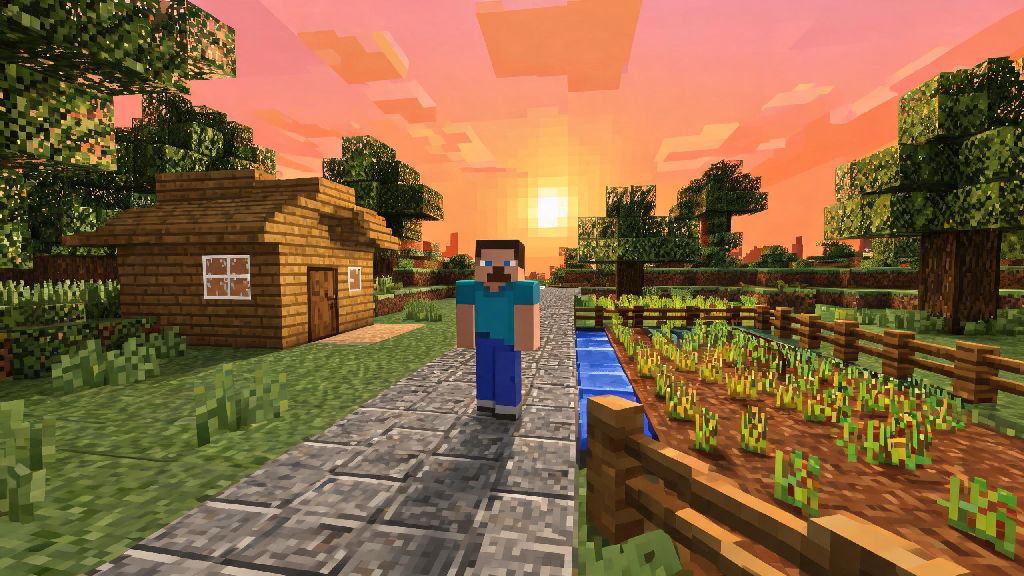
If you’ve ever tried to load a 7-year-old mod pack you used to play with your college friends, or wanted to revisit the exact world you built in high school before the combat update changed everything, you already know how frustrating it can be when the latest Minecraft launcher won’t run your old files. Learning how to play an older version of Minecraft isn’t just for nostalgic players, either. Many popular mod packs, custom maps, and community servers are only compatible with specific legacy releases, so knowing how to switch versions safely can open up a huge library of content you’d otherwise miss. We’ve walked hundreds of players through this process over the years, and we’ve streamlined the steps to avoid common pitfalls like corrupted worlds, missing files, or account security risks.
How to Play an Older Version of Minecraft Using the Official Launcher
The official Minecraft launcher is the only 100% safe, supported way to access legacy versions, and it takes less than 2 minutes to set up a separate instance for your old version of choice. We always recommend using the official launcher first before trying any third-party tools, as third-party launchers can come with malware risks or account bans if you’re not careful. First, open your launcher and navigate to the “Installations” tab at the top of the screen, next to the default “Play” tab. Check the box that says “Allow content provided by the community” and the box that says “Show historical versions” to unlock all legacy releases dating back to the very first alpha builds.
Click “New installation” to create a separate profile for your older version, so you don’t accidentally overwrite your current saved worlds. Always name your installation clearly with the version number, for example “1.12.2 Modded” so you can easily find it later, and select a separate save folder for this instance to avoid file conflicts. Once you save the installation, you can select it from the dropdown menu on the main play screen and launch it like normal. Once you have your instance set up, you can enjoy all the benefits of playing an older version of Minecraft without risking your current game files. One common mistake new players make here is not backing up their existing worlds before switching versions, even if you’re using a separate instance. It only takes 30 seconds to copy your save files to a separate folder on your desktop, and it will save you from losing hundreds of hours of progress if something goes wrong.
When to Use Third-Party Launchers for Legacy Minecraft Versions
Third-party launchers are designed for players who want to run heavily modded instances, or access versions that aren’t listed in the official launcher for one reason or another. You don’t need one if you just want to play vanilla 1.8 for old PvP servers, but they can save you a lot of time if you’re working with complex mod packs. Many long-time modders prefer third-party launchers because they make managing multiple older versions of Minecraft much easier than the official launcher. That said, you need to be careful when choosing a third-party launcher, as many unvetted options online come with adware or stolen account credentials. We only recommend using well-known, open-source launchers that have been vetted by the Minecraft community for years.
If you’re considering a third-party launcher, make sure it meets all these criteria:
Never download a launcher from an untrusted link, even if someone sends it to you directly in a Discord server or Minecraft forum. Always go to the official, verified download page for the launcher you want to use to avoid fake versions loaded with malware. Even trusted launchers can have fake copies posted on sketchy websites, so double check the URL before you download anything.
Fixing Common Issues With Older Minecraft Versions
Even if you follow all the setup steps correctly, you might run into small issues when running older versions, especially if you’re running them on a newer operating system like Windows 11 or the latest MacOS. Most of these issues are easy to fix with a few small tweaks, no advanced tech skills required. One of the most common issues is graphics glitches or crashes on launch, which usually happens because older Minecraft versions are built for older versions of Java. The official launcher automatically installs the correct Java version for each legacy release, but if you’re using a third-party launcher, you might need to manually install the right Java version for the version you’re playing. For example, versions 1.16 and earlier run best on Java 8, while versions 1.17 and later require Java 17 or higher.
Another common issue is old worlds not loading correctly when you open them in a legacy version. This almost always happens because you previously opened the world in a newer version of Minecraft, which updates the world files to be compatible with the new release. You can’t downgrade a world that has been opened in a newer version, so always make sure you make a copy of your world before opening it in any version, new or old. If you’re playing on a server, make sure the server version exactly matches the version of your client, even a small difference like 1.18.1 vs 1.18.2 can cause connection errors or missing content.
Important Safety Rules for Playing Legacy Minecraft Versions
Playing older versions of Minecraft is generally safe as long as you follow a few simple rules, but there are some unique risks you won’t run into when playing the latest release. Older versions don’t have the latest security patches, so they can be vulnerable to exploits if you’re playing on untrusted public servers. We never recommend sharing any personal information, like your real name or location, when playing on public legacy servers, and avoid clicking any links that people post in chat, even if they look like they’re related to the server. If you’re downloading mods or custom maps for your legacy version, only download them from trusted, verified sites like CurseForge or the official Minecraft forums. Many random mod sites online host malware-infected files that are disguised as popular mods for old versions, and they can steal your account information or damage your device.
Always make a full backup of your entire Minecraft folder at least once a month if you play multiple versions regularly. This will let you restore all your worlds, mods, and settings in one go if you run into a corrupt file or a bad mod that breaks your installation. You don’t need any special software to do this, just copy the whole .minecraft folder to an external drive or cloud storage service. It’s also a good idea to avoid using your main Minecraft account on untrusted third-party launchers, if you want to test a new launcher you’re not sure about, create a separate alt account first to avoid risking your main profile and all its purchases.
At the end of the day, half the fun of Minecraft is how much content the community has created over the past 15 years, and switching to older versions lets you experience all that content exactly as it was meant to be played. Whether you’re chasing nostalgia, wanting to play a specific mod pack, or just curious about what Minecraft was like before all the recent updates, learning how to play an older version of Minecraft is a simple skill that will open up thousands of hours of extra gameplay. Take your time to follow the steps carefully, prioritize safety when downloading tools or mods, and don’t forget to back up your worlds before you make any changes. You might just find your new favorite way to play is a version that came out a decade ago.