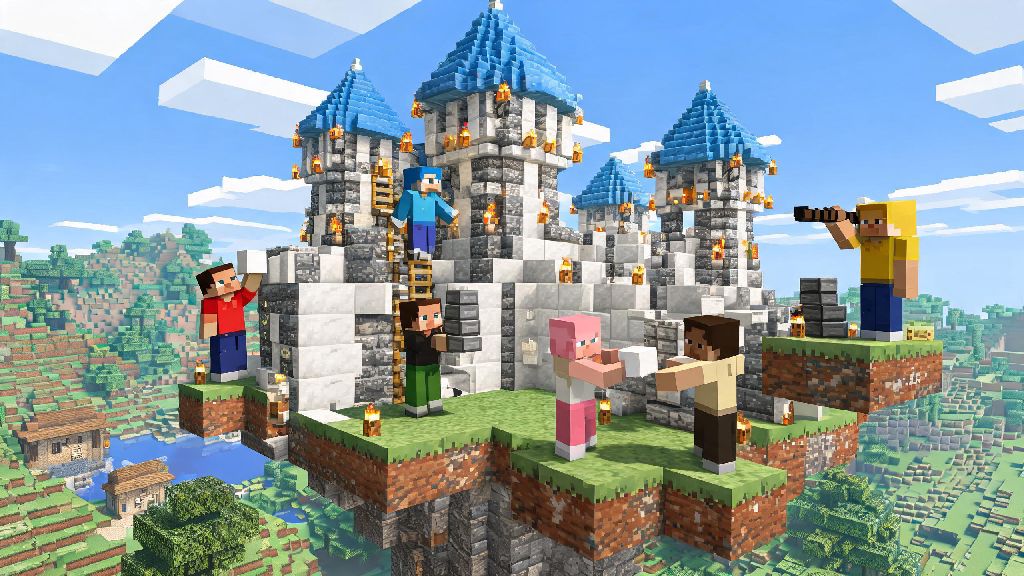
If you’ve spent hours building a cozy cabin or grinding for diamond gear alone in Minecraft, you’ve probably wondered how do you play online on Minecraft to share those moments with friends or meet new players across the world. For many players, the game’s best moments happen when you’re teaming up to beat the Ender Dragon, prank a friend’s base, or collaborate on a massive floating castle project. Online play opens up a whole new layer of fun that single-player mode just can’t match, and it’s way easier to set up than you might think, even if you’re not super tech-savvy.
How Do You Play Online on Minecraft: The 3 Most Common Methods
Before you jump into online play, there are a few basic things you need to have sorted first, no matter which method you pick. These requirements prevent most common connection issues and make the setup process way smoother:
Once you have those sorted, you can pick from three main online play options. The first is Minecraft Realms, the official hosted server option from Mojang. Java Edition Realms support up to 11 total players, while Bedrock Realms support up to 15, and you don’t have to worry about updating the server, fixing crashes, or leaving your computer on 24/7. The only downside is the small monthly fee, which makes it best for groups of friends who play together regularly.
The second option is public servers, which are free to join and run by independent community members. There are thousands of public servers available for both editions, covering every playstyle from competitive minigames to relaxed, no-grief survival worlds. You don’t need any setup to join a public server, just the server’s IP address or find it in the in-game browser for Bedrock edition.
The third option is LAN or peer-to-peer play, which is 100% free and best for small groups. If you’re all on the same wifi network, you can just open your single-player world to LAN and other players on the network can join immediately. If you’re in different locations, you can use a free LAN tunneling tool to simulate a local network, though this works best for groups of 4 or fewer players to avoid lag.
Tips for Joining and Enjoying Public Minecraft Servers
Public servers are a great way to meet new players and try out Minecraft game modes you’d never get to experience in single-player, but there are a few rules of thumb to make your experience better. First, always make sure the server matches your Minecraft edition – Java servers won’t work for Bedrock players and vice versa, though a small number of servers support cross-play between the two.
Once you find a server you want to try, reading server rules first is non-negotiable. Every server has its own set of rules, and most will ban or mute players who break them even if they claim they never saw the rules. Common rules include no griefing, no stealing, no hacked clients, no spamming chat, and limits on where PvP is allowed. I’ve seen way too many new players get banned within 10 minutes of joining because they destroyed someone’s small farm without realizing griefing is against the rules, so this small step saves you a lot of hassle.
If you’re joining a small community server, take a minute to introduce yourself in general chat. Most regular players are happy to help new players find resources, show them around the server, or even team up for projects. Just don’t spam chat asking for free diamonds or gear right away, that’s a quick way to get ignored by the rest of the community. If you’re joining a large minigame server like Hypixel, take the time to play the tutorial for each game mode before joining a public match, so you don’t accidentally hurt your team’s chances of winning.
How to Set Up a Private Online Game for You and Your Friends
If you don’t want to deal with random players at all, a private online game is the best option for you and your friend group. The easiest and most reliable option by far is Minecraft Realms, as we mentioned earlier. You can pick a vanilla world, a pre-made custom map, or even a modded world if you’re playing Java Edition, and you can set custom permissions for each player. For example, you can let your most trusted friend have full build access, while limiting new players to only interacting with doors and chests until you’re sure they won’t grief your builds.
If you don’t want to pay for a Realm, you can host your own server on your home computer for free. Mojang has official server software available for both Java and Bedrock Edition on their website, so you don’t have to download any sketchy third-party tools to set it up. The tricky part is port forwarding, which is a setting you adjust on your home router to let other people connect to your server through your internet. If you do this wrong, you can accidentally expose your home network to security risks, so if you’re not comfortable following a step-by-step guide for your specific router model, it’s better to skip this option or ask someone with tech experience to help you.
Another free option for small groups is using a LAN tunneling tool like Radmin VPN or Hamachi. You and your friends just download the same tool, join the same private network, and then the host can open their single-player world to LAN like normal. It takes less than 5 minutes to set up, no port forwarding required, and it’s totally free for small groups. The only downside is that the host has to be online and in the world for other players to join, so it’s not ideal if your group plays at different times of day. No matter which private option you pick, make sure you turn on the whitelist feature, so only people you specifically invite can join the server.
Critical Safety Rules for Minecraft Online Play
Online play is a ton of fun, but it’s important to stay safe, especially if you’re a younger player or you’re letting your kid play online. The first and most important rule is never share personal information with anyone you meet in-game, no matter how friendly they seem. That includes your full name, address, school name, phone number, social media accounts, or even photos of yourself. Most players are kind and respectful, but there are bad actors out there who try to get personal information from kids, so it’s better to keep all details about your offline life private.
Another hard rule is to never click on links that people send you in chat, even if they say it’s a free Minecraft cape, rare skin, or mod pack. 9 times out of 10, those links are phishing scams that try to steal your Minecraft account login information, or malware that will infect your computer. If someone sends you an unsolicited link, just ignore it, and report them to the server moderators if you’re on a public server.
If someone is being toxic, harassing you, or making you uncomfortable in any way, use the in-game mute and block features immediately. You don’t have to engage with them, and you don’t owe them an explanation. Most large servers also have a report feature that lets you send a message to the moderation team about bad behavior, so use that if someone is breaking the server rules. If you’re a parent letting your kid play online, you can turn on the built-in chat filter in Minecraft’s settings, limit who they can send friend requests to, and even disable public server access entirely if you only want them playing with people you know personally.
At the end of the day, figuring out how do you play online on Minecraft is just the first step to making some of your best gaming memories. Whether you’re joining a massive public server for a round of Bed Wars with hundreds of other players, or building a whole custom world with your closest friends on a private Realm, the online side of Minecraft adds so much depth to a game that’s already full of endless possibilities. You don’t have to be a tech expert to get started, and there’s an option for every budget and playstyle. Just take it slow, follow the rules of whatever server you join, stay safe, and you’ll be having a blast in no time.