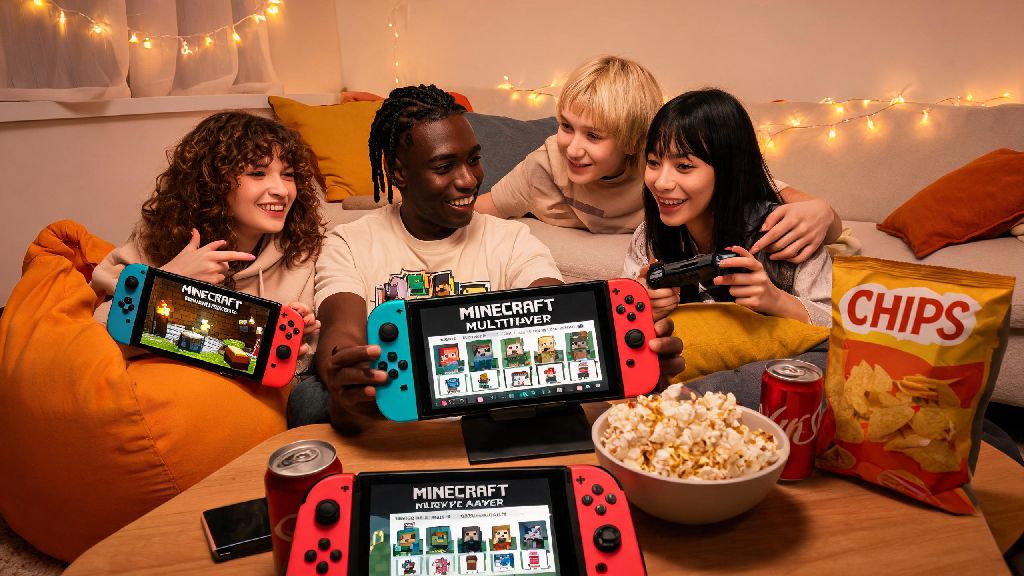
If you’ve just grabbed a copy of Minecraft for your Nintendo Switch and are dying to build a survival base with your best friend or join a minigame server with people from around the world, your first question is probably can you play multiplayer Minecraft on Switch. It’s a super common question, especially since Switch has different subscription rules and crossplay restrictions than other consoles, and a lot of players end up confused when they can’t join their friend’s world right out of the box. This guide breaks down everything you need to know, from required subscriptions to crossplay rules and fixes for the most annoying connection issues.
Can You Play Multiplayer Minecraft on Switch? Core Rules and Requirements
The short answer is yes, you absolutely can play multiplayer Minecraft on Switch, but there are a few basic requirements you need to meet first, depending on what type of multiplayer you want to use. First, all modern copies of Minecraft on Switch run the Bedrock Edition, which is the same version used on Xbox, PlayStation, mobile, and Windows PC. That’s the key reason crossplay works across all these platforms. If you have an older physical copy of Minecraft for Switch, you may need to download a free update to switch to the Bedrock Edition if you haven’t already.
Next, you will need an active Nintendo Switch Online subscription for any online multiplayer play, whether you’re playing with other Switch players or crossplay with people on other platforms. The only exception is local split-screen multiplayer, which works entirely offline without any subscription. You also need to make sure your Switch is connected to a stable internet connection for online play—public Wi-Fi networks with login walls usually won’t work for connecting to servers or friend worlds.
Step-by-Step Setup for Switch Minecraft Multiplayer
Setting up multiplayer on Switch Minecraft is straightforward once you know the steps, and you have four main types of multiplayer to choose from, depending on who you want to play with:
For local split-screen play, all you need is extra compatible controllers (you can use Joy-Cons paired separately, Pro Controllers, or third-party licensed Switch controllers). Load into your single-player world first, then have the second player press the + button on their controller to join. You can adjust split-screen orientation in the game settings if you prefer horizontal over vertical splits.
For online or crossplay, you have to link a free Microsoft account to your Switch Minecraft profile first. You can do this by opening Minecraft on your Switch, selecting “Sign in with a Microsoft Account” from the main menu, and following the on-screen instructions to enter the code on the Microsoft website. Once your account is linked, you can add friends using their Microsoft gamertag, send invites to your world, or join their open worlds directly from your friend list.
Common Multiplayer Issues on Switch Minecraft and Quick Fixes
Even if you follow all the setup steps correctly, you might run into issues joining worlds or servers, especially if you’re playing crossplay. Most of these issues have simple fixes that take less than a minute to try. Most connection errors happen because one player hasn’t updated their Minecraft to the latest patch, so first make sure both you and the person you’re playing with have installed all available updates for the game. You can check for updates on Switch by highlighting Minecraft on the home screen, pressing the + button, and selecting “Software Update.”
If crossplay isn’t working, double-check that cross-platform play is enabled in your in-game settings. Open the settings menu, go to the “General” tab, and make sure the toggle for “Cross-platform play” is switched on. If you’re using a child account, parental control restrictions are the #1 hidden cause of crossplay failures for younger players. Ask the account holder to check the parental control settings on both the Switch and the linked Microsoft account to make sure online play and crossplay are allowed.
If you can’t connect to a public server, make sure the server supports Bedrock Edition—Java Edition servers won’t work on Switch at all, no matter what settings you change. You can find a list of official featured Bedrock servers directly on the Minecraft main menu, so those are always a safe bet if you want to avoid connection issues. If you’re trying to join a private custom server, double-check the IP address and port number you entered, because even one wrong digit will stop you from connecting.
Pros and Cons of Playing Minecraft Multiplayer on Switch
Playing Minecraft multiplayer on Switch has a lot of perks that other consoles don’t offer, but it also has a few downsides depending on what you’re looking for from your multiplayer experience. The biggest plus is portability—you can bring your Switch to a friend’s house, a family road trip, or a coffee shop and play split screen or online multiplayer wherever you have a decent internet connection. Split-screen play on Switch also works without any extra subscriptions, which is great for casual play sessions with people who are in the same room as you.
Another big plus is that crossplay works with almost every other Minecraft platform, so you don’t have to worry about being locked out of playing with friends just because they have a different console. The controls are also easy to pick up for new players, so it’s a great option for playing with younger kids or people who don’t game very often. I’ve brought my Switch to multiple family gatherings over the years, and it’s always the go-to activity for kids and adults alike when we have a few free hours.
But there are some downsides to keep in mind. If you’re playing in handheld mode, the smaller screen can feel cramped when you’re on split screen with 3 or 4 players. Performance also drops a little when you have multiple players on the same console, especially if you’re in a world with lots of redstone builds or mobs. You also can’t join Java Edition servers at all, so if you’re into modded servers or custom Java-only minigames, you’ll be limited to Bedrock-only servers. And unlike PC or mobile, you have to pay for a Nintendo Switch Online subscription just to play online with friends, even if you already have a subscription for another console.
For casual, laid-back play sessions, it’s my favorite platform by far. It’s not the best choice if you’re a competitive player or you want to mess around with mods, but for most people who just want to build and explore with friends, it’s perfect. The ability to jump into a friend’s world while you’re waiting for your food at a restaurant or hanging out in a hotel room on vacation makes it worth the minor downsides for most players.
At the end of the day, the answer to can you play multiplayer Minecraft on Switch is a resounding yes, as long as you meet the simple requirements and follow the setup steps we covered. Whether you’re playing split screen with your little sibling on a rainy day, joining your friend’s survival world from across the country, or messing around on a public bedwars server with hundreds of other players, Switch makes it easy to connect with the Minecraft community no matter where you are. If you run into any snags, just run through the quick fixes we listed earlier, and you’ll be back to building and exploring with your friends in no time.