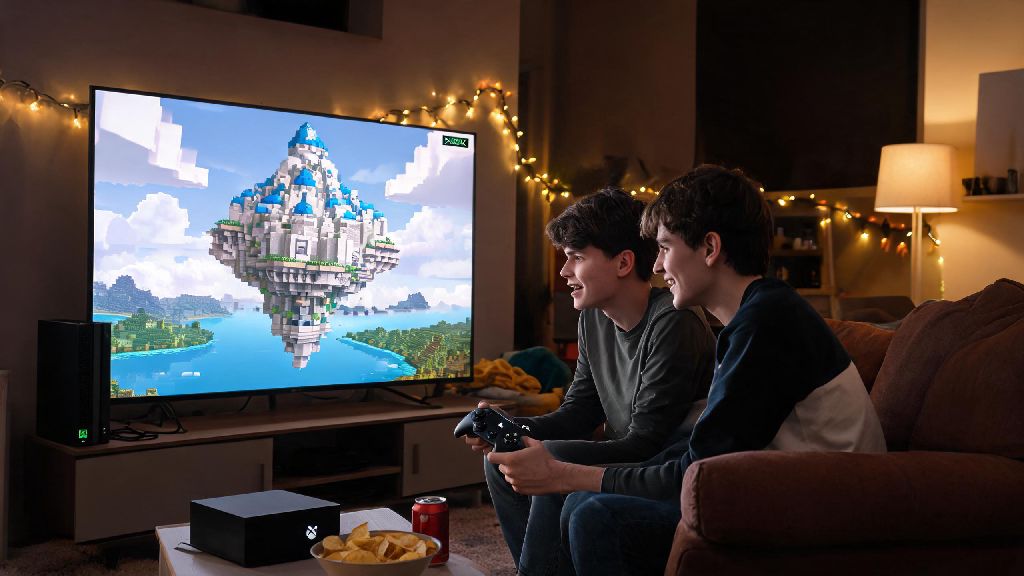
If you’ve just booted up Minecraft on your Xbox and want to team up with friends to build a floating castle, take on the Ender Dragon, or mess around with chaotic TNT mini-games, you’ve probably asked, how do I play multiplayer on Minecraft Xbox? It’s way simpler than you might think, even if you’ve never joined a shared world before, and you don’t need any fancy extra gear to get started. Most issues people run into with Xbox Minecraft multiplayer come down to small setting tweaks or account setup gaps, which we’ll walk you through step by step so you can start playing in 10 minutes or less.
How Do I Play Multiplayer on Minecraft Xbox: First-Time Setup Steps
Before you jump into a game with friends, there are a few quick checks you need to run to make sure everything works smoothly. When you’re first figuring out how do I play multiplayer on Minecraft Xbox, these pre-checks will save you hours of troubleshooting later. The biggest requirement most people forget is that Xbox Game Pass Core or Gold subscription is mandatory for online multiplayer, unless you’re only playing split-screen with people in the same room.
Once you’ve run through these checks, you’re ready to pick which multiplayer mode you want to try. If you’re playing with people in the same house, you can even skip the subscription and internet check entirely for split-screen play.
Different Multiplayer Modes You Can Use on Xbox Minecraft
There are four main multiplayer modes available for Minecraft on Xbox, each suited for different play styles and group sizes. You don’t have to stick to one mode either, you can swap between them depending on who you’re playing with and what you feel like doing that day.
Split-screen local multiplayer is the easiest mode to set up, no internet or subscription required. All you need is extra controllers for each player, and you can have up to 4 people playing on the same screen at once. It’s perfect for sleepovers, family game nights, or casual play with roommates. The only downside is that the screen gets smaller for each additional player, so it can be hard to see small details when you have 4 people playing.
If you want to play with friends who aren’t in the same house, you can use the online friends world mode. You can either host your own world and send invites to your Xbox friends list, or join a world that one of your friends is already hosting. This mode is free beyond your Game Pass Core subscription, but the world will only be available as long as the host is online and playing.
For groups that play at different times, Minecraft Realms are a great option. Realms are persistent, hosted worlds that stay online 24/7 even when no one is playing. You can invite up to 10 people to join your Realm, and all your builds and progress will be saved even if you log off for a week. There’s a small monthly fee for Realms, but many groups split the cost between members to make it cheaper.
The last mode is public servers, which are open to anyone playing Minecraft across all platforms. You can find servers for everything from survival challenges and roleplay worlds to mini-games like Bed Wars and Skyblock. There are thousands of servers to choose from, so you’ll never run out of new content to try.
Fixing Common Multiplayer Errors on Xbox Minecraft
Even if you follow all the setup steps correctly, you might run into a few common errors when trying to play multiplayer. Most of these are super easy to fix, and you won’t need any technical knowledge to sort them out.
The most common error people get is the “privacy settings prevent multiplayer” pop-up. This usually happens if you have a child account, or if you accidentally changed your privacy settings in the past. To fix it, go to your Xbox account settings online, navigate to the Privacy & Online Safety tab, and set “You can join multiplayer games” to Allow. If you have a child account, a parent or guardian will need to adjust these settings for you. I’ve run into this exact issue when my 10-year-old cousin tried to join my world last year, and it only took 2 minutes of adjusting his account settings to fix it.
If you can’t see your friend’s world in your join menu, check that crossplay is enabled in both your Minecraft settings and your Xbox account settings. This is especially important if your friend is playing on a different platform like PC, Switch, or mobile. Minecraft has crossplay enabled by default now, but sometimes updates can turn the setting off without you noticing.
If you’re still confused about how do I play multiplayer on Minecraft Xbox after sorting out settings, try restarting both your Xbox and your router – that fixes 90% of random connection issues. If you keep getting lag during games, try closing other apps running on your Xbox, or switch from Wi-Fi to an ethernet cable if you have one available.
Safety Tips for Multiplayer Minecraft on Xbox
Minecraft multiplayer is usually a really fun, welcoming space, but it’s important to follow a few safety tips to make sure you have a good time, especially if you’re playing on public servers with people you don’t know.
First, never share personal information with other players, even if you’ve been playing with them for a while. That includes your real name, address, school, phone number, or photos of yourself. You never know who is on the other side of the screen, so it’s better to keep personal details private.
If you run into someone who is being toxic, harassing other players, or sending inappropriate messages, you can mute or report them directly through either the Xbox guide or the Minecraft in-game menu. Server moderators usually act quickly on reports, so you don’t have to put up with bad behavior.
If you’re setting up a world for kids, turn off public access so only invited friends can join, and enable the in-game content filter to block inappropriate chat messages. You can also turn off chat entirely if you want to avoid any issues altogether.
Finally, never click on links that people send you in chat, even if they say they will give you free Minecoins, rare skins, or other in-game rewards. Almost all of these links are scams designed to steal your account information, so it’s best to ignore them entirely. Most servers also have rules against posting links, so you can report anyone who sends you unsolicited links to the server mods.
At the end of the day, figuring out how do I play multiplayer on Minecraft Xbox doesn’t have to be a frustrating process, even if you run into a few small snags along the way. Once you have your settings sorted, you can spend hours building, exploring, and competing with friends no matter if they’re in the same room or on the other side of the world. Don’t be afraid to try out different modes too – you might find you love mini-game servers way more than private survival worlds, or that split-screen nights with your family are your new favorite weekend activity.