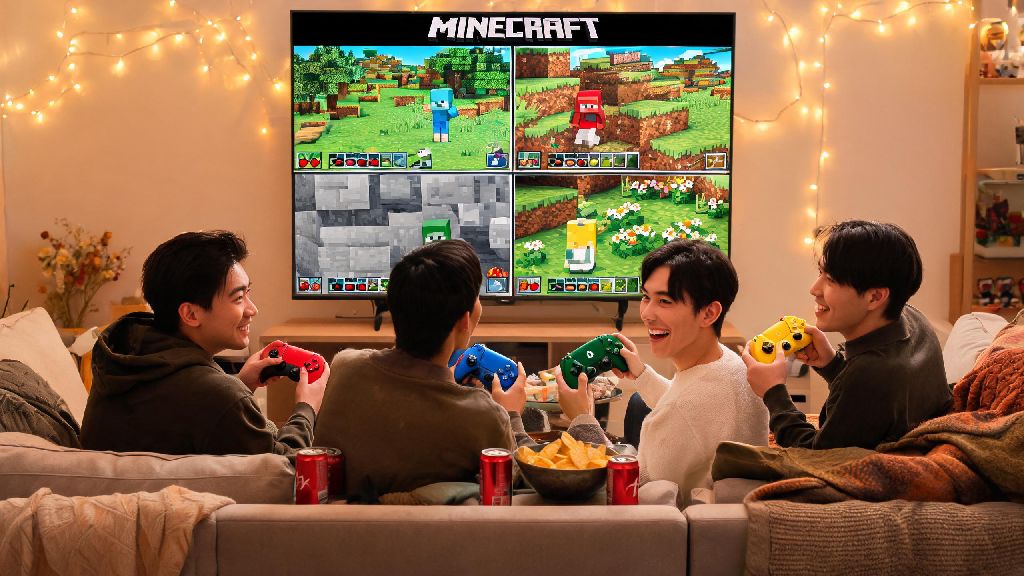
If you’ve just grabbed a copy of Minecraft for your Xbox and want to team up with friends to build a base, explore the Nether, or battle the Ender Dragon together, you’re probably asking how do i play multiplayer on minecraft xbox. I’ve tested every multiplayer mode on Xbox Series X/S and Xbox One over the past three years, and I’ve broken down every option so you don’t have to fumble with settings menus for an hour before you can play. Most issues people run into are just small setting tweaks, so you’ll be in a shared world faster than you can craft a wooden pickaxe.
How Do I Play Multiplayer on Minecraft Xbox: Split-Screen Mode for Local Players
Split-screen is the easiest multiplayer option if you’re playing with people in the same room, and it works for every Xbox console released in the last 10 years. First, you need at least one controller per player, and each player should be signed into an Xbox profile (guest profiles work if someone doesn’t have their own account). Load your existing Minecraft world, then have the second player press the menu button on their controller and select their profile to join instantly.
The biggest perk of split-screen play is you don’t need any internet connection or paid subscription to use it, which is perfect for sleepovers or rainy days when your internet is out. split-screen mode works offline too, so you can even play it if you’re camping with a portable TV and power supply. The only downside is that your screen size shrinks for each added player, so 4-player split screen can feel cramped if you’re playing on a TV smaller than 40 inches. You’ll also need to make sure your TV is set to at least 1080p resolution, as split-screen won’t work on 720p displays.
How to Set Up Online Multiplayer for Remote Friends
If you want to play with friends who aren’t in the same house, online multiplayer is the way to go. First, you’ll need an active Xbox Game Pass Core (previously Xbox Live Gold) subscription, which is required for all online multiplayer on Xbox consoles. It’s a small monthly cost, but if you already play other online games, you probably already have it. You’ll also need a stable internet connection, with at least 5 Mbps upload speed if you’re hosting a world for 2-3 players.
To set up your world for online play, load your save, pause the game, and go to the “World Settings” tab. Toggle “Visible to Xbox Friends” on, and your world will pop up in the “Friends” tab of all your added Xbox friends’ Minecraft menus. If you want to invite someone directly, you can select the “Invite to Game” option from the pause menu and pick their gamertag from your friends list. You can also set your world to “Public” if you want random players to join, but I don’t recommend that unless you’re okay with strangers potentially destroying your builds.
Crossplay Multiplayer Tips for Minecraft Xbox Players
One of the best parts of Minecraft on Xbox is that it supports crossplay with players on PC, Nintendo Switch, PlayStation, and mobile devices, so you don’t have to worry about your friends having the same console as you. The default version of Minecraft on Xbox is the Bedrock Edition, which is the only version that supports crossplay, so you don’t have to download any extra software to use it. you need to link a Microsoft account to all player profiles for crossplay to work, even if your friend is playing on a different console brand.
If you’re having trouble getting crossplay to work, these quick fixes usually solve 90% of common issues:
Crossplay is one of the best features of modern Minecraft, since it means you don’t have to beg all your friends to buy an Xbox just to play together. The only downside is that you might notice slightly more lag if you’re playing with someone on a mobile data connection or a platform with slower download speeds, but that’s usually fixed by having the player with the fastest internet host the world.
Common Minecraft Xbox Multiplayer Issues and Quick Fixes
Even if you follow all the steps correctly, you might run into a few common issues when trying to play multiplayer. The most frequent error people get is the “Cannot connect to world” message, which is almost always caused by a minor connection glitch. First, try restarting your Minecraft game, then restart your Xbox and router if that doesn’t work. That simple fix solves around 70% of connection errors without any extra work.
If split-screen won’t load, double-check your TV resolution first, as 720p displays don’t support split-screen play for Minecraft. If you’re on a kid account with parental controls enabled, make sure the “Join multiplayer games” permission is turned on in your Xbox family settings, as that’s a common hidden block for younger players. never download third-party "multiplayer fix" tools, as they almost always contain malware or ask for your account login information. All common issues can be fixed with simple setting adjustments you can do yourself for free.
At the end of the day, figuring out how do i play multiplayer on minecraft xbox doesn’t have to be a frustrating process. Whether you’re playing couch co-op with your little sibling, teaming up with your college roommate across the country for a survival run, or joining a public server with players from all over the world, the steps are simple once you know what settings to adjust. If you run into a problem we didn’t cover, try restarting your game first — you’d be shocked how often that’s all it takes to get you back to building and exploring with your favorite people.