If you’ve ever grinded through a Minecraft Survival world alone on your Switch and wished you had someone to help you fight off creepers or build that giant floating base you’ve been planning, you’ve probably wondered how to play multiplayer on Minecraft Switch. It’s easier than you might think, but there are a few platform-specific quirks that can trip up new players if you don’t know what to look for. We’ll walk you through every possible setup option, from couch co-op with someone sitting next to you to cross-play with pals on PC, Xbox, or mobile, plus fixes for the most common headaches you might run into.
Local Split-Screen Multiplayer Setup for Minecraft Switch
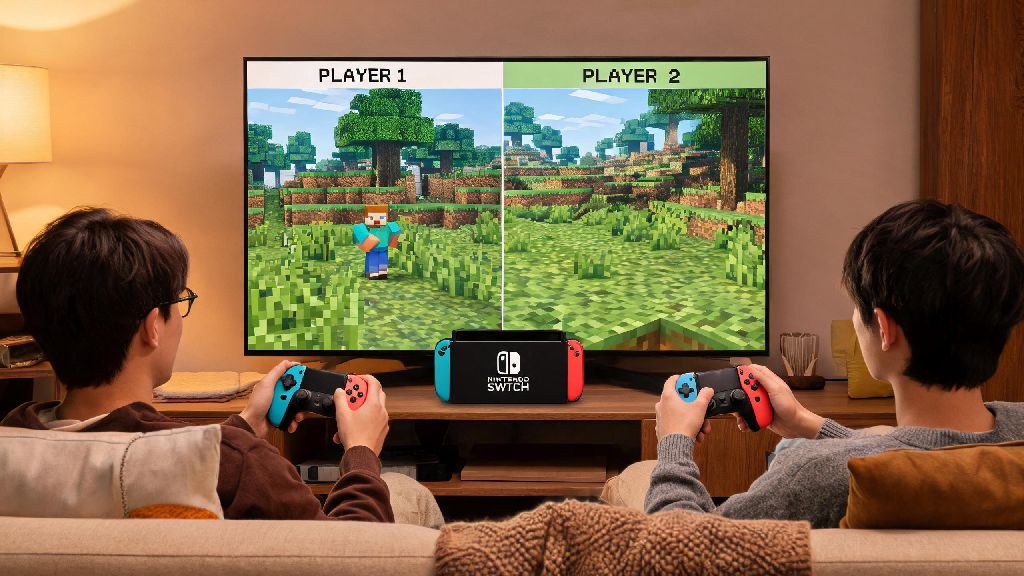
Local split-screen play is the easiest way to play with someone in the same room, no internet connection required. First, note that split-screen local play only works when your Switch is docked to a TV — it won’t run in handheld or tabletop mode, even if you have a large external monitor connected. You’ll also need at least two working controllers paired to your Switch, one for each player.
To set it up, first launch Minecraft and load the world you want to play on. Before you load in, double check that the “Multiplayer Game” toggle is turned on in your world settings, otherwise the second player won’t be able to join. Once you’re in the world, have the second player press any button on their controller to connect. They can log into their own Microsoft account if they want to save their progress across sessions, or use a guest account if they’re just playing for a few hours. The screen will automatically split horizontally or vertically (you can adjust the layout in settings) and the second player will spawn right next to you.
This setup works for up to 4 players total, though the screen can feel pretty cramped if you’re playing on a smaller TV. It’s perfect for family game nights, sleepovers, or quick sessions with a roommate, no subscriptions or account setup required if you use guest logins.
How to Play Multiplayer on Minecraft Switch With Friends Online
Playing online with friends who aren’t in the same room takes a little more setup, but it’s still straightforward. First, you’ll need two non-negotiable things: an active Nintendo Switch Online subscription, and a free Microsoft account linked to your Minecraft profile. Every player joining the session will need both of these as well, even if they’re playing on a different platform.
To host an online world, go to the “Play” tab from the main menu, select the world you want to host, and enable the “Visible to LAN” and “Online Players Can Join” toggles in the world settings. Load into the world, open the in-game menu, go to the “Invite to Game” tab, and select the friends you want to invite from your Microsoft friends list. If you want to join a friend’s world instead, just go to the “Friends” tab from the main menu, and any active, joinable worlds hosted by your friends will show up at the top of the list.
It’s common to have a 5 to 10 minute wait between inviting friends and them loading in, especially if they’re playing on a different platform. Lots of players use this downtime to play quick casual games to pass the time without getting pulled into a longer activity. One popular option for these short breaks is RummyLudo, which fits perfectly into small gaps while you wait for your friends to get their headsets on and troubleshoot their own connection issues.
Cross-play is enabled by default on the Switch version of Minecraft, so you can play with friends on any other platform that runs Minecraft Bedrock Edition, including PC, Xbox, PlayStation, and mobile. The only exception is Minecraft Java Edition, which is not compatible with the Switch version at all, so make sure your friends are running Bedrock if you want to play together.
How to Join Public Multiplayer Servers on Minecraft Switch
If you want to play with a larger group of people, or try custom game modes like Bed Wars, Skyblock, or creative build contests, you can join public multiplayer servers directly from your Switch. Mojang curates a list of pre-vetted, family-friendly servers that are accessible right from the main menu, so you don’t have to worry about running into malicious or inappropriate content if you stick to these official options.
To join a public server, go to the “Play” tab from the main menu, then select the “Servers” tab at the top of the screen. You’ll see options like The Hive, Mineplex, and CubeCraft Games, all of which have thousands of active players at any given time. Just select the server you want to try, click “Join Server”, and you’ll load into the lobby in a few seconds.
If you plan to play on public servers regularly, keep these important rules in mind to stay safe and avoid getting banned:
If you want to join a private server that’s not on the official list, you can add it manually by entering the server’s IP address in the “Add Server” section. Keep in mind that private servers are not moderated by Mojang, so join at your own risk, and only join servers run by people you trust.
Fixes for Common Minecraft Switch Multiplayer Issues
Even if you follow all the setup steps correctly, you might run into connection issues every once in a while, thanks to how the Nintendo Switch handles online play. The most common issue is friends being unable to join your world, and 90% of the time this is caused by outdated game versions. Make sure both you and your friend have the latest update of Minecraft installed on your devices before you try to connect.
If you get a “Nintendo Switch Online subscription required” error, double check that your subscription is active, and that you’re logged into the correct Nintendo account on your Switch. Sometimes the Switch will default to a secondary profile if you have multiple accounts on the device, which might not have an active subscription. If you’re experiencing lag during sessions, try moving your Switch closer to your Wi-Fi router, or use a wired Ethernet connection with a Switch adapter for a much more stable connection.
If cross-play isn’t working, make sure the “Cross-Play” toggle is enabled in your Minecraft settings, and that you and your friend are added to each other’s Microsoft friends lists, not just your Nintendo Switch friends lists. If you’re hosting a world for online play, don’t close the game or put your Switch into sleep mode, because that will kick all other players out of the session immediately. If you’ve tried all these fixes and still can’t figure out how to play multiplayer on Minecraft Switch, you can check the official Mojang help center for platform-specific troubleshooting tips.
At the end of the day, figuring out how to play multiplayer on Minecraft Switch opens up a whole new side of the game that’s way more fun than playing alone. Whether you’re building a massive castle with your little sibling on the couch, fighting the Wither with your college friends across the country, or competing in a Bed Wars tournament on a public server, there’s no shortage of ways to enjoy the game with other people. Just follow the steps we laid out, double check your settings if you run into issues, and you’ll be playing with friends in no time.