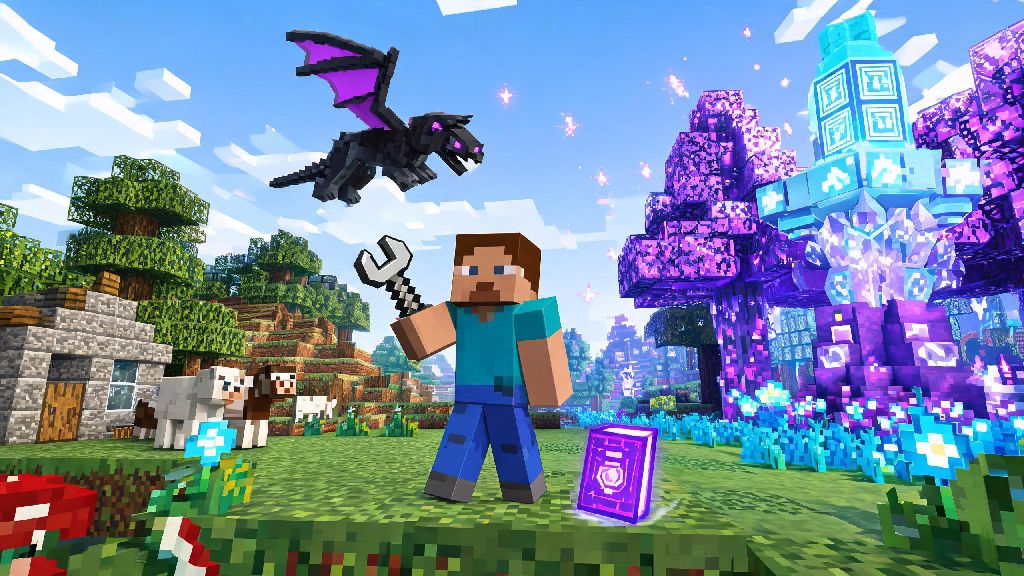
For years, I stuck to vanilla Minecraft, convinced modding was only for tech-savvy players who knew how to code. Then I saw a friend’s world with custom biomes, magic spells, and functional dragons, and I realized I was missing out on half the game’s potential. If you’re curious how to play Minecraft with mods but worried about breaking your game or losing hundreds of hours of save progress, you’re in the right place. This guide draws on 7 years of modding experience, plus hundreds of test runs on both Java and Bedrock editions, to walk you through every step without the confusing jargon.
First: Pick the Right Mod Loader for Your Minecraft Edition
Mod loaders are the tools that let Minecraft recognize and run custom mod files, and picking the wrong one is the most common reason new modders run into crashes right out the gate. The loader you need depends entirely on which edition of Minecraft you own, so don’t skip this step.
If you play Minecraft Java Edition, you have three main loader options. Forge mod loader is the oldest and most widely supported, with a massive library of mods dating back over a decade. The downside is it’s heavier than newer options, so you might see performance drops if you run a lot of mods at once. Fabric mod loader is a lightweight, fast alternative that’s become increasingly popular for newer mods, especially performance and quality-of-life tools. Quilt is a newer fork of Fabric that offers better cross-compatibility for both old and new mods, and it’s my go-to pick for most playthroughs these days.
If you play Bedrock Edition (on console, mobile, or Windows 10/11), your options are more limited. You can only use official add-ons from the Minecraft Marketplace, or community-made add-ons designed specifically for Bedrock. There’s no cross-compatibility with Java Edition mods, so don’t waste time trying to install Java mod files on a Bedrock copy of the game. I once tried to port a Java magic mod to my Bedrock server for hours before I realized it was impossible, so save yourself the frustration.
How to Play Minecraft with Mods: Curating a Safe, Compatible Mod List
Once you have your loader installed, it’s time to pick your mods. It’s tempting to download every cool mod you see, but too many conflicting mods will lead to constant crashes, lag, and even corrupted saves. I recommend starting with just 5 to 10 mods for your first playthrough, so you can easily track down any issues that pop up.
Stick to verified community mod platforms to download files, and never download mod files from untrusted, ad-ridden third-party sites. I learned this the hard way back when I first started modding: I downloaded a random dragon mod from a random forum, and it came bundled with adware that hijacked my browser for a week. Stick to verified platforms, and you won’t run into this issue.
Before you add any mod to your list, run through this quick check to avoid compatibility issues:
For your first playthrough, I recommend starting with widely tested, popular mods like Just Enough Items (a searchable recipe list for all modded items), Biomes O’ Plenty (adds dozens of new, detailed biomes to explore), and a performance mod like Sodium or OptiFine to keep your game running smoothly. These mods have near-universal compatibility, so they’re unlikely to cause issues when you’re just starting out.
Step-by-Step Installation for First-Time Modders
Installation is way simpler than most new players expect, as long as you follow a few basic rules. Before you touch any mod files, always back up your existing saves before installing any mods. Even if you do everything right, unexpected conflicts can corrupt save files, and you don’t want to lose months of progress on a survival world.
First, run your mod loader installer file you downloaded earlier. It will automatically detect your Minecraft installation folder and add a new profile to your launcher for modded play. Open your Minecraft launcher, select the new modded profile, and run the game once to generate all the necessary folders, including the mods folder where you’ll place your downloaded files. Close the game once it loads to the main menu.
Next, locate your .minecraft folder. On Windows, you can find it by typing %appdata%\.minecraft into your file explorer address bar. On Mac, open Finder, hold down Option, click Go in the top menu, then select Library and navigate to Application Support/minecraft. Open the mods folder inside, then drag and drop all your downloaded mod files and their required dependencies into this folder. Make sure you don’t unzip any mod files unless the mod’s description explicitly tells you to do so.
Reopen your Minecraft launcher, select the modded profile, and hit play. If the game loads to the main menu without crashing, you’re good to go. You can check if your mods are installed correctly by looking for a “mods” button on the main menu, which will show you a full list of all active mods for that playthrough.
Fixing Common Modded Minecraft Issues
Even if you follow every step perfectly, you might run into small issues when you first start playing modded Minecraft. Most of these have simple fixes, so you don’t need to panic if your game crashes or runs slower than expected.
If your game crashes on startup, the most likely culprit is a missing dependency or a conflicting mod. Remove the last mod you added to your folder, then try launching again. If it works, that mod was either missing a required file, or it conflicts with another mod in your list. You can check the mod’s comment section for notes on common conflicts, or look for an alternative mod that does the same thing with better compatibility.
If your game runs slow or stutters constantly, there are a few easy fixes to boost performance. First, allocate 4 to 8 GB of RAM to your Minecraft launcher. Vanilla Minecraft only needs 2 GB of RAM to run smoothly, but modded playthroughs need extra memory to handle all the custom assets and features. You can adjust RAM allocation in the launcher’s profile settings, under the “JVM arguments” section. You should also turn down your render distance if you’re running a lot of world generation mods, as custom biomes and structures use a lot more processing power than vanilla terrain.
If you want to play modded Minecraft with friends, make sure everyone in your group is using the exact same mod loader, Minecraft version, and list of mods. Even one missing mod or mismatched version will prevent you from joining the same server or LAN world. Many mod packs come with pre-configured server files, so you can set up a shared world in just a few clicks if you don’t want to manually sync mod lists with your friends.
Once you get the hang of how to play Minecraft with mods, you’ll never want to go back to vanilla. There’s a mod for almost every playstyle, from hardcore survival challenges that make the game 10 times harder, to creative building tools that let you spawn entire cities in one click. Take it slow at first, and don’t be afraid to experiment with different mod combinations as you get more comfortable. You don’t need any coding skills to unlock a whole new layer of Minecraft fun, as long as you follow the safety and compatibility steps we’ve covered here.