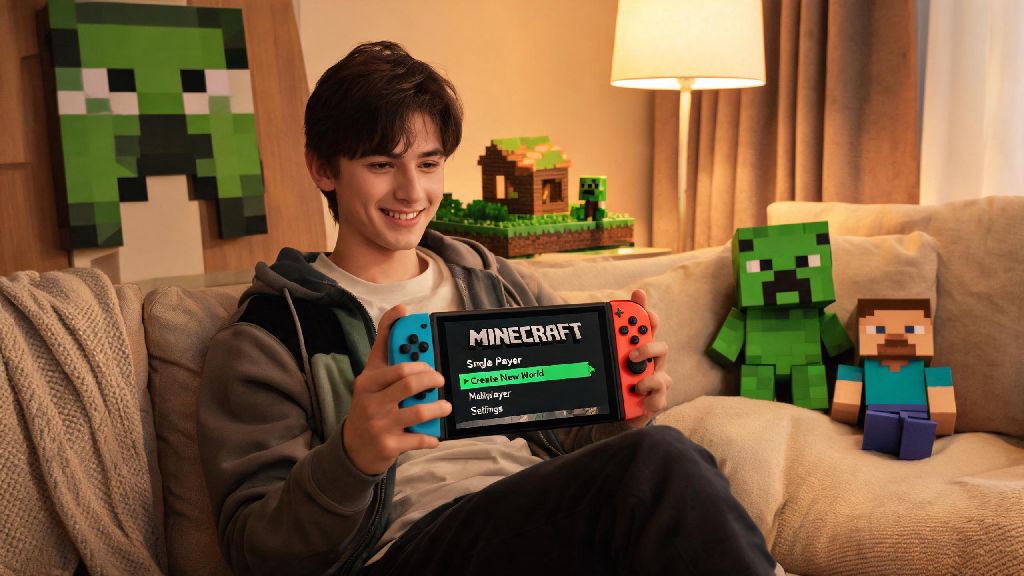
Last weekend I helped my 10-year-old cousin set up his first Minecraft world on his new Switch, and I realized a lot of new players don’t know all the small quality of life tweaks that make the console version way more fun to play. If you’re just picking up the game for the first time, or switching over from PC or mobile, learning how to play Minecraft on Switch doesn’t have to be confusing, even if you’ve never touched a sandbox game before. The Switch version has a few unique features you won’t find on other platforms, from split-screen local play to easy controller customization, that make it one of the most accessible versions of the game for players of all ages.
How to Play Minecraft on Switch: First Steps to Set Up Your World
The first thing you’ll see when you boot up Minecraft on Switch is the main menu, where you can choose to create a new world, join an existing one, or browse the Minecraft Marketplace for custom content. When you hit “Create New”, you’ll get to pick your game mode first: survival, creative, hardcore, or adventure. Survival is the standard mode where you gather resources, fight mobs, and build your base from scratch, while creative gives you unlimited resources and no enemies to worry about. Hardcore mode locks your world to the hardest difficulty and deletes your save if you die, so it’s best left for experienced players only.
Before you finalize your world, there are a few key settings you’ll want to double-check first. You need an active Nintendo Switch Online subscription if you want to play with friends online, even if you’re joining a world hosted by someone on another platform. You’ll also need to link a free Microsoft account to access cross-play, cloud saves, and the Marketplace. Always back up your world saves to the cloud if you have Switch Online, because corrupted saves are way more common on console than PC, and losing 20 hours of build progress is never fun.
If you’re moving over from another console that runs the Bedrock edition of Minecraft, you can import your old saves by uploading them to your Microsoft account on your old device, then downloading them on your Switch. The process takes a few minutes depending on the size of your world, but it works seamlessly most of the time, so you don’t have to start from scratch if you already have a base you love.
Adjusting Switch-Specific Settings for Smoother Gameplay
The Switch version of Minecraft has a lot of hidden settings that can make your play experience way smoother, especially if you play a mix of handheld and docked mode. If you’re still getting used to how to play Minecraft on Switch, these small setting tweaks will make the learning curve way less steep. First, you can remap every controller button in the settings menu, which is perfect if you’re used to the control layout on PlayStation or Xbox, or if you have accessibility needs that require a custom setup.
Docked mode runs at 1080p 60fps for most worlds, while handheld drops to 720p 30fps for larger saves, so you’ll notice a difference in performance depending on how you’re playing. If you’re exploring a big world with lots of redstone builds or custom mods from the Marketplace, you might see lag in handheld mode, but you can fix that easily by tweaking a few graphics settings. These are the top settings I recommend adjusting before you start playing:
You can only change the show coordinates setting when you first create a world, so don’t forget to toggle it on before you hit “Create” or you’ll have to use a map to track your location forever. You can also adjust the split screen orientation if you play local co-op, choosing between vertical or horizontal split depending on what’s more comfortable for you and the people you’re playing with.
Playing Local and Online Multiplayer on Minecraft Switch
One of the biggest perks of playing Minecraft on Switch is how easy it is to play with other people, both in person and online. For local co-op, you just need extra Joy-Cons or pro controllers, and you can have up to 4 players on one single Switch, no internet connection required. It’s perfect for family trips, sleepovers, or lazy rainy days where you don’t feel like setting up a complicated server. All players can share the same world, building together or competing to collect the most resources, and you don’t need any extra subscriptions for local play.
If you want to play with friends who don’t live nearby, you’ll need your Nintendo Switch Online subscription and a linked Microsoft account. Cross-play works with all Bedrock edition versions of Minecraft, so you don’t have to stick to only playing with other Switch users. You can join friends on PC, Xbox, mobile, and even PlayStation, as long as everyone is running the latest version of the game. The only catch is that custom mods or texture packs you have installed on your Switch might not work if the host is using a different platform, so you’ll be defaulted to the standard vanilla textures if there’s a conflict.
Most connection issues can be fixed by making sure all players have the latest game update installed, and that your Microsoft account privacy settings allow multiplayer. I once spent 20 minutes troubleshooting a connection issue with my cousin only to realize he’d turned off auto-updates and was running a version of the game that was 6 months out of date, so always check for updates first if you can’t join a friend’s world.
Beginner Tips to Get the Most Out of Your Minecraft Switch Playthrough
If you’re completely new to Minecraft, the first few days of survival mode can feel overwhelming, but there are a few simple tricks that will make your first playthrough way easier. First, always punch a few trees as soon as you spawn, wood is the base resource for every tool and build you’ll make in your first few hours. Build a small shelter before the sun goes down, because mobs like creepers and zombies spawn at night and will attack you on sight if you’re out in the open.
A hidden Switch feature a lot of new players don’t know about is that you can use the touch screen in handheld mode to rearrange items in your inventory way faster than using the controller. It’s a huge time saver when you’re sorting through chests of resources or switching between tools mid-fight. If you play in handheld mode a lot, invest in a good screen protector, because dragging your finger across the screen for inventory management can leave small scratches over time that make the game harder to see in bright sunlight.
You don’t have to spend money on Minecraft Marketplace content to have fun, either. There are hundreds of free skins, texture packs, and custom worlds available to download, from simple survival maps to full adventure games with custom quests and storylines. If you get bored of standard survival mode, try downloading a custom map to play with friends, it’s a fun way to mix up your gameplay without having to build everything yourself.
At the end of the day, the Switch version of Minecraft is one of the most flexible, fun ways to enjoy the game, whether you're playing alone on a commute or with a group of friends on your living room TV. Once you get the hang of the unique settings and controls, learning how to play Minecraft on Switch is just as rewarding as playing on any other platform, if not more so for the portable and local co-op perks. Don't be afraid to mess around with settings, try new game modes, and make mistakes - that's half the fun of Minecraft, after all.