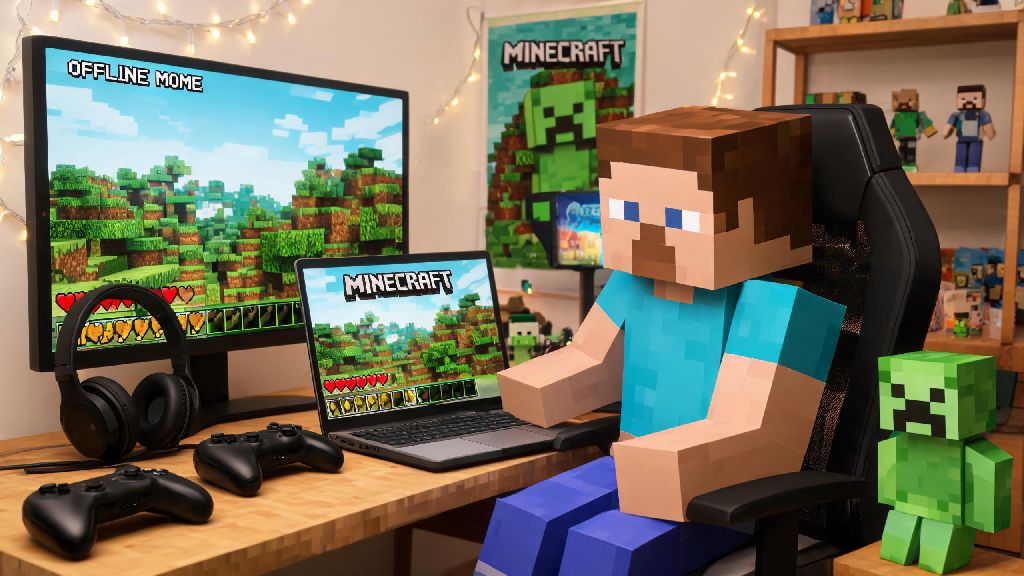
You’re heading out on a long road trip, your neighborhood internet is down for maintenance, or you just want to disconnect from public servers and focus on your base without random griefers popping in. No matter your reason, knowing how to play Minecraft offline is a game-changer for anyone who loves the sandbox title. You don’t need fancy mods or paid extra services to make it work, and the process works across Java, Bedrock, and even mobile editions of the game. This guide walks you through every step, plus fixes for the most common errors people run into when trying to launch offline mode.
How to Play Minecraft Offline: Step-by-Step for All Editions
Before you try to launch the game without internet, there are a few non-negotiable prerequisites you have to meet first. Skip any of these, and you’ll almost definitely run into login errors that block you from accessing your worlds. These requirements apply to all official versions of the game, no matter what device you’re playing on:
Once you’ve confirmed you meet all these requirements, you’re ready to learn how to play Minecraft offline on your specific edition. For Java Edition, open the Minecraft Launcher as you normally would. When it pops up with a “no internet connection” warning, click the “Play Offline” button in the bottom right corner, select the world you want to load, and launch as usual. For Bedrock Edition on console, PC, or mobile, simply open the game app when you’re offline. It will skip the Xbox Live login prompt automatically, and you can access all your locally saved worlds directly from the main menu.
Most issues that pop up when you’re figuring out how to play Minecraft offline come from skipped pre-launch steps, not bugs in the game itself. If you get a login error, the first thing to do is connect to the internet for 2 minutes, log back in to your account, and then disconnect again. That fixes 90% of common offline launch problems right away.
Common Offline Mode Errors and How to Fix Them
Even if you followed all the pre-requisite steps, you might run into a few snags when launching offline mode for the first time. The most common error is the “failed to authenticate” error, which usually shows up if you logged out of your Minecraft account the last time you closed the launcher. The only fix for this is to connect to the internet briefly, log back in to your account, and then you can go back to offline mode. You only have to do this once every few months, unless you manually log out of your account again.
Another common issue is missing texture packs or skins that you bought from the Marketplace. If you didn’t download them to your local device while you had internet, you won’t be able to access them offline. This is why always keep a local backup of your favorite single-player worlds and all the custom assets you use regularly, so you don’t lose access to them when you don’t have internet.
If you play offline regularly, it’s also smart to have other small offline-friendly activities downloaded for when you want to step away from your base without switching your device back on to connect to internet. Many players keep short, low-effort games on their laptop or phone for 10-minute breaks between mining runs or building projects. Casual, low-storage games that work offline are perfect for these short breaks, and many players enjoy checking out Ind Slots between longer Minecraft play sessions when they don’t have internet to browse social media or stream shows. You don’t need to download anything extra if you don’t want to, but it’s a nice way to fill dead time if you’re stuck somewhere with no connection for hours.
Playing With Friends in Offline Mode: LAN Setup Tips
Many people don’t realize that you don’t need an internet connection to play with friends when you’re learning how to play Minecraft offline, as LAN functionality works completely locally. All you need is a shared local network, which can be a home Wi-Fi network that doesn’t have active internet access, or even a mobile hotspot from a phone that doesn’t have a data plan. As long as all players are connected to the same local network, you can play together for hours without any internet access.
To set up a LAN game, have the host open their single player world, hit the escape key, and select “Open to LAN” from the menu. Choose whether you want to allow cheats, set the default game mode for joining players, and confirm the setting. The game will show you a 5-digit LAN code that other players can use to join, or the world will pop up automatically in their multiplayer tab. Make sure all players are on the exact same game version before you start, otherwise players with mismatched versions won’t be able to see or join the LAN world.
Keep in mind that only the host’s world will save progress during a LAN game. If you’re a joining player, any progress you make will be saved to the host’s world, not your own local save. If you want to keep the builds you made, ask the host to send you a copy of the world file after you finish playing.
Limitations of Offline Minecraft Play You Should Know
Offline mode is incredibly useful, but it does have a few limitations that are important to know before you rely on it for a long trip. First, you won’t be able to join public or private online servers, as those require an active internet connection to authenticate your account. You also won’t be able to sync your worlds to Minecraft Realms, so any changes you make to your world offline will only be saved to your local device until you connect to the internet again.
For Bedrock Edition players, you won’t be able to access new content from the Minecraft Marketplace unless you already downloaded it to your device while you had internet. Download any skins, texture packs, or mod packs you want to use while you still have internet access if you plan to play offline for an extended period. You also won’t be able to earn Xbox Live or PlayStation trophies on most console editions when playing offline, so if you’re working through a specific achievement list, you’ll want to connect to the internet first.
Even with these limitations, the benefits of knowing how to play Minecraft offline far outweigh the downsides for most casual and dedicated players alike. You don’t have to worry about lag, random players joining your game and ruining your builds, or being locked out of your favorite hobby just because your internet goes out. Mojang explicitly allows offline play for all official game copies, so you don’t have to worry about account bans for using this feature.
Whether you’re avoiding laggy public servers, passing time on a cross-country trip, or just want to focus on your new castle build without interruptions, offline mode is one of Minecraft’s most underrated built-in features. It takes almost no setup to get running, as long as you remember to log in to your account while you have internet first. Now that you know how to play Minecraft offline, you can take your worlds with you anywhere, no Wi-Fi required. Just don’t forget to back up your worlds every few weeks to avoid losing hours of hard work if your device crashes or gets lost.