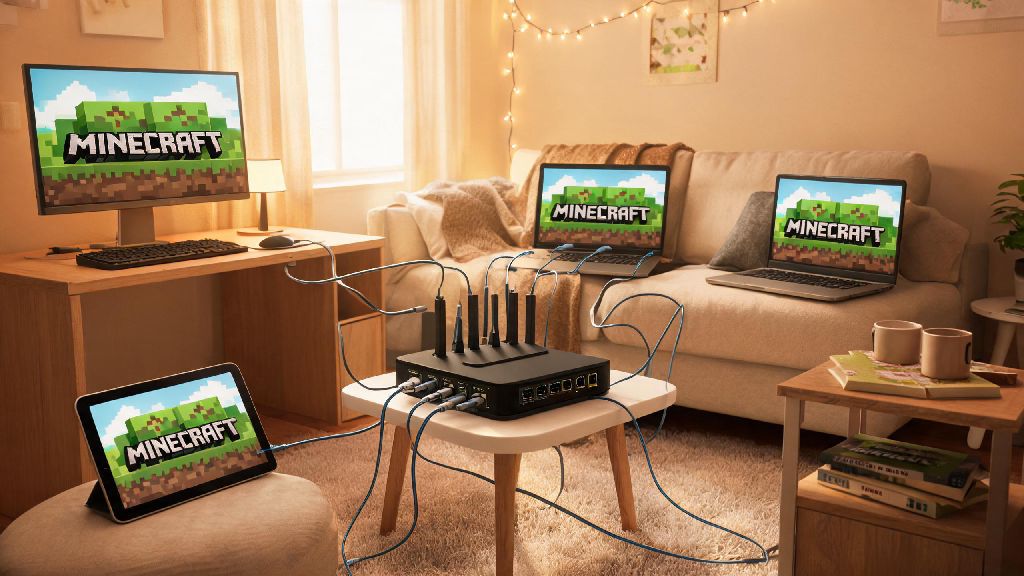
If you’ve ever wanted to mess around in a new Minecraft survival world with your roommates, cousins, or classmates without paying for a hosted server, you’re in the right place. Figuring out how to play lan minecraft in 2026 is far simpler than most new players assume, even with the latest 1.21+ updates and cross-platform support across Java and Bedrock editions. I’ve been setting up LAN worlds for my friend group for local game nights for years, and I’ve sorted out all the common headaches that usually trip people up when they first try to connect. Last month, I set one up for 7 of my cousins during a family reunion, and we had zero connection issues after following the exact steps I’m sharing here. This guide skips the overcomplicated technical jargon and walks you through every step, plus fixes for the most common connection issues you might run into.
What You Need Before You Set Up Your LAN Minecraft World in 2026
You don’t need any fancy equipment or paid subscriptions to get a LAN world running, but there are a few non-negotiable prerequisites to check off first. Skipping these steps is the most common reason people run into connection errors before they even get to play. Let’s run through the list first so you don’t waste time troubleshooting later:
You’ll also want to decide who is hosting the world before you get started. The host’s device will be running both the game and the local server, so pick someone with a relatively new laptop or desktop if you’re playing with more than 4 people. If you’re playing on consoles like PS5 or Xbox Series X, any player can host, as long as they have the world saved to their device.
How to Play LAN Minecraft: Step-by-Step Setup for Java and Bedrock
The setup process varies slightly depending on if you’re playing Java Edition or Bedrock Edition, but both take less than 2 minutes once you know what to click. Remember that Java Edition players can only connect to other Java Edition players, and Bedrock Edition players (including console, mobile, and Windows Store versions) can only connect to other Bedrock Edition players, unless you’re using a custom cross-play mod that bridges the two editions.
For Java Edition: First, the host loads the single player world they want to share, hits escape to open the menu, and clicks “Open to LAN”. They can select the default game mode for new players, toggle cheats on or off, then click “Start LAN World”. A 5-digit port number will pop up in the in-game chat for reference. Other players on the same network can open the Multiplayer tab, and the LAN world will automatically appear in the server list after a few seconds. If it doesn’t show up, they can click “Direct Connection” and enter the host’s local IP address plus the port number, formatted like 192.168.1.42:55721.
When you’re first learning how to play lan minecraft, the most confusing step for most new players is finding the host’s local IP address. On Windows, you can find it by typing “ipconfig” in the command prompt and looking for the IPv4 address listed under your active Wi-Fi or ethernet connection. On Mac, it’s listed under Network in System Settings. If you run into trouble finding your local IP address on your specific device, Mojang’s 2026 support guide for LAN play has step-by-step lookup instructions for every operating system and console.
For Bedrock Edition: The host loads their saved world, opens the settings menu, scrolls to the Multiplayer tab, and toggles “Visible to LAN Players” on. They also need to make sure “Online Multiplayer” is enabled, even though you’re playing locally. Other players on the same network can open the Friends tab, and the LAN world will appear under the “LAN Games” heading, no IP address or port required. For console players, make sure your console is not connected to a guest Wi-Fi network, as most guest networks block local device to device connections by default.
Common LAN Minecraft Connection Issues and Quick Fixes for 2026
Even if you follow every step perfectly, you might run into a small issue here and there, especially if you’re playing on a network you don’t control, like a college dorm or apartment complex Wi-Fi. The good news is 90% of LAN issues are fixed with one of these simple tweaks, no technical expertise required.
The #1 most common issue is the LAN world not showing up in other players’ server or friends lists. 9 times out of 10, this is because the host’s firewall is blocking incoming connections to Minecraft. Double check that Minecraft is added to the allowed apps list for private networks in your antivirus or Windows Defender settings, and try turning the firewall off temporarily to test if that fixes the issue. One of the most frequent mistakes people make when learning how to play lan minecraft is forgetting to disable their VPN before trying to connect, so make sure all players have any VPNs turned off before you start.
If you get a “version mismatch” error when trying to connect, that means one or more players are running a different version of the game than the host. Mismatched mod versions or missing resource packs will also trigger this error if you’re playing a modded world. Ask all players to double check their game version and mod list matches the host’s exactly, and have anyone who is out of date update their game before trying to connect again.
If you’re experiencing lag or rubber banding during play, the issue is almost always the host’s internet connection or available RAM. If the host is on Wi-Fi, have them switch to a wired ethernet connection if possible, as Wi-Fi has far more latency for local connections. Lowering the render distance for all players to 12 or below will also cut down on lag significantly, especially if you’re all exploring new areas at the same time.
Pro Tips for Lag-Free, Fun LAN Minecraft Sessions in 2026
Once you’ve got the basic setup down, there are a few small tweaks you can make to ensure your LAN sessions run smoothly, even if you’re playing with 8+ people for hours at a time. I use all of these tips for my monthly local Minecraft build competitions, and we rarely run into any issues even with 12 people connected at once.
First, pre-generate your world before inviting other players to join. New chunk generation is the biggest cause of mid-session lag, because the host’s device has to generate new terrain on the fly whenever someone explores an area that hasn’t been loaded before. For Java Edition, you can use a free mod like Chunky to generate a 10k x 10k block area around spawn in 10-15 minutes before your game night. For Bedrock Edition, you can use the built-in world generation slider in the world creation menu to pre-generate terrain up to 20k blocks from spawn.
If you’re hosting for more than 5 people, consider running the free 2026 Minecraft dedicated server file on a spare laptop or desktop instead of hosting through the regular game client. The dedicated server uses far less RAM than running the game and server at the same time, and you can adjust settings like view distance and mob spawn limits to reduce lag even further. You don’t need a powerful device to run the dedicated server either – I’ve run one for 8 people on a 7 year old laptop with 8GB of RAM with no issues.
It’s also a good idea to set basic ground rules before you start playing, especially if you’re playing survival mode with people you don’t game with regularly. Simple rules like no stealing from other players’ chests, no griefing builds, and a shared community chest at spawn for common resources like food and tools will avoid awkward arguments mid-session. If you’re playing with younger kids, you can also turn on keep inventory so no one loses their items if they die, which cuts down on frustration a lot.
If you want to play with a friend who isn’t in the same house as you, you can use a virtual LAN tool like Radmin VPN to connect to their network remotely, but keep in mind that this will add a small amount of lag compared to a true local connection. Virtual LAN tools are also not recommended for public use, because they can expose your device to security risks if you connect to people you don’t know.
At the end of the day, setting up a local multiplayer session doesn’t have to be a frustrating process, even with all the latest updates to the game in 2026. Once you run through the steps a couple times, you’ll be able to spin up a LAN world for your friend group in under a minute, no paid subscriptions or complex server management required. If you’ve been putting off setting up a local game night because you weren’t sure how to play lan minecraft, grab your favorite snack, round up your friends, and give it a try this weekend – you’ll be building together and exploring new biomes before you know it. If you run into any weird issues we didn’t cover here, drop a comment below and we’ll help you sort it out.